How to Add a New Fertilizer in Samomes?
This guide will help you create a fertilizer record in the Samomes app that is not in the preset database. Suitable for DIY fertilizers (homemade mixes), rare branded fertilizers, or when the composition of a known fertilizer has changed.
In this guide, we'll walk through the entire process using the example of adding a DIY NPK fertilizer.
Use cases:
- Adding DIY fertilizers
- Adding lesser-known branded fertilizers
- Creating updated records with current compositions
Step-by-Step Guide
Step 1: Open the Fertilizer Form
- Go to the "Fertilizers" section
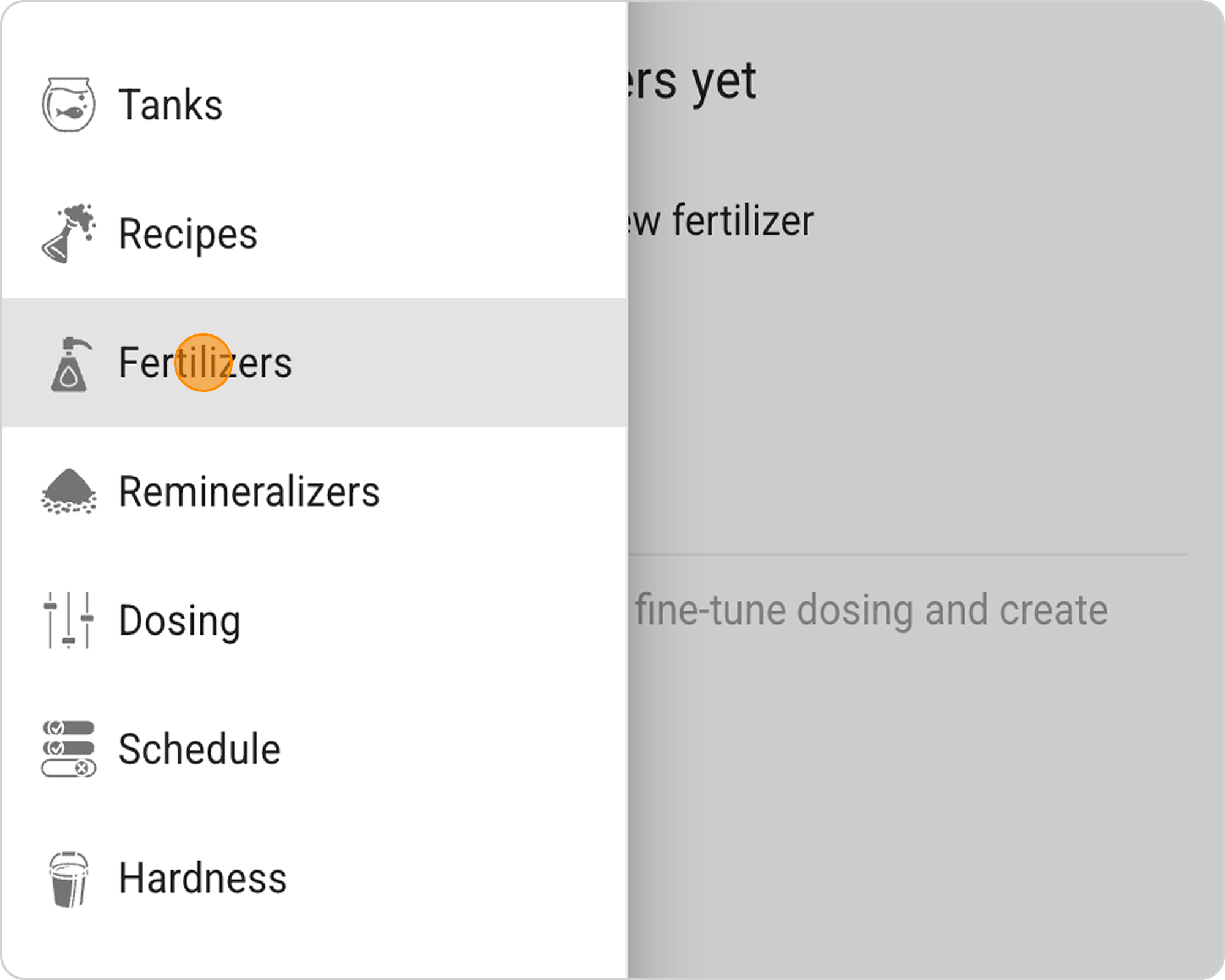
- Click "+ ADD"

Step 2: Select Fertilizer Type
- Select the state "Liquid" since our fertilizer is in solution form.

- Liquid — for ready-to-use solutions
- Powder — for dry fertilizers requiring dissolution
Step 3: Select Measurement Unit
- Select the unit "g/L" since NPK fertilizer is a solution.
- g/L — grams of active substance per liter of finished solution
- % — percentage content of element in fertilizer
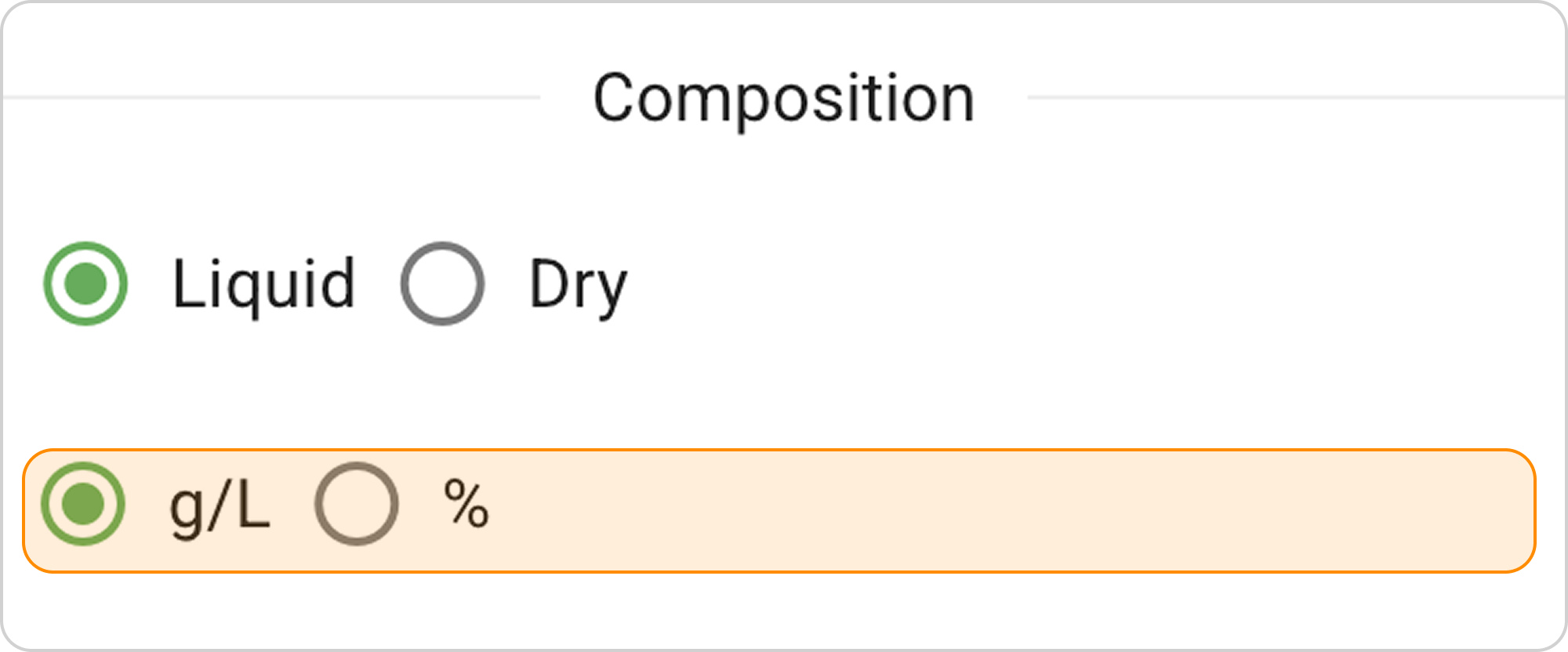
Conversion reference: 1% = 10 g/L.
Step 4: Select Fertilizer Elements
- Click on the "Select elements from the list" field
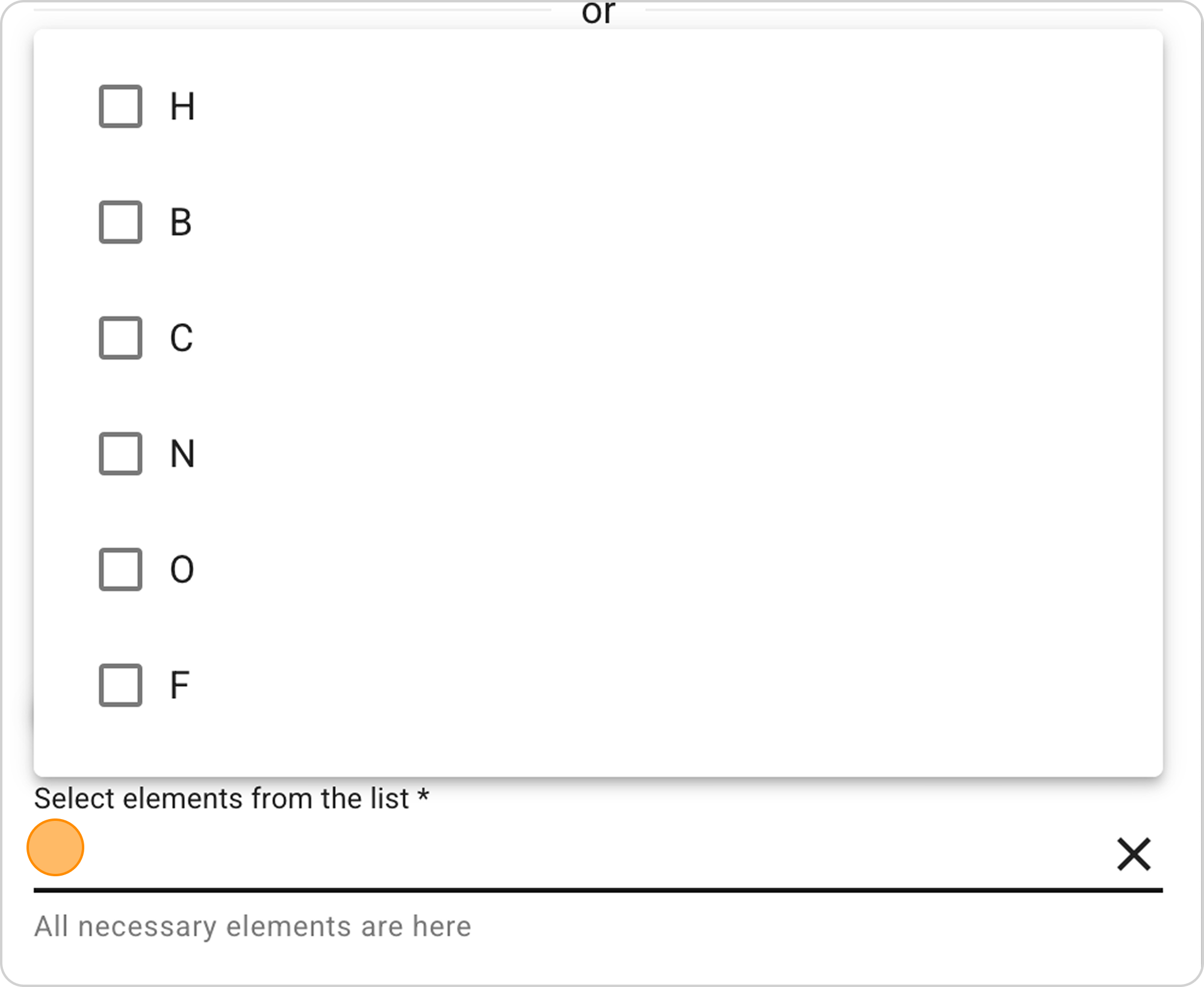
- From the dropdown list, select elements: NO3, PO4, K.
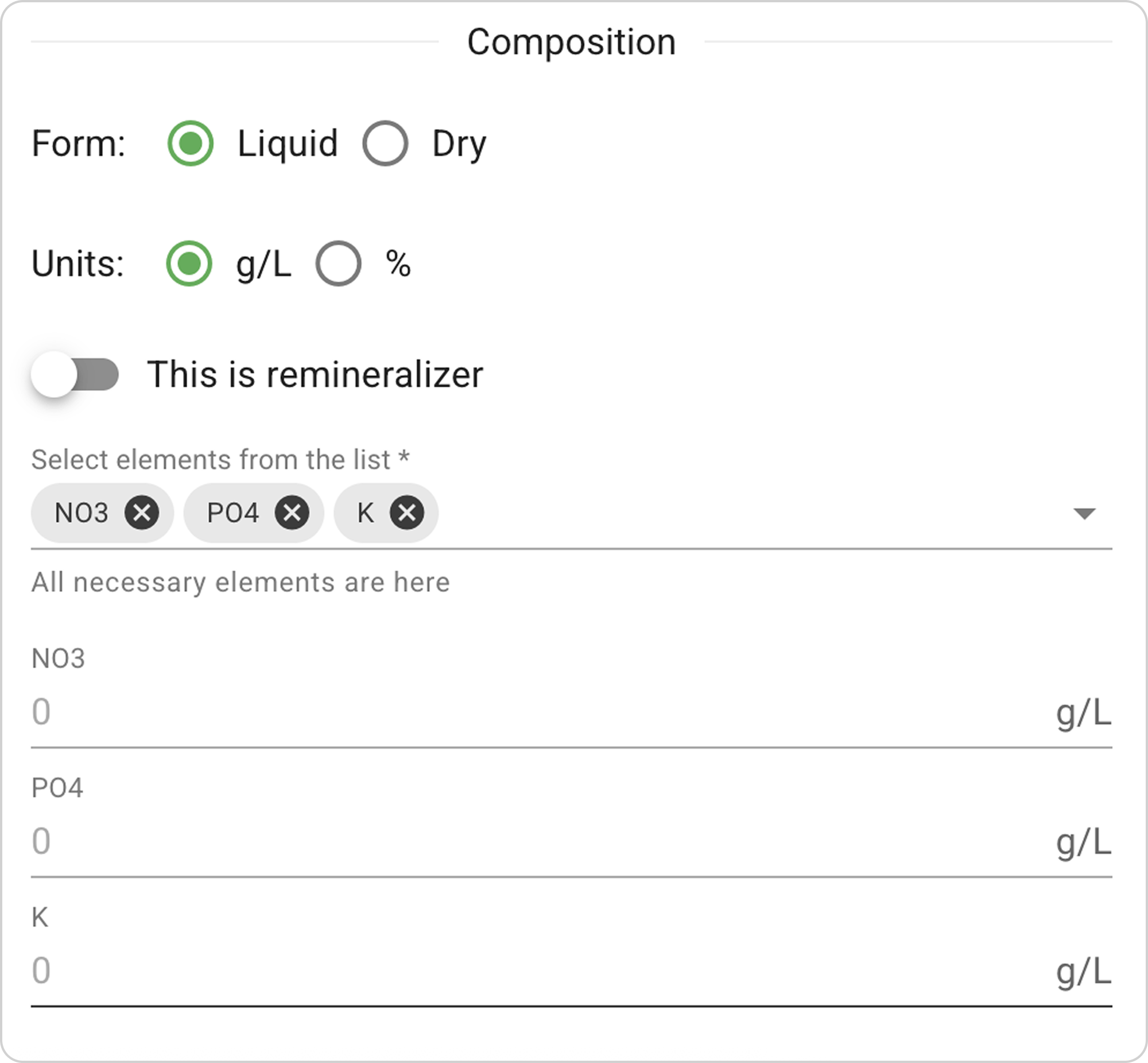
⚠️ Important: When selecting one form of an element (e.g., PO4), alternative forms (P, P2O5) are automatically excluded from the list.
Step 5: Specify Concentrations
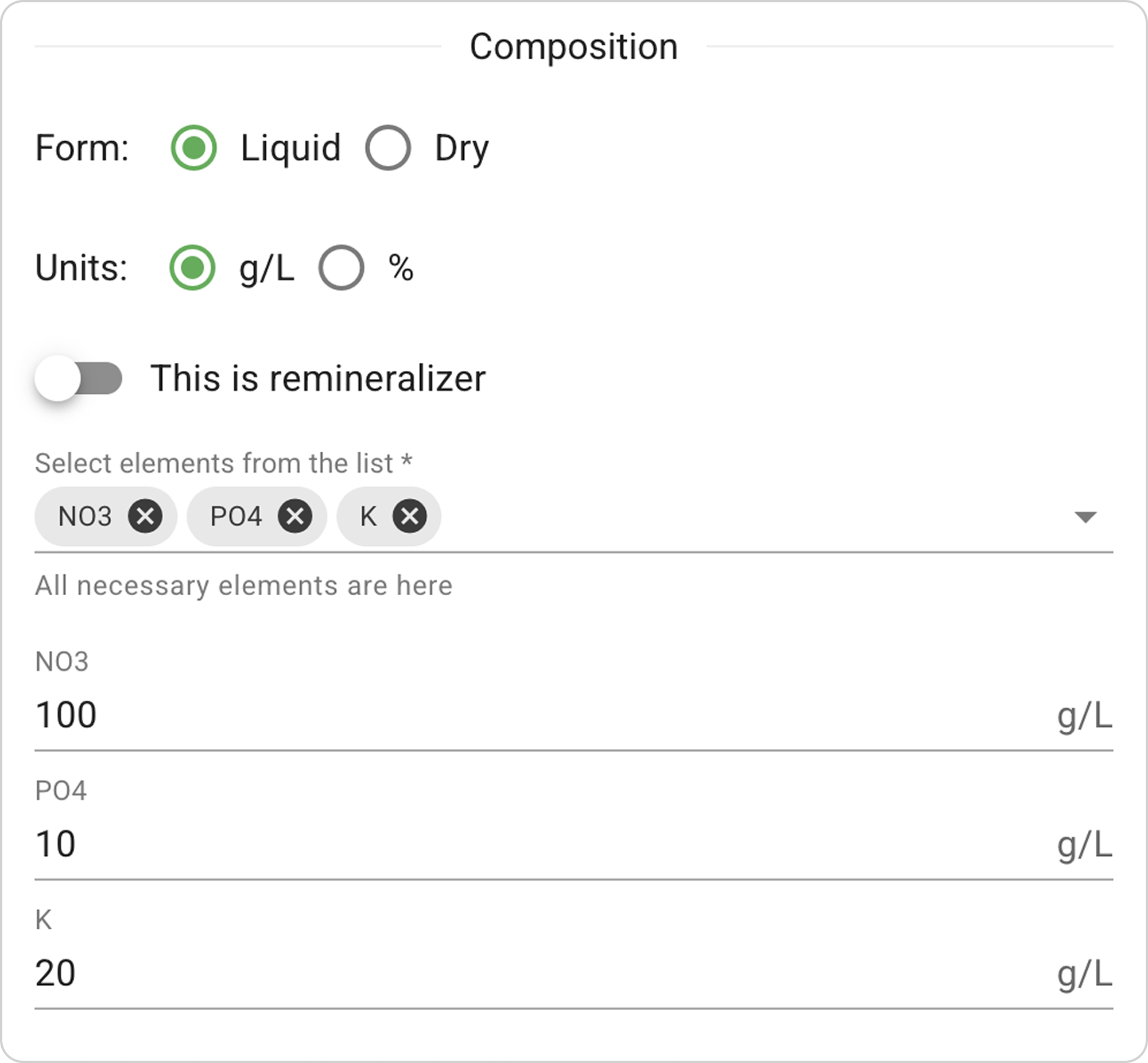
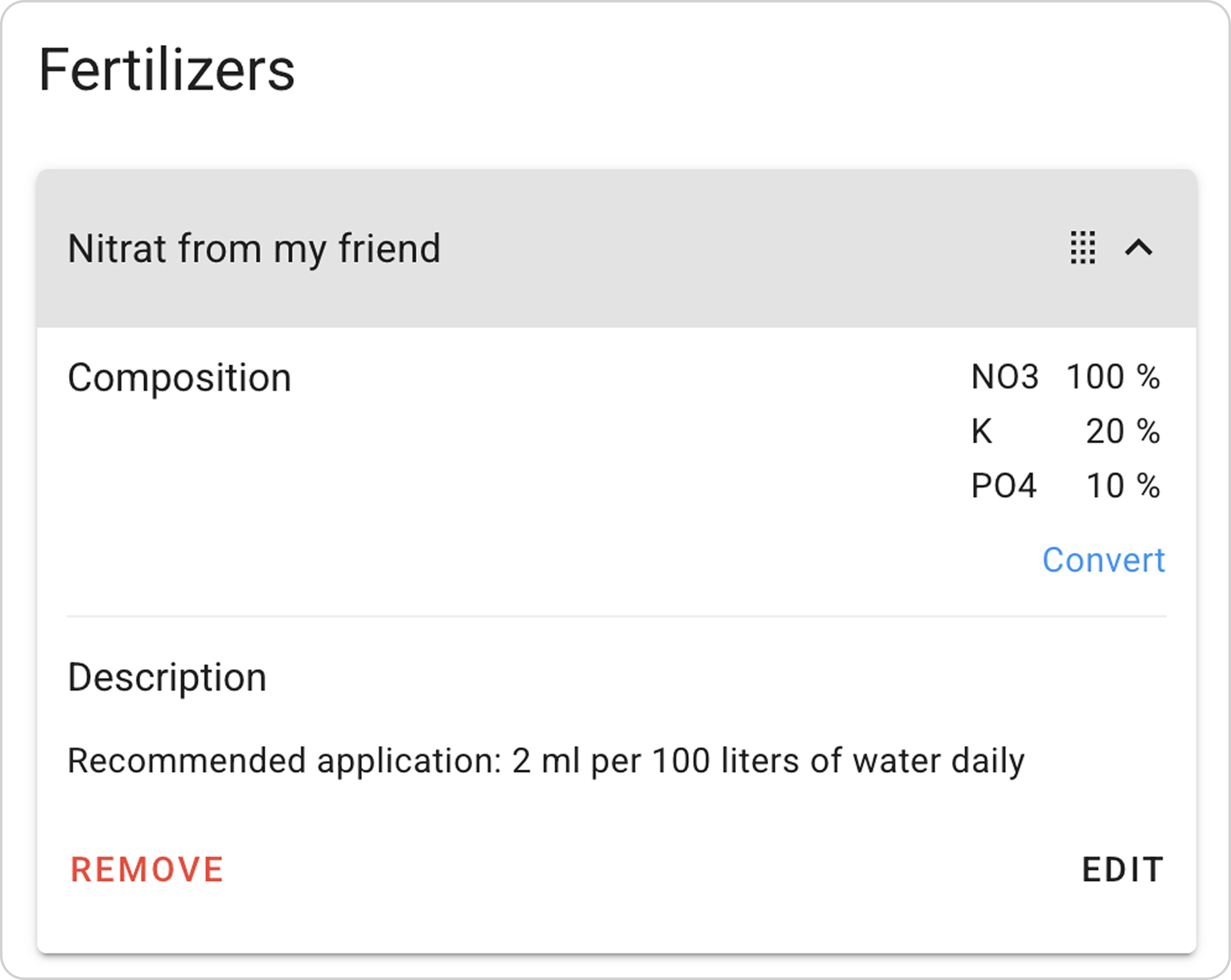
- For each selected element, enter its concentration in the corresponding field. In our example: enter values in the corresponding fields NO3 - "100", PO4 - "10", K - "20".
Step 6: Fill in Fertilizer Information
- Enter the new fertilizer name in the "Fertilizer name" field. In our example: enter "Nitrate from my friend".
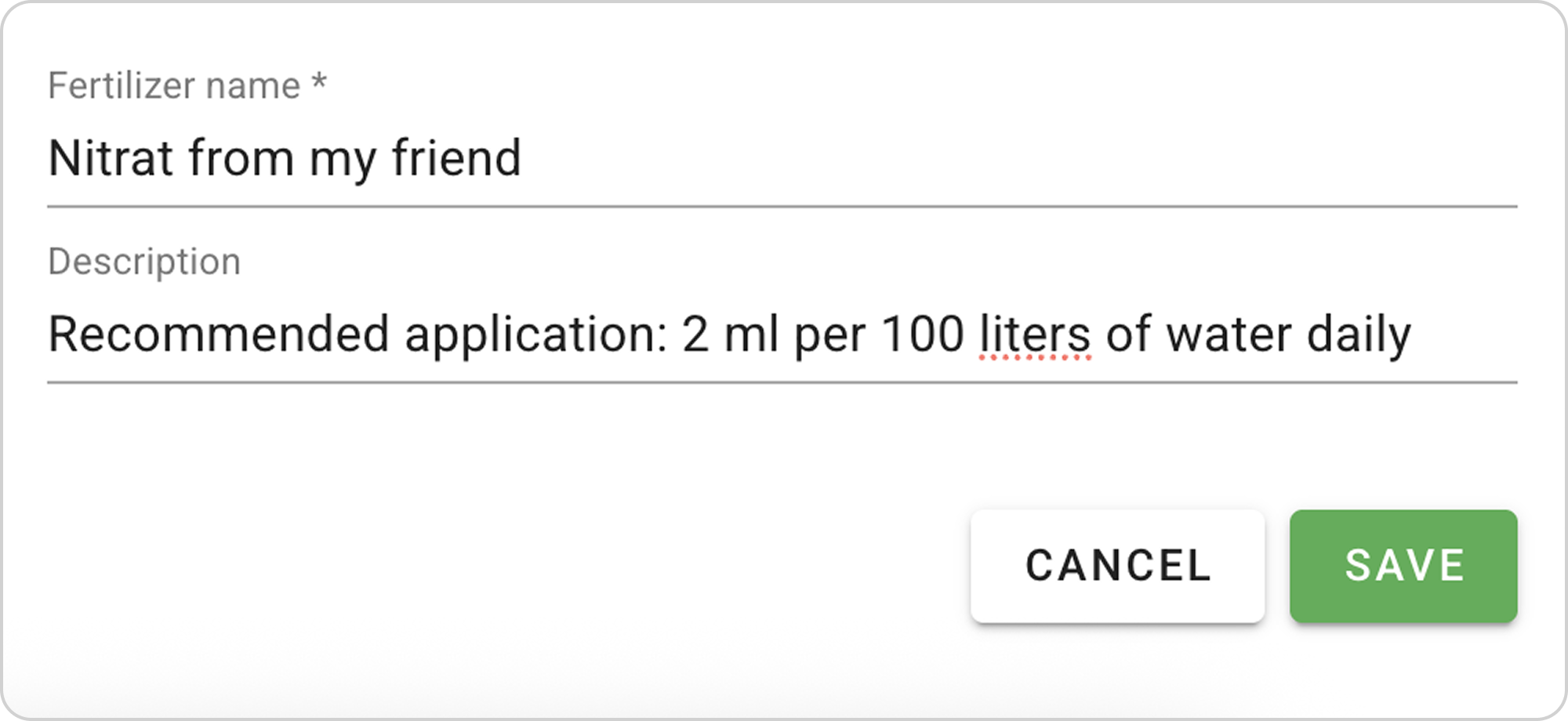
- Optionally, you can add a description in the "Description" field. In our example: enter "Dosing recommendation: 2 ml daily per 100 L of water".
Step 7: Save the Fertilizer
- Check all entered data:
- Correctness of concentrations
- Correspondence of measurement units
- Correctness of name
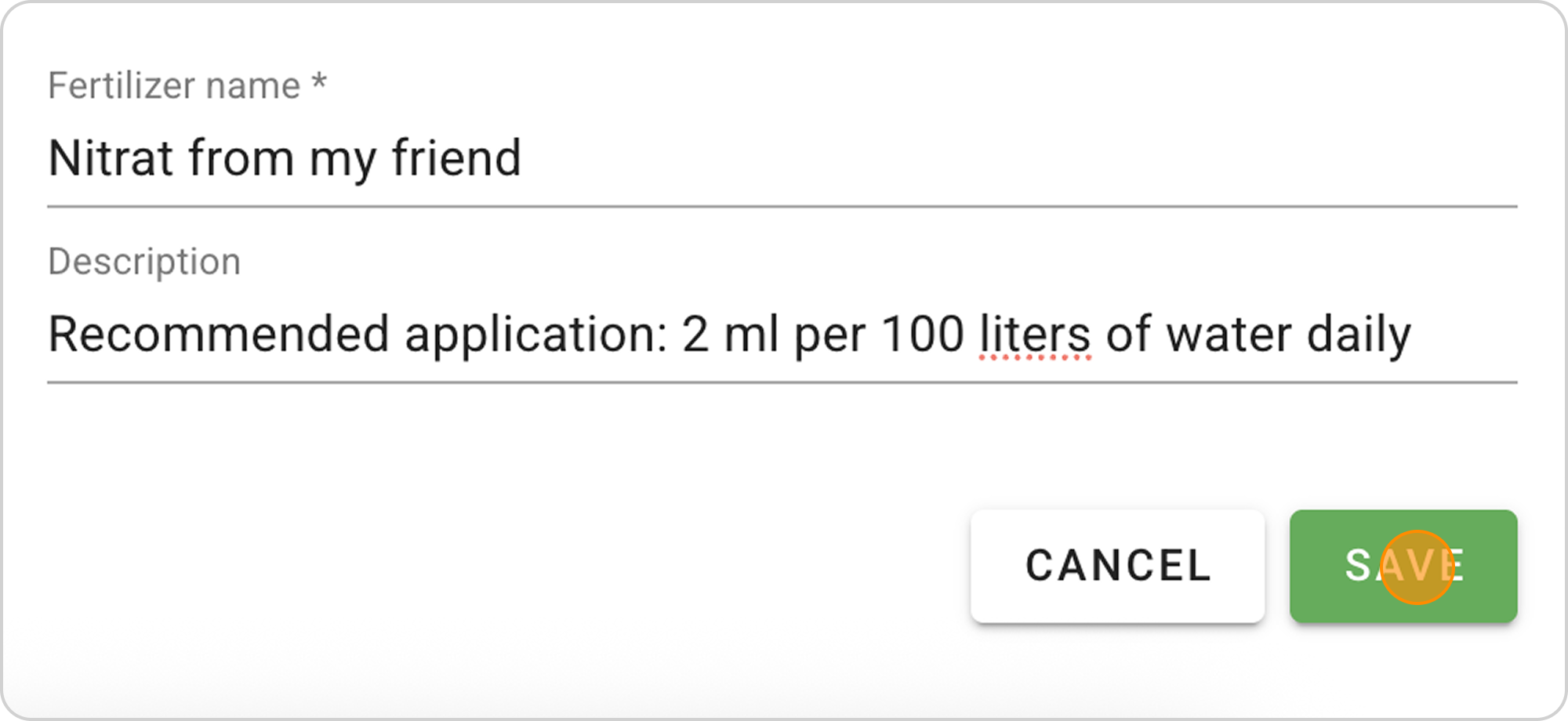
- Click "SAVE"
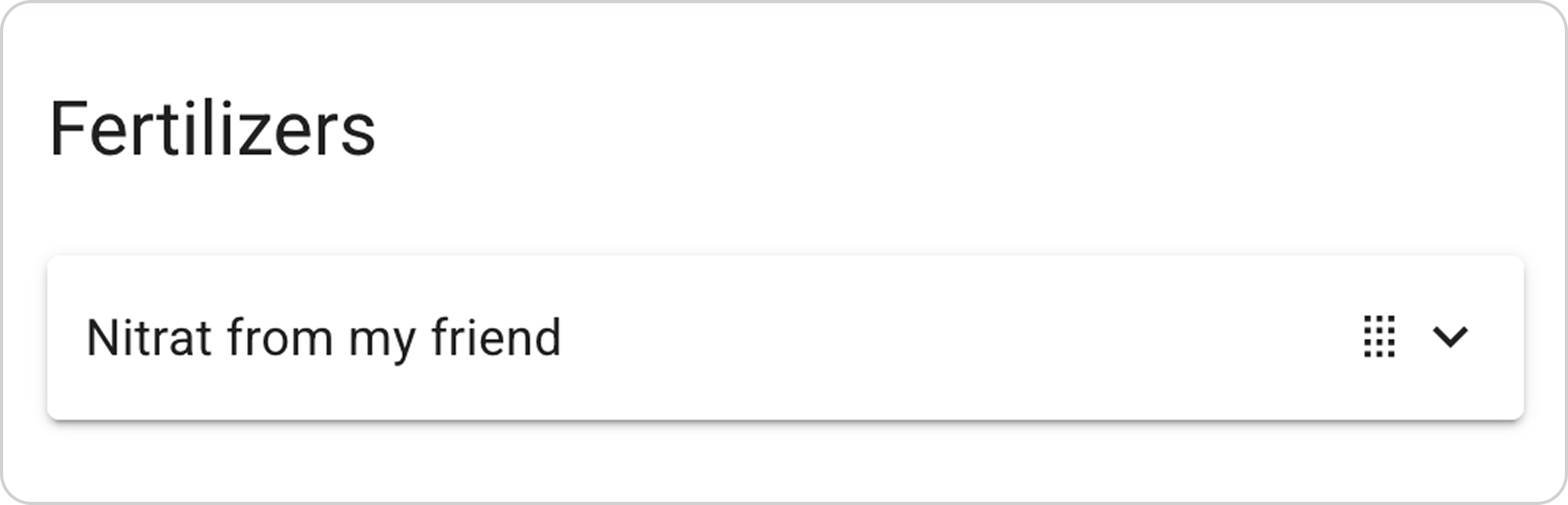
- Verify that the fertilizer appeared in the general list
Managing the Saved Fertilizer
After saving the fertilizer, you can:
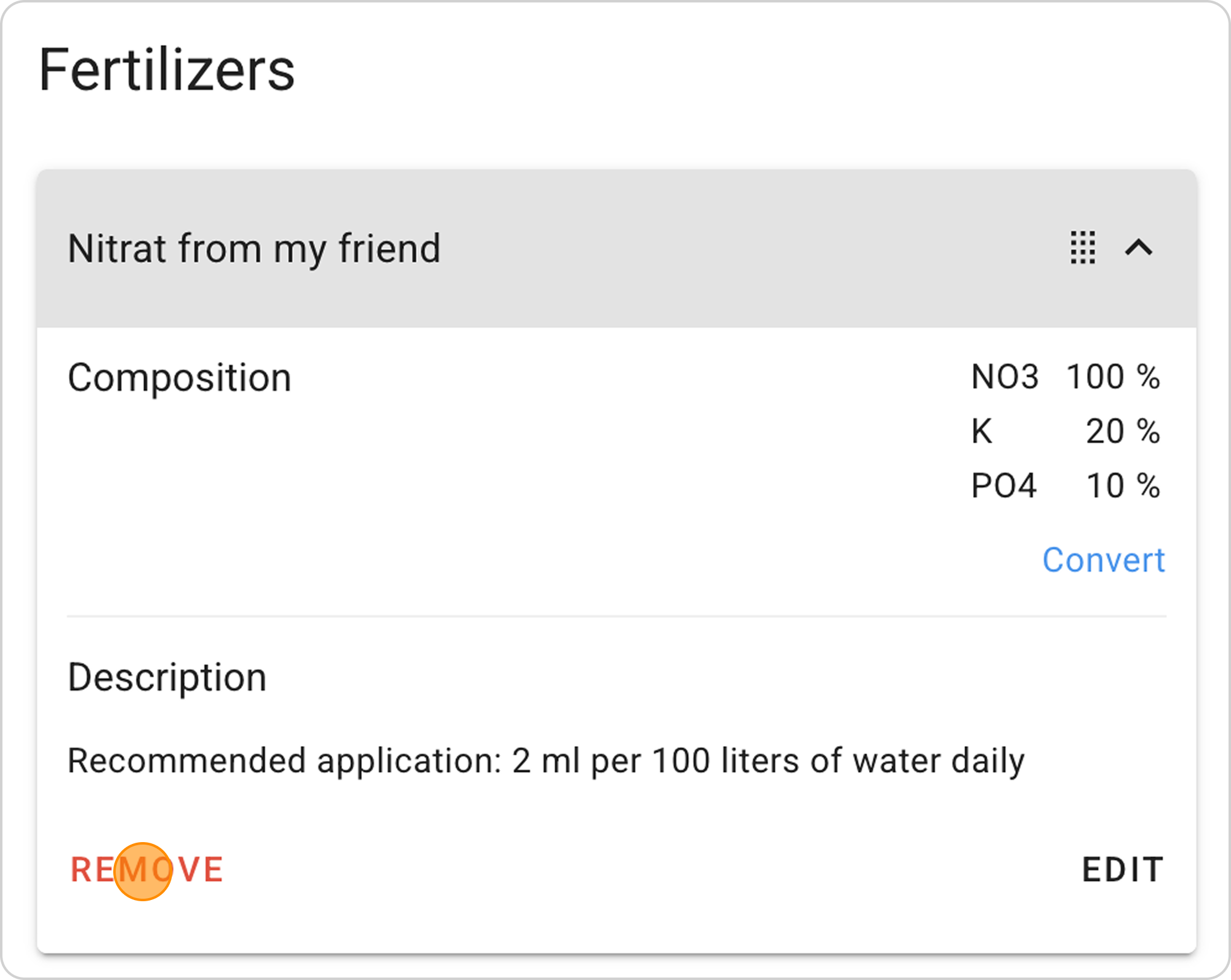
View parameters:
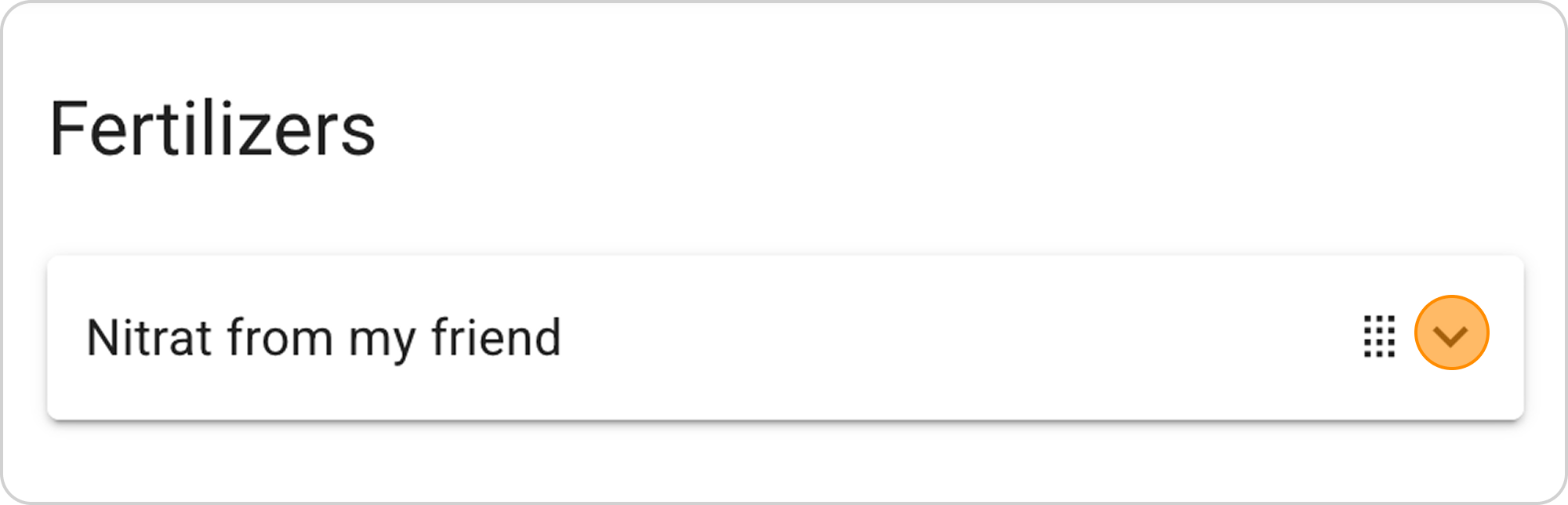
- Click on the arrow to the right of "Fertilizer"
Change parameters:
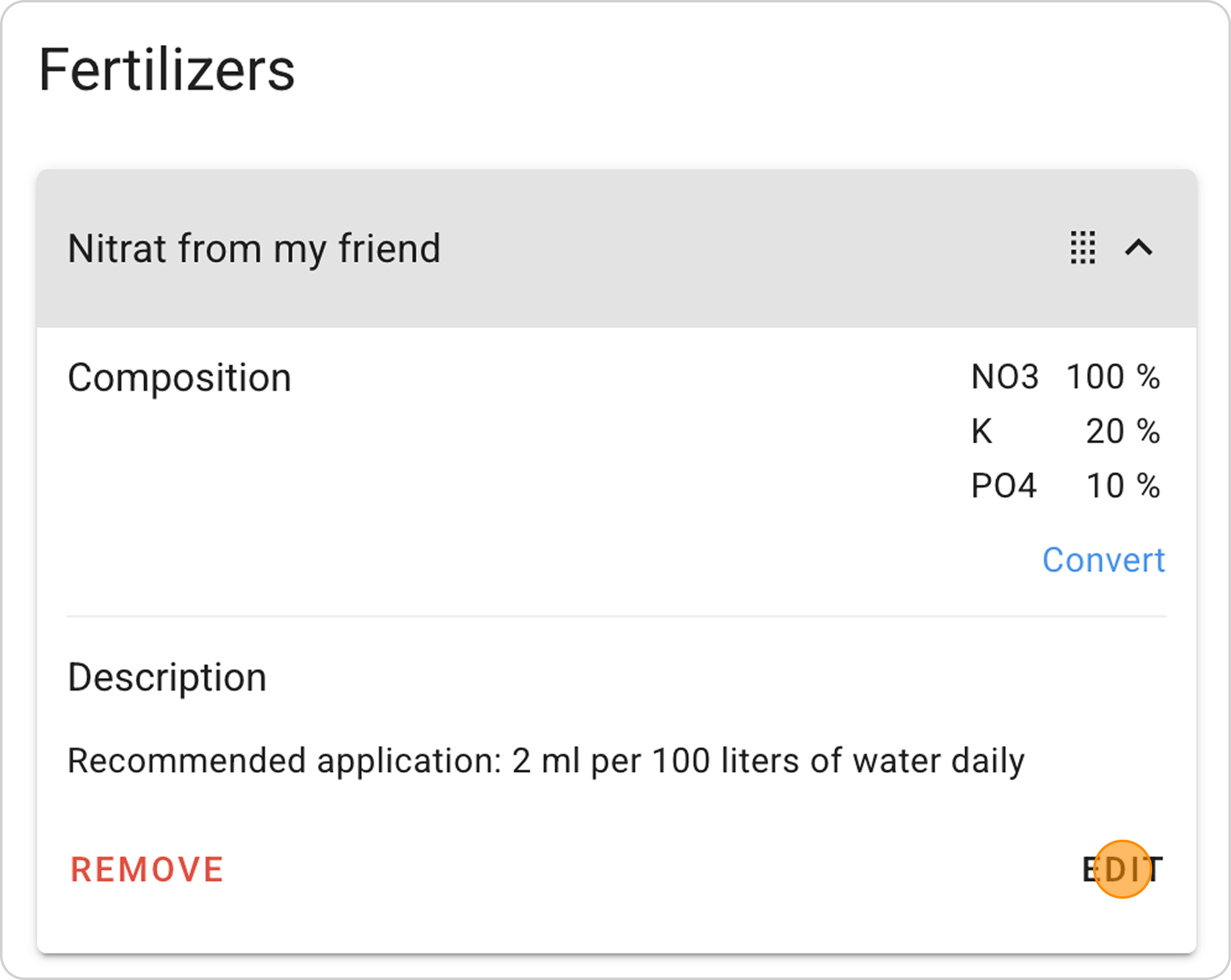
- Click the "EDIT" button in the expanded list
Delete recipe:
- Click the "REMOVE" button in the expanded list