This guide will help you quickly add a ready-made branded fertilizer from the Samomes preset database. This method is suitable for checking the composition of popular commercial fertilizers and saving them to your personal list.
What is it for:
- Check fertilizer composition compliance with label data
- Ensure composition information is up to date
- Add known fertilizers without manual data entry
Step-by-Step Guide
Step 1: Open the Fertilizer Form
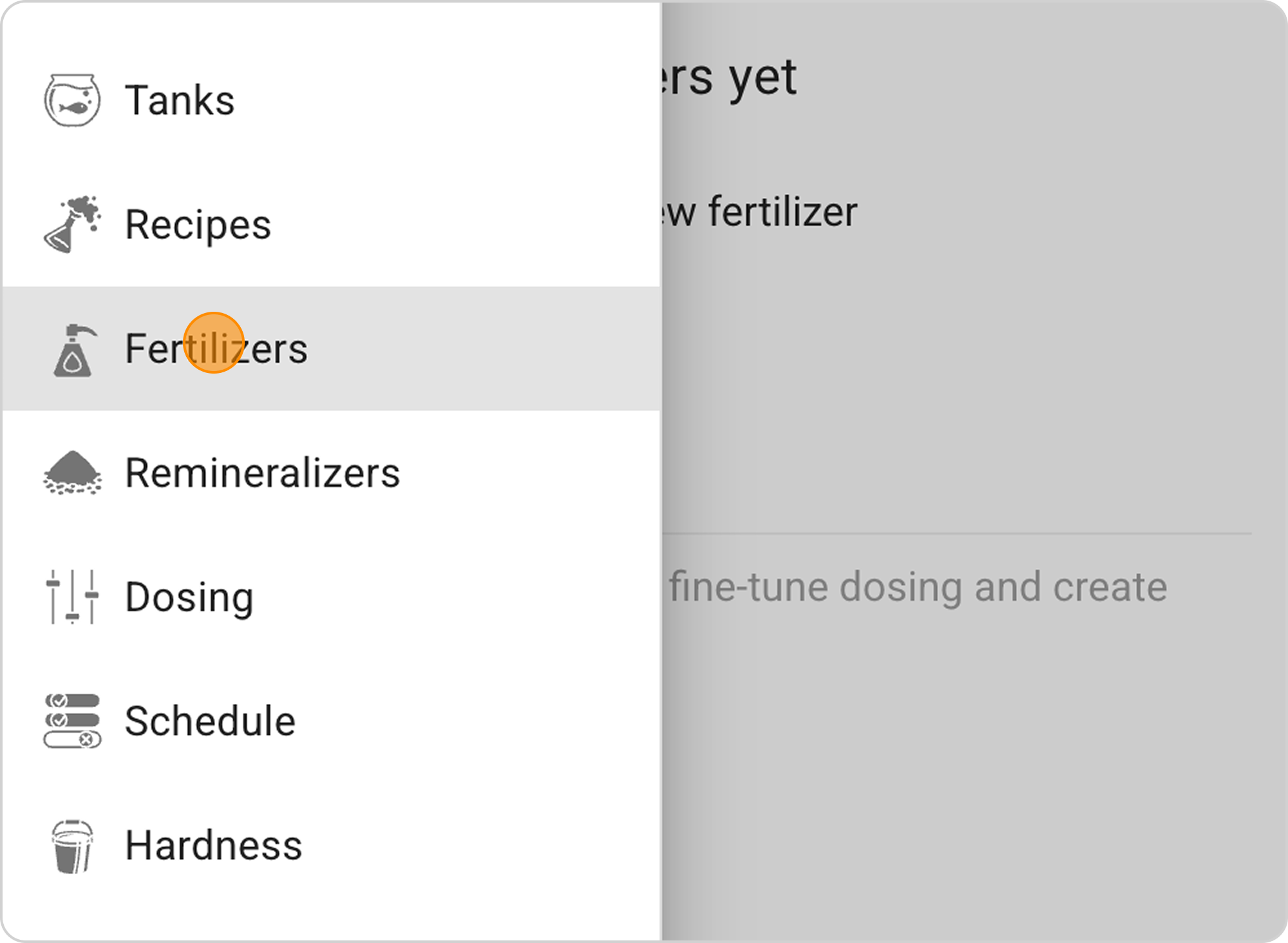
- Open the "Fertilizers" section in the app's main menu
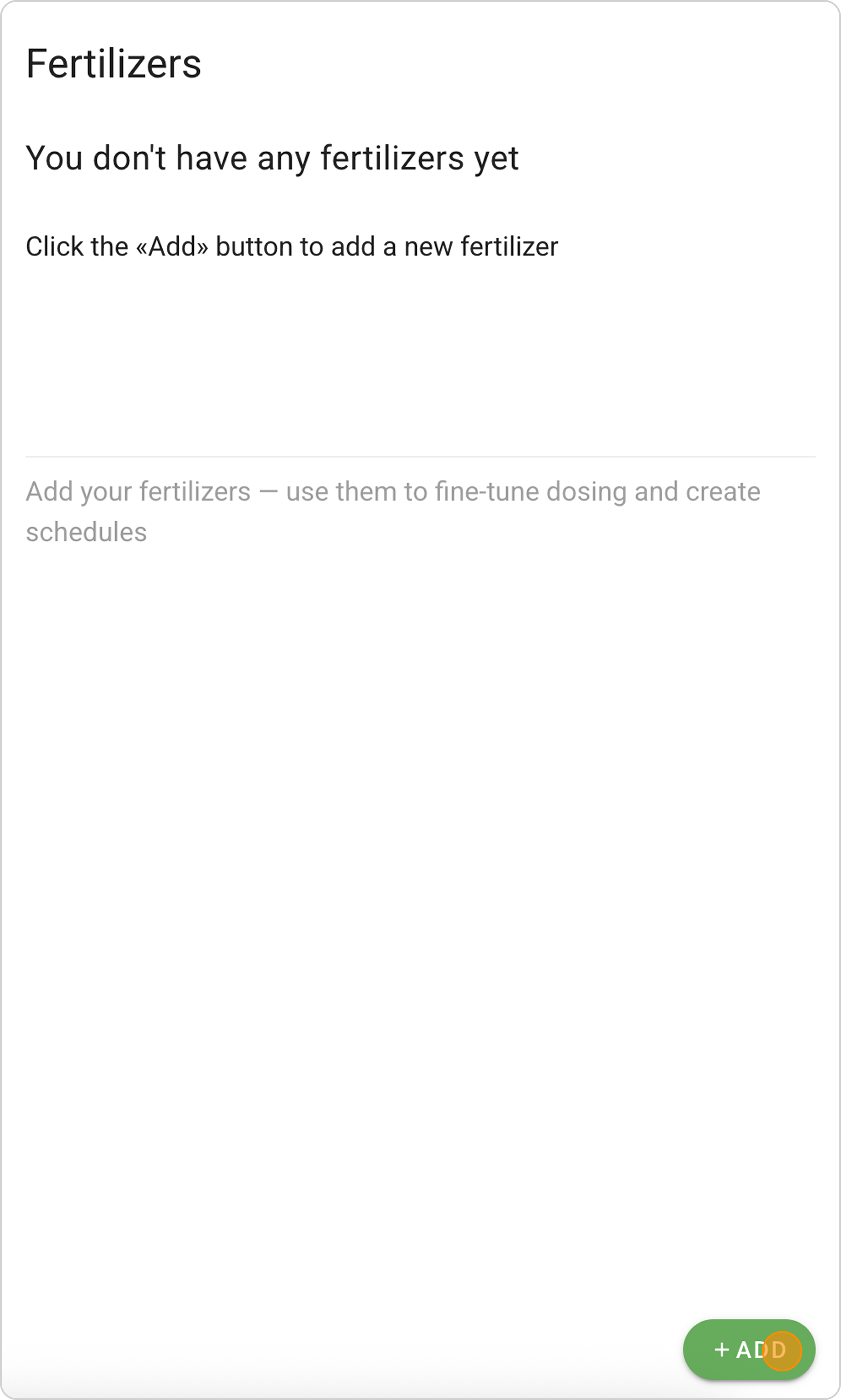
- Click the "+ ADD" button
Step 2: Select a Fertilizer from the List
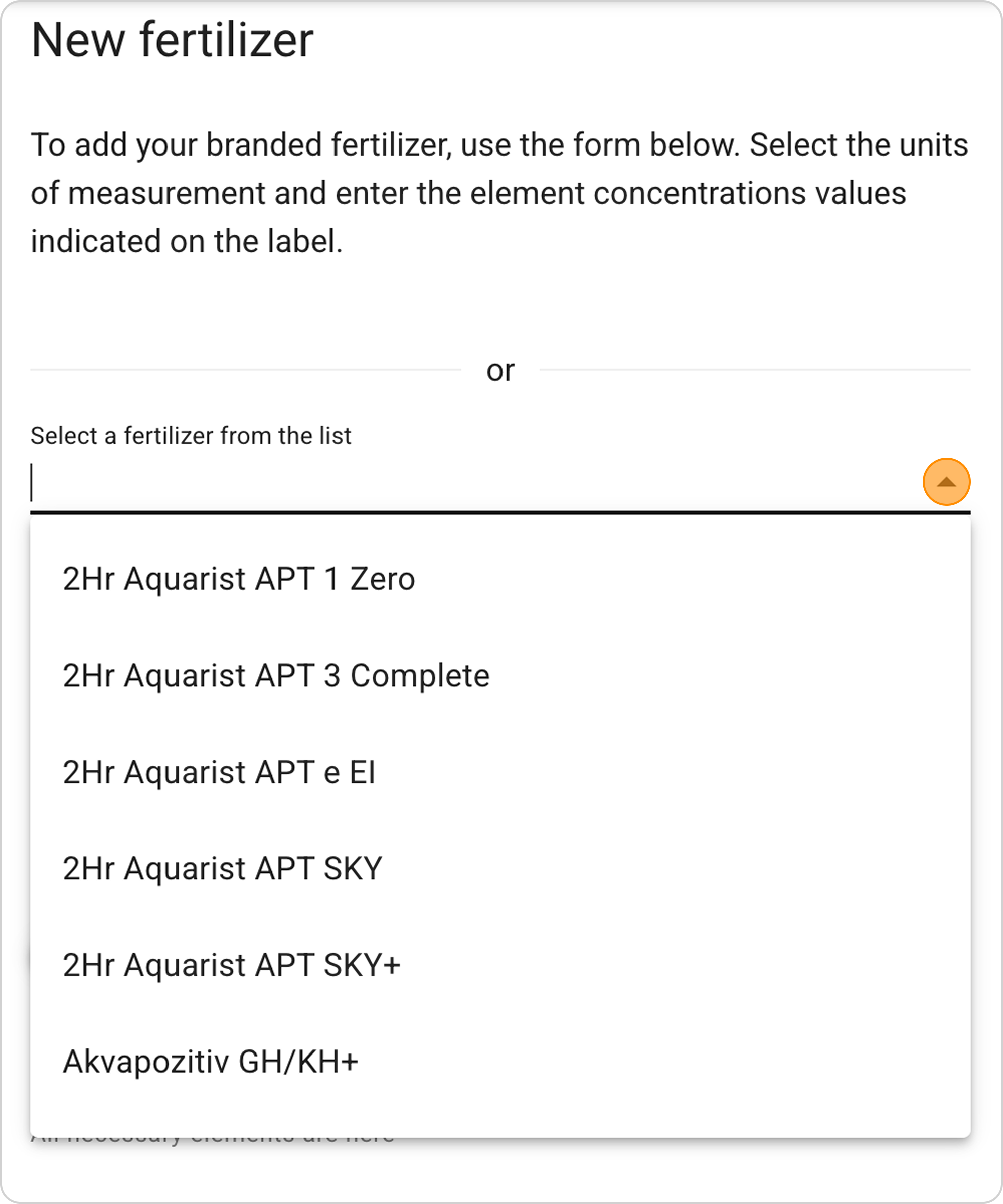
- On the "New fertilizer" page, find the dropdown list section
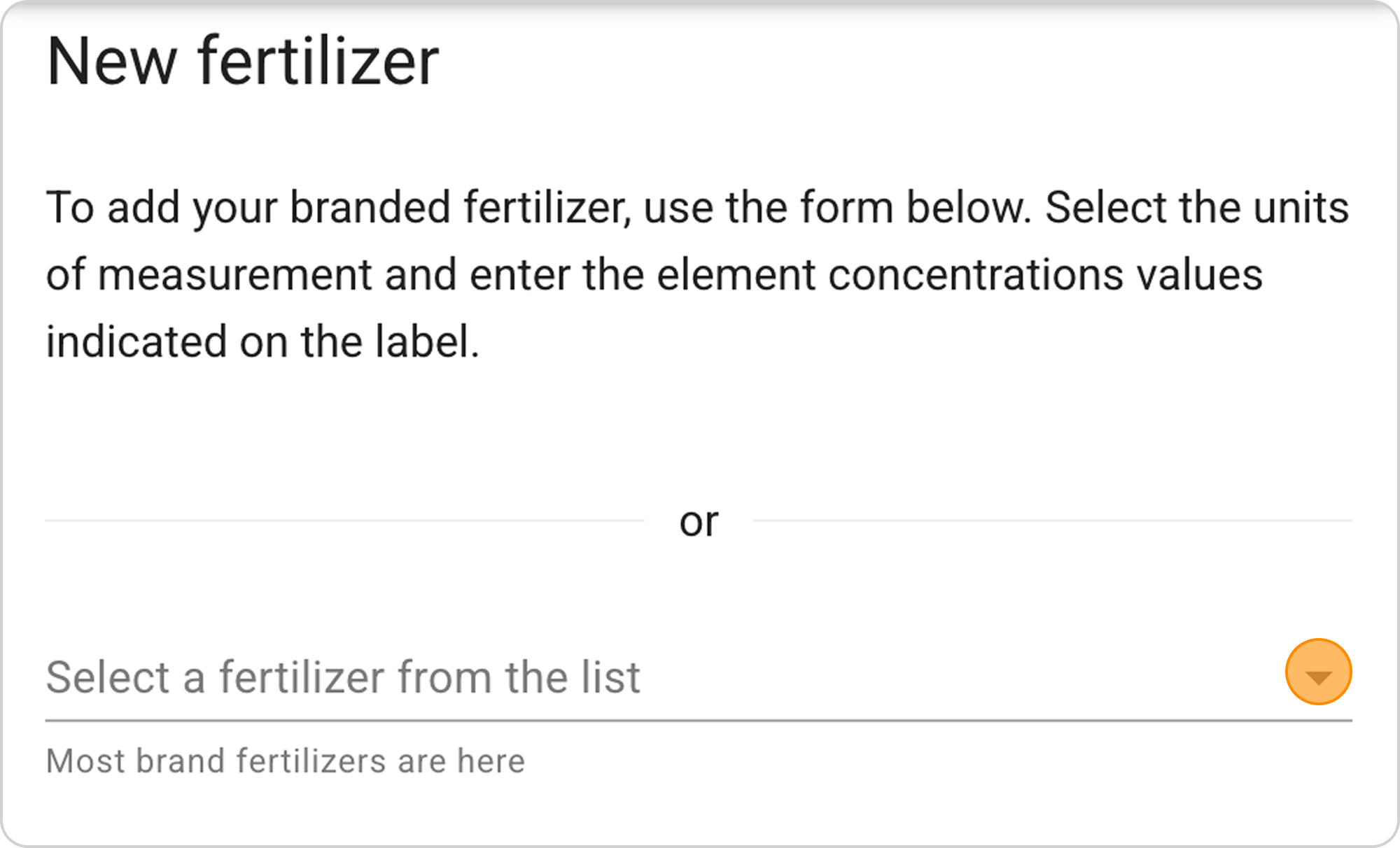
- Click on the "Select fertilizer from the list" field
- Scroll through the list and find the needed branded fertilizer
- Select it with one click
Step 3: Check Composition Information
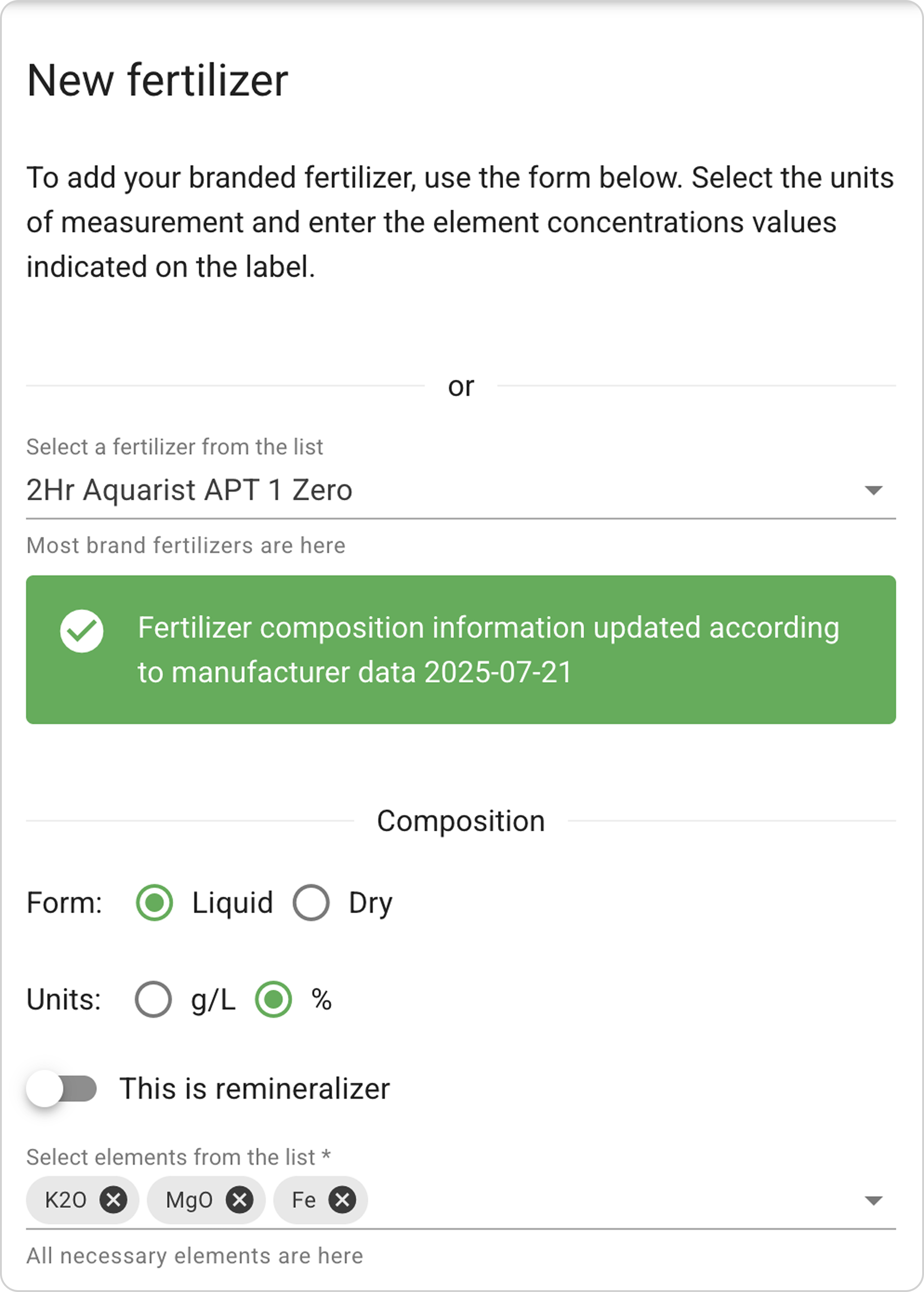
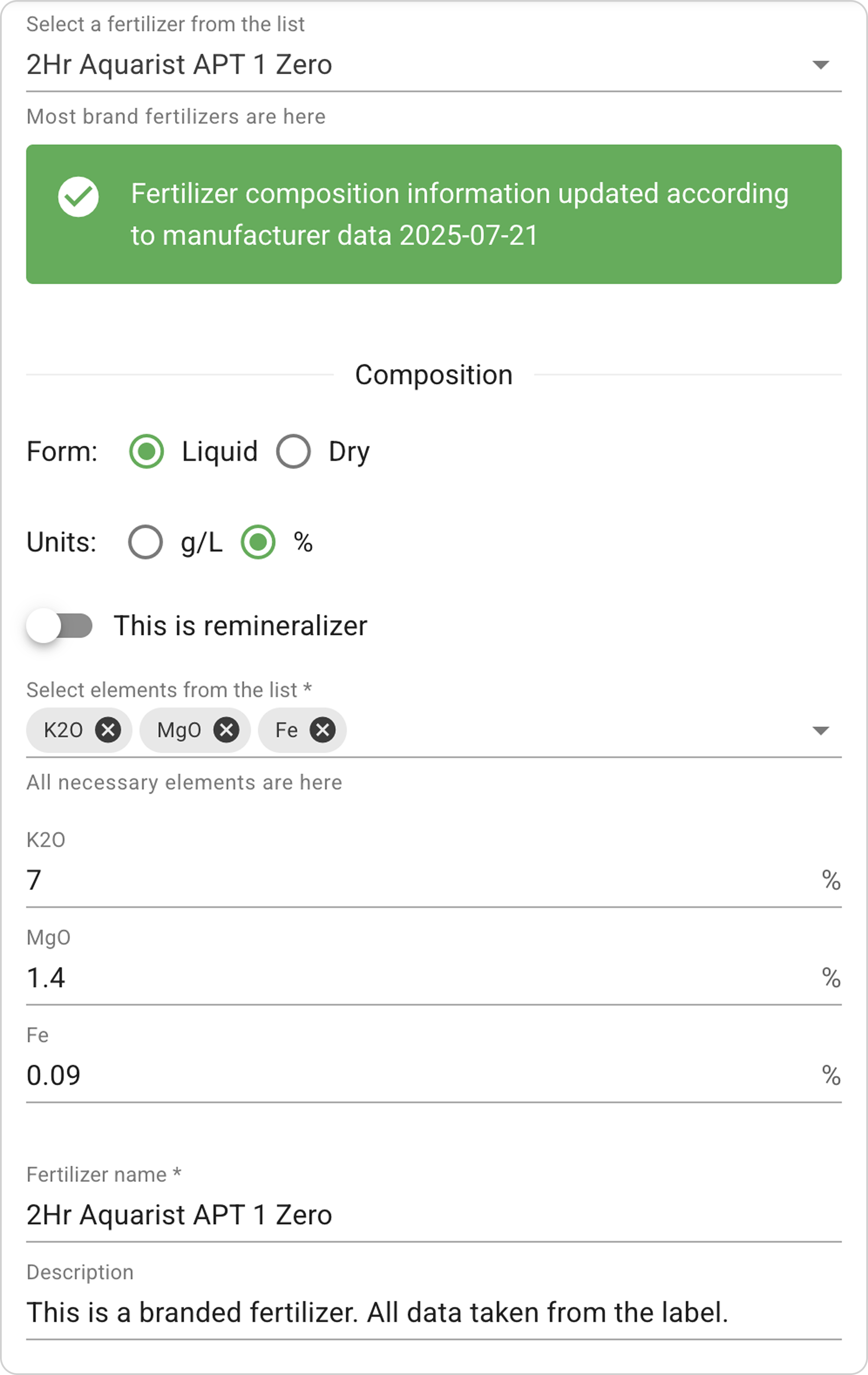
After selecting a fertilizer, the following will be automatically displayed:
- Update date notification — green card with information about when the fertilizer data was last updated in the Samomes system
- Automatically filled fields:
- State (liquid/powder)
- Measurement units (g/L or %)
- List of elements with their concentrations
- Fertilizer name
- Manufacturer's description
Step 4: Verify Composition Matches Label Information
Important! Compare the displayed composition with the data on your fertilizer label:
- Check concentrations of all elements
- Make sure measurement units correspond (% or g/L)
- Pay attention to the date of last information update
If data doesn't match:
- The fertilizer composition may have changed
- Database information is outdated
- You have a different version/concentration of this fertilizer
⚠️ Important: In case of data mismatch, it's recommended to modify the fertilizer or create a new fertilizer with current data.
Step 5: Save the Fertilizer
- Optionally, you can change the fertilizer name or description.
- If everything is correct, click the "SAVE" button
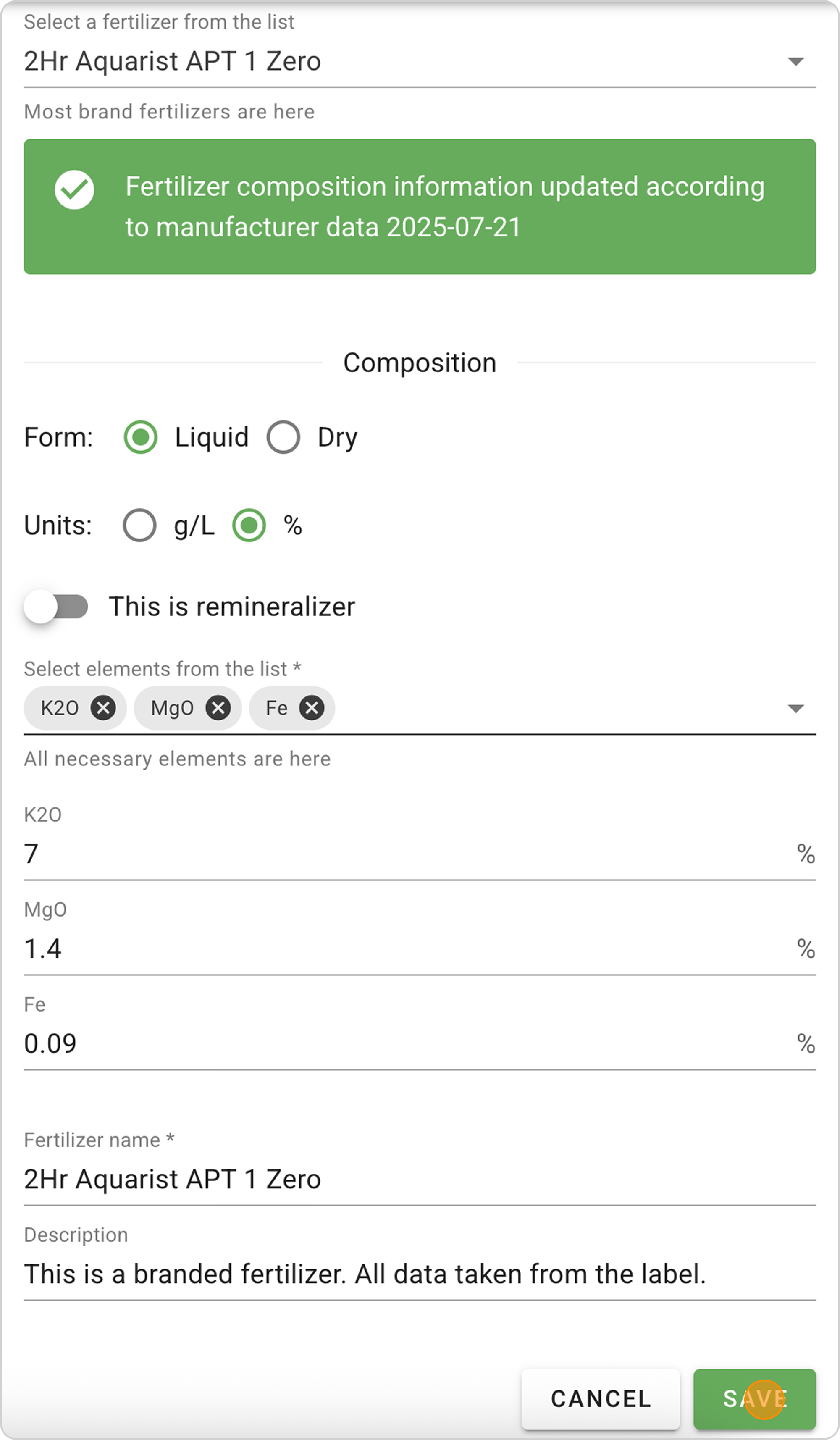
- The fertilizer will appear in the general list
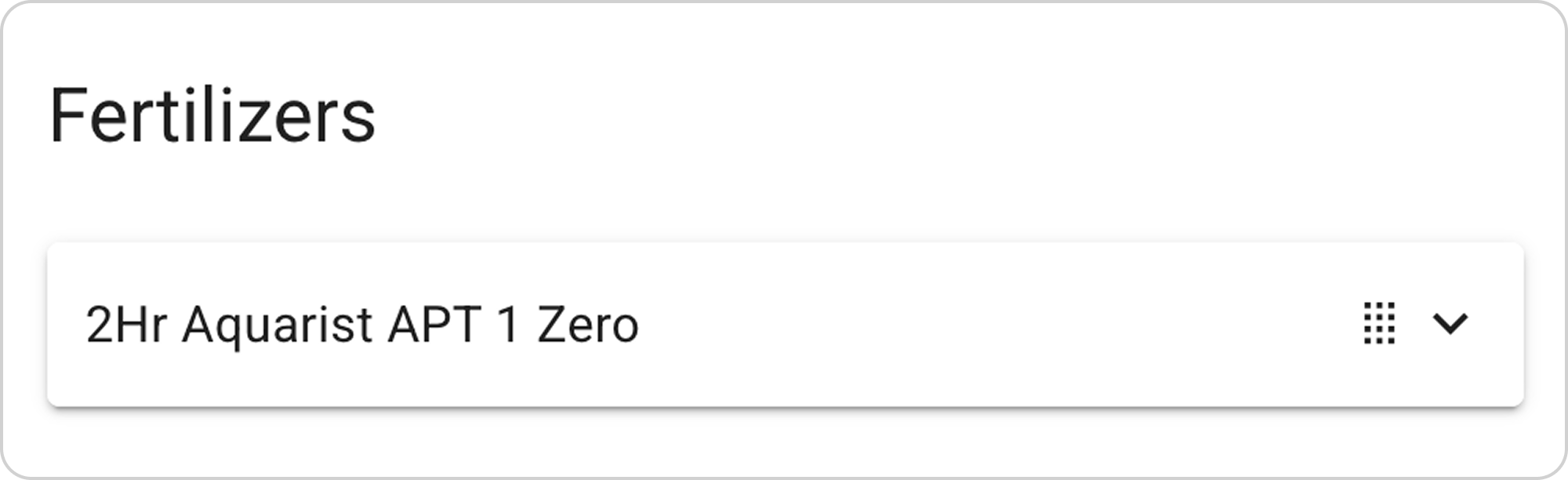
⚠️ Important: If you keep the same name, your saved fertilizer will replace the database fertilizer and will be displayed at the very top of the list in the "Dosing" section
Working with Saved Fertilizers
Viewing Fertilizer Information
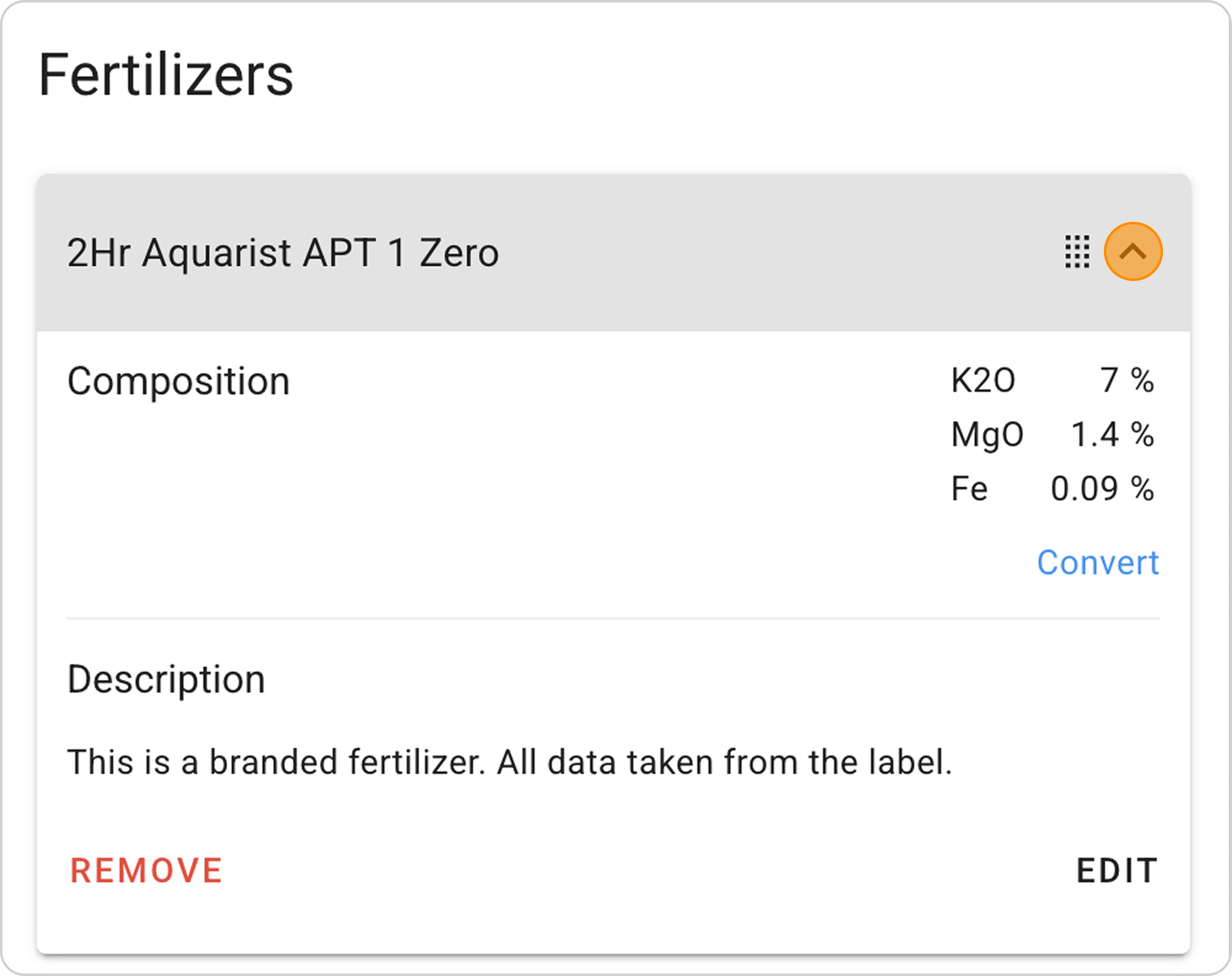
After adding, the fertilizer is displayed in the list with the ability to:
- View full composition
- Read description
Editing and Deletion
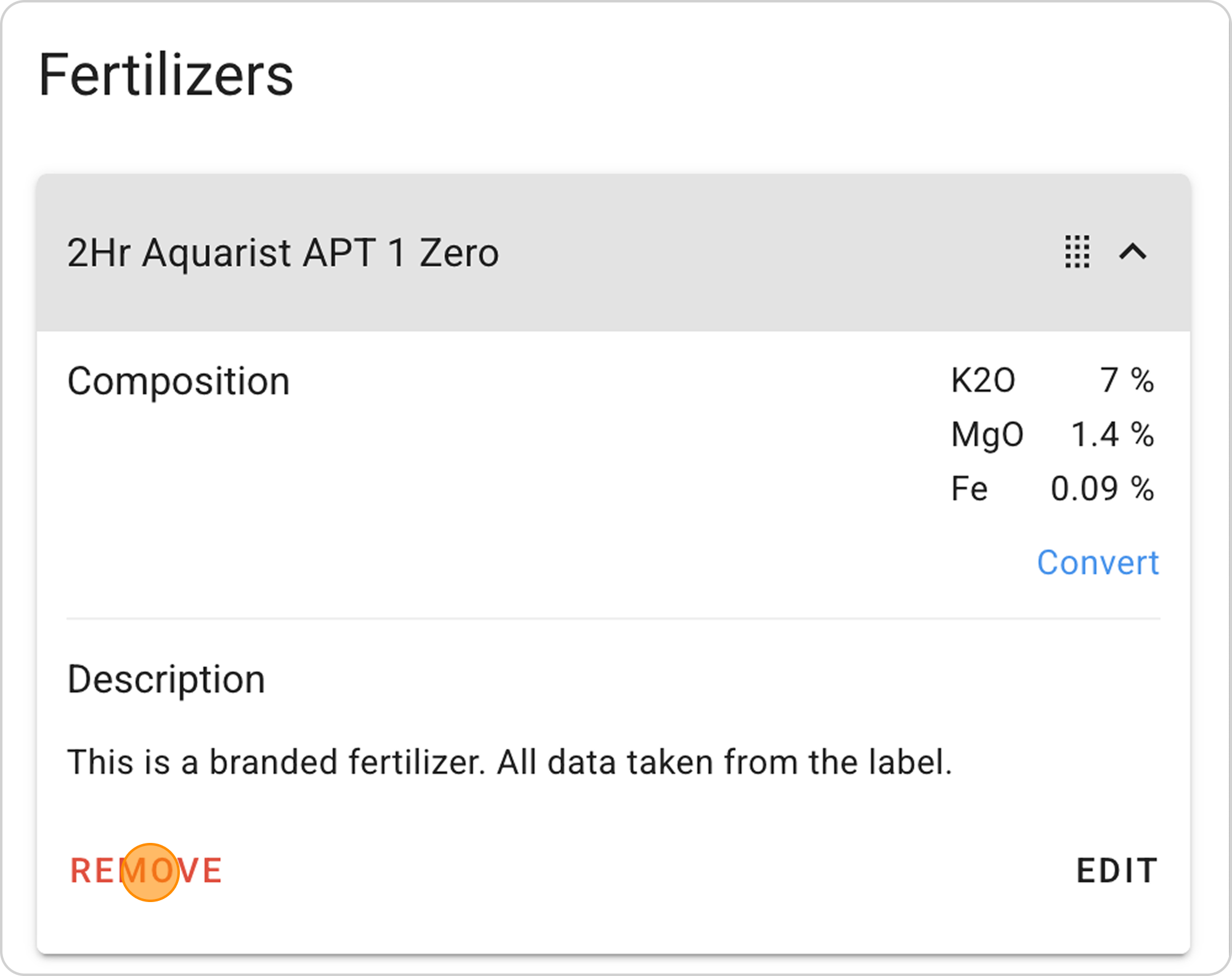
For each fertilizer, the following options are available:
- EDIT — editing composition and description
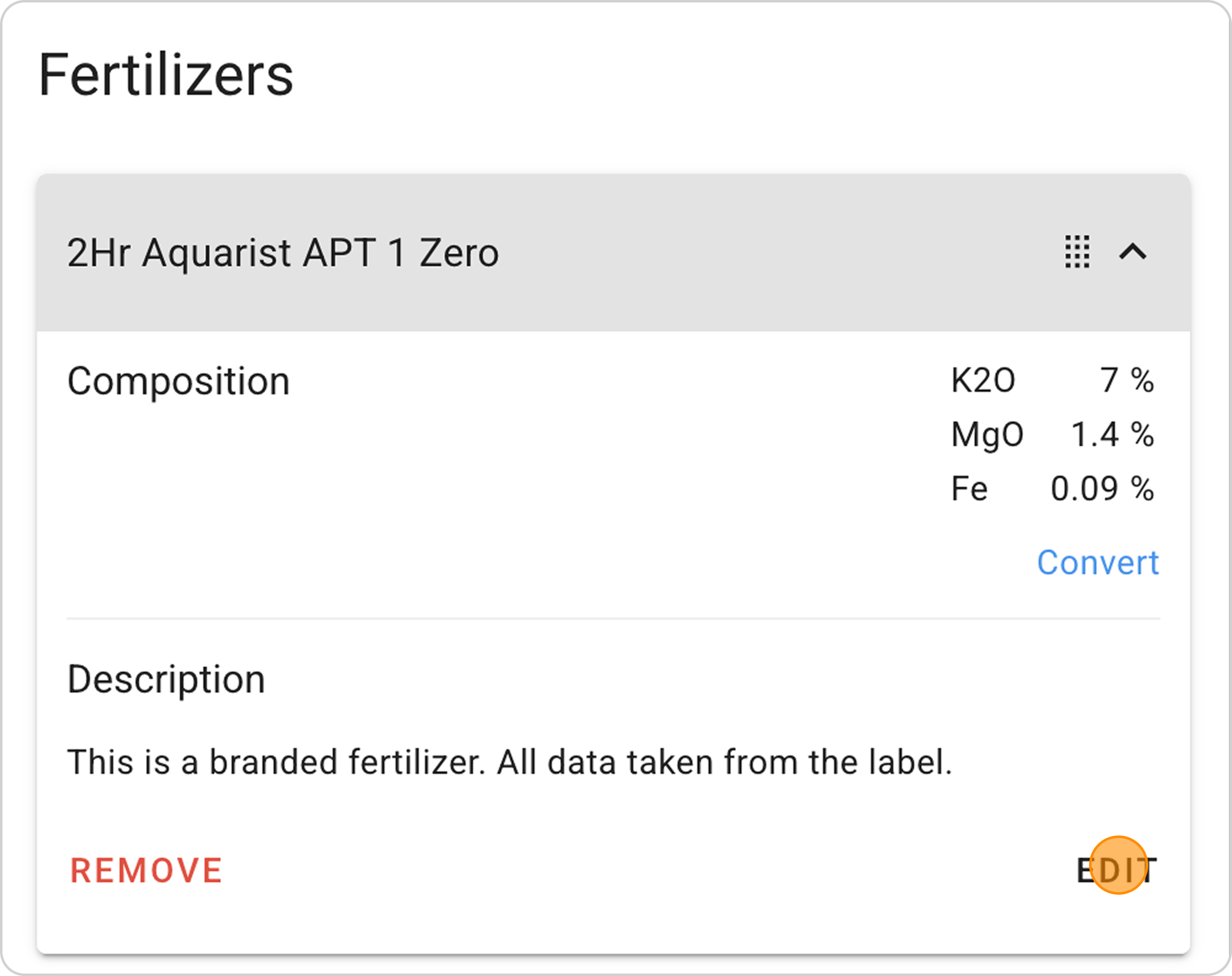
- REMOVE — deleting the recipe