Push notifications in Samomes automatically remind you when and which fertilizers need to be added, taking into account the individual schedule of each tank. This is especially convenient if you have multiple tanks with different schedules and different fertilizers.
Notifications are configured when creating a new schedule and can be changed at any time through the "Notifications" section in your Profile.
How Do Notifications Work?
✅ On fertilizer dosing days — at the set time you will receive a push notification with a reminder
✅ Individual time — you can set your own notification time for each tank
✅ Single time zone — applies to all schedules, configured in Profile
✅ Smart logic — notifications arrive only on days when fertilizer dosing is scheduled
✅ Multi-device — receive notifications on all your devices
Step-by-Step Guide
Step 1: Calculate Dosages
- Go to the "Dosing" section through the main menu
- Configure fertilizer dosages for your tank
- Click the "CREATE SCHEDULE" or "NEXT" button. The system will automatically create a schedule.
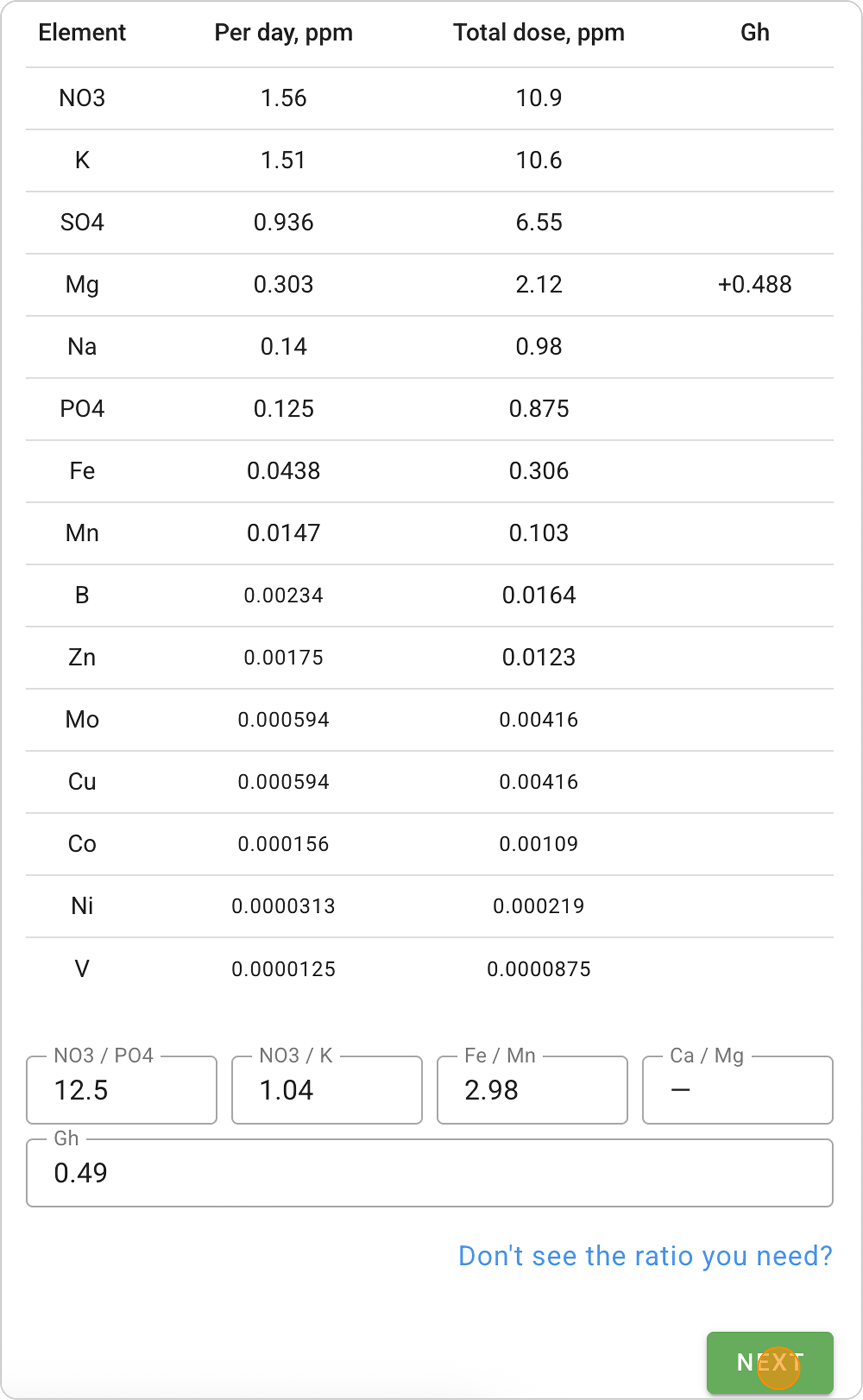
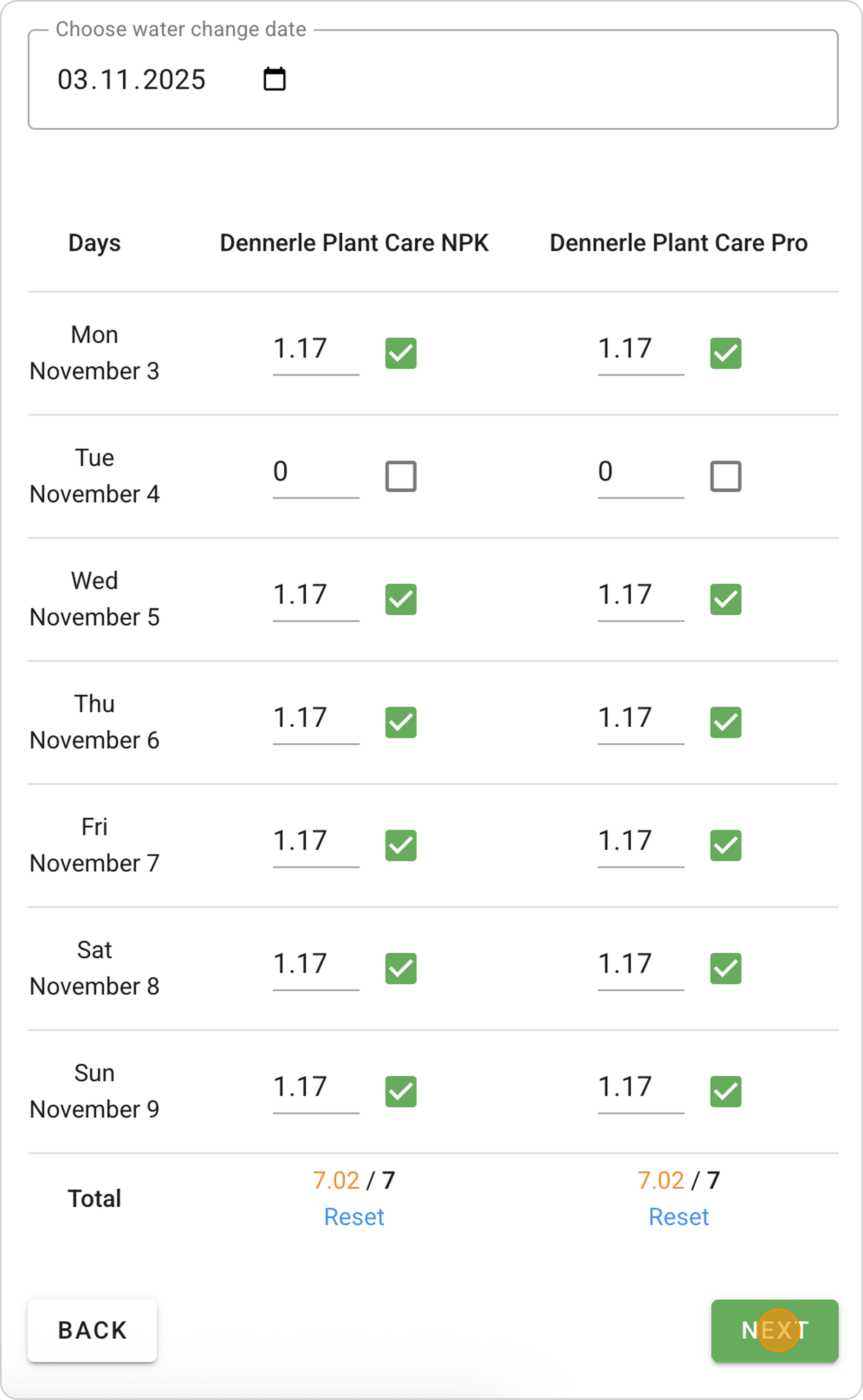
Step 2: Create Schedule
- Click the "NEXT" button to save the schedule and configure notifications.
Step 3: Configure Notifications
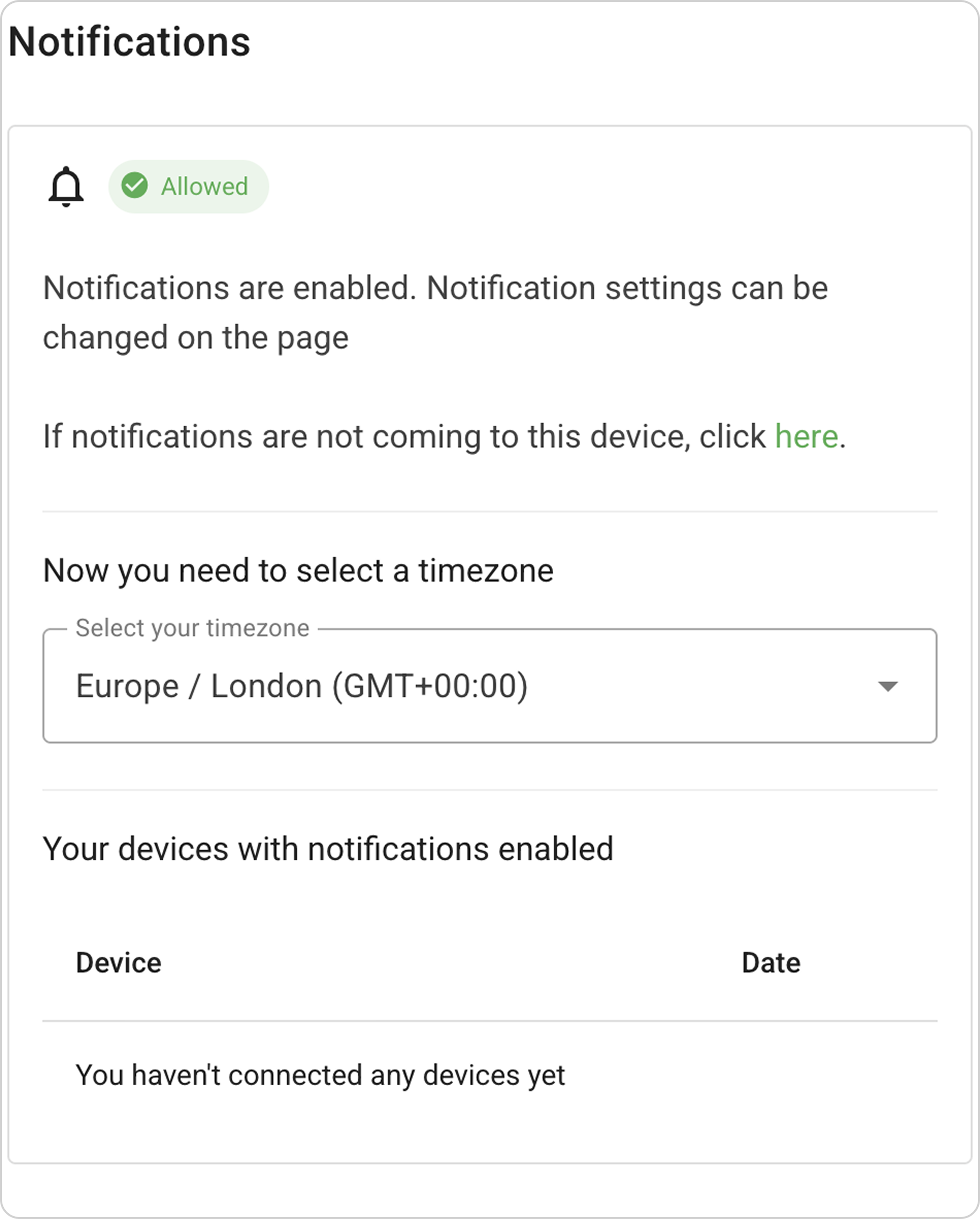
- Check the permission status.
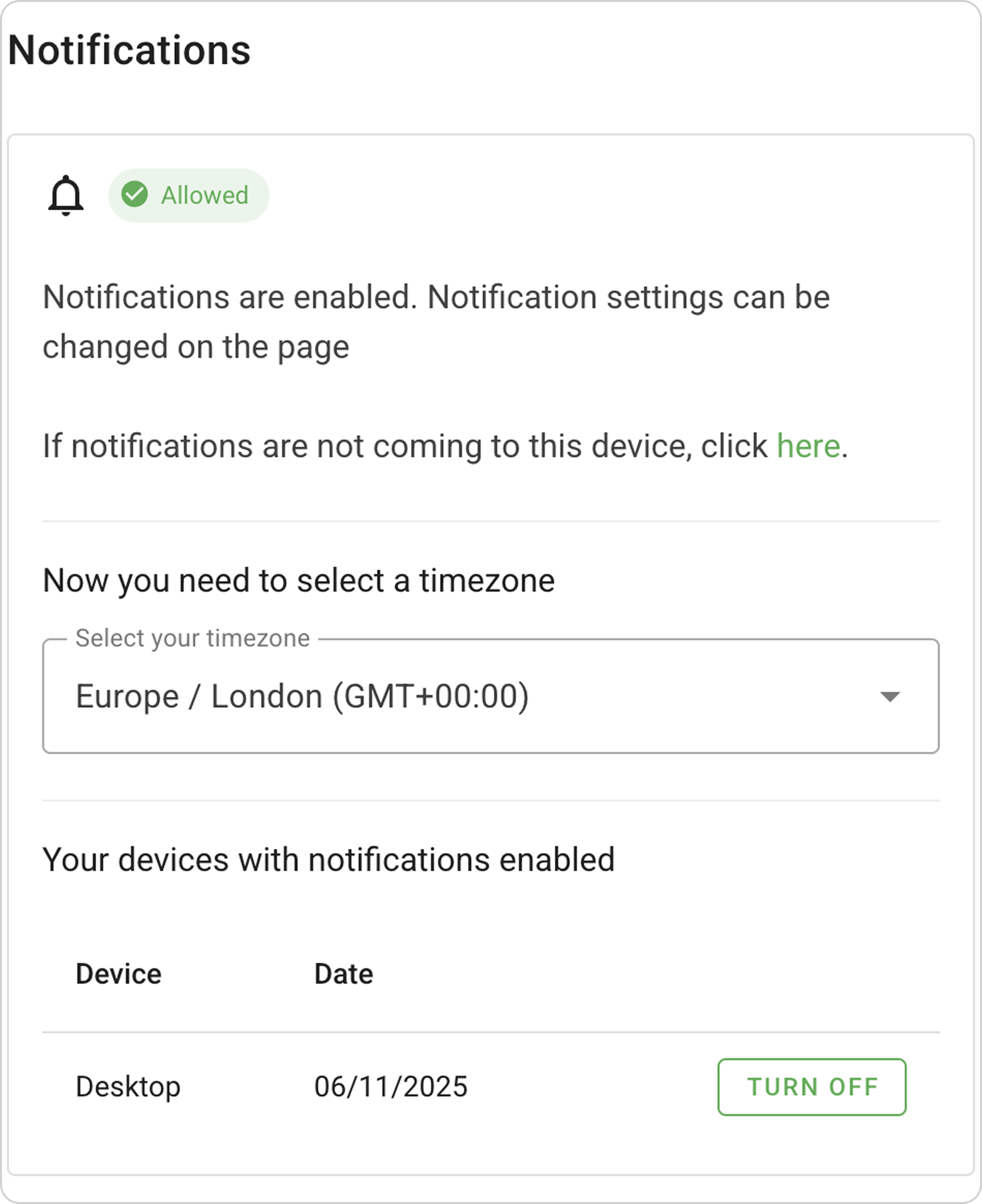
In the Notifications section, you will see the message "Notifications enabled. Notification settings can be changed on the Profile page."
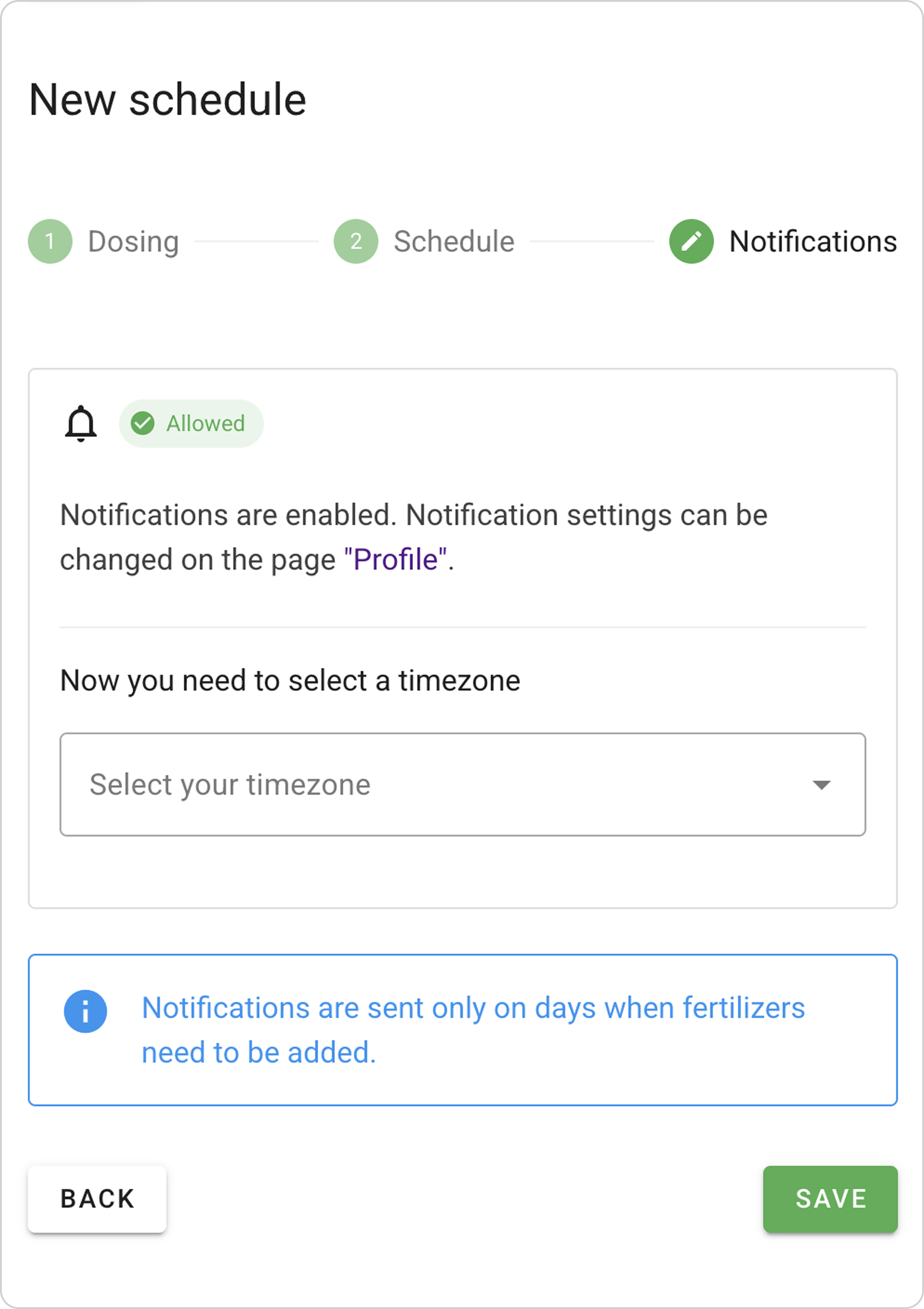
If the status is different, the system will prompt you to enable notifications.
- In the dropdown list, select your time zone so notifications arrive on time.
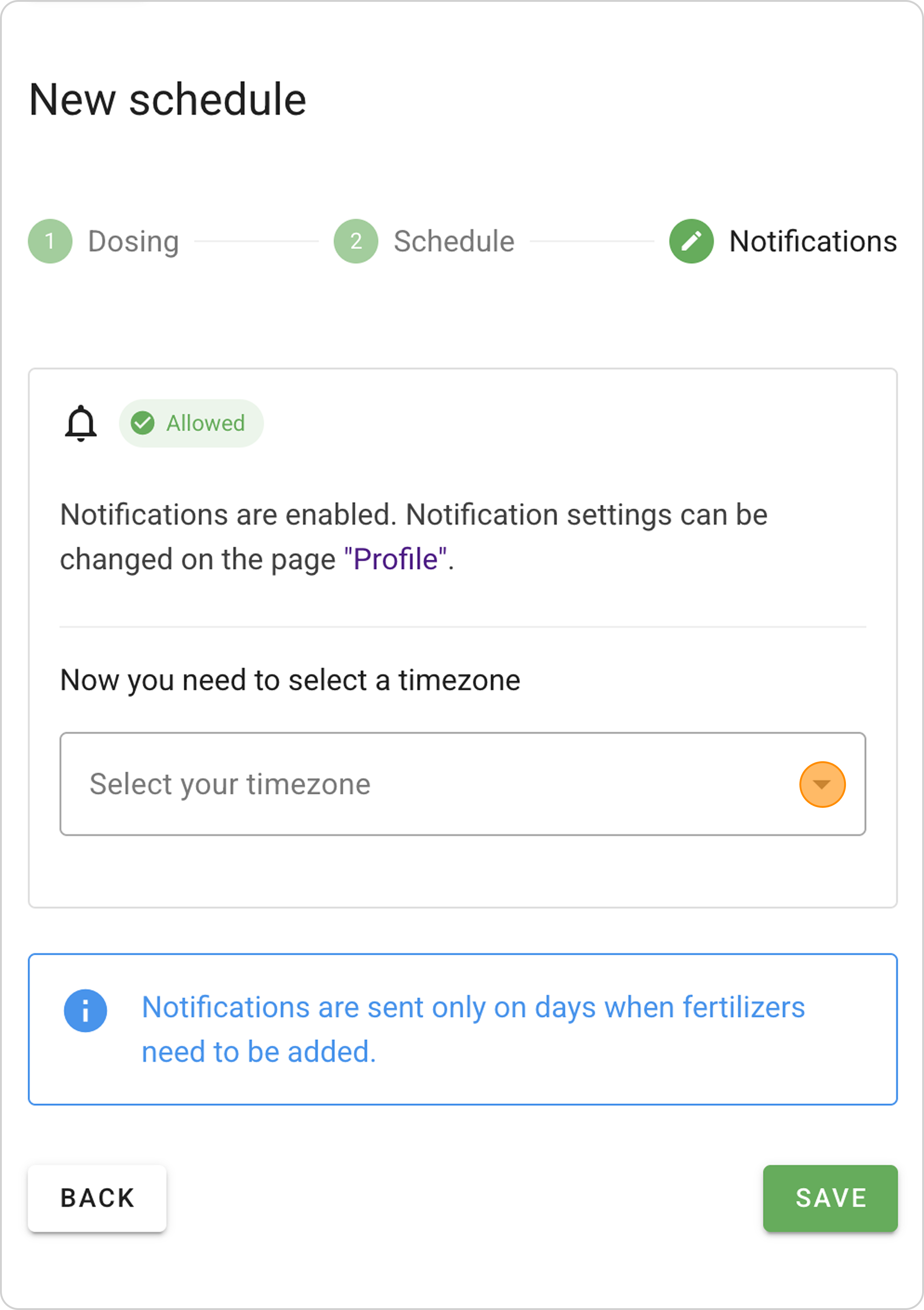
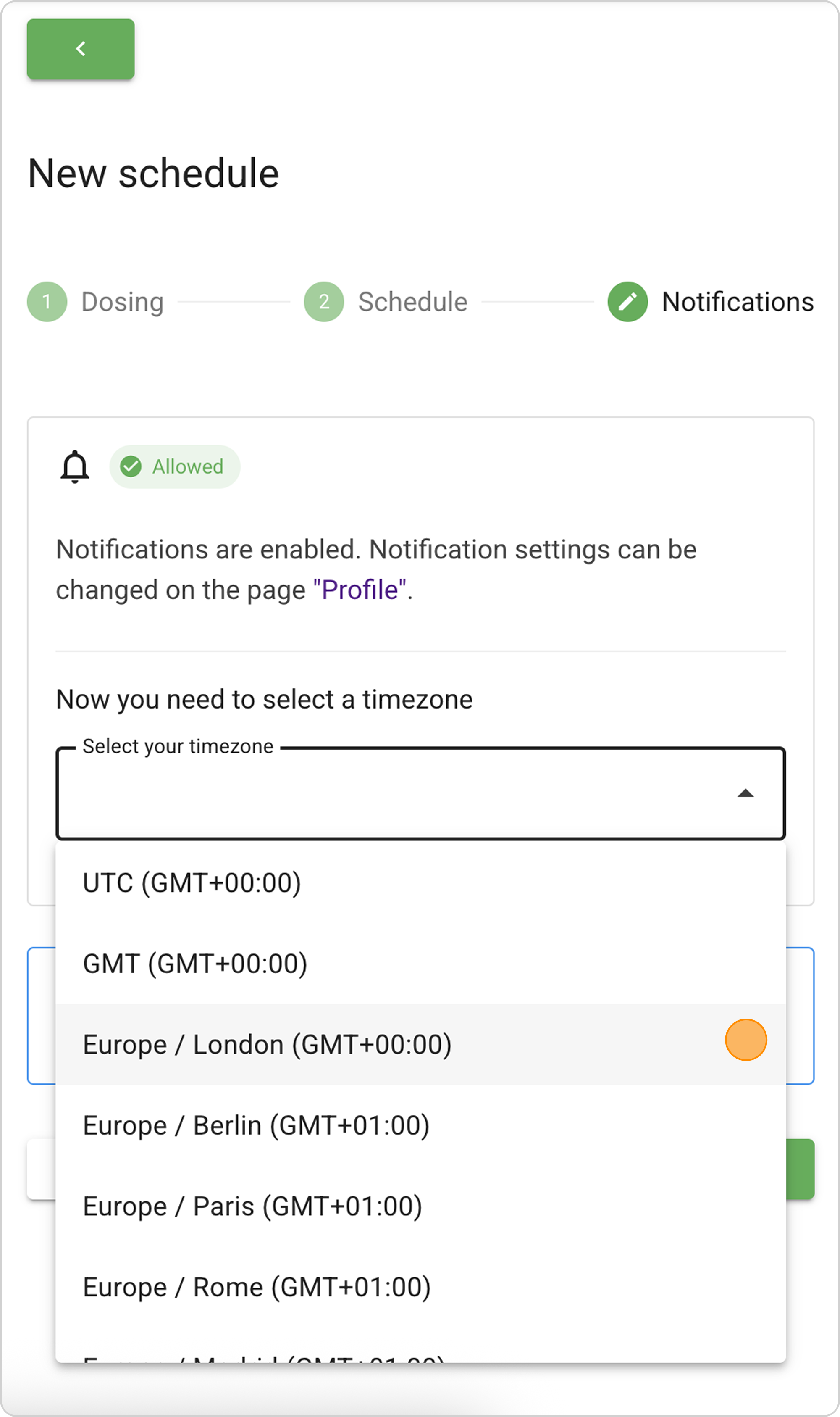
⚠️ Important: After selecting the time zone during schedule creation, you can only change the time zone through Profile in the Notifications section.
- Select a convenient time (hours and minutes) in the time picker that opens. If necessary, you can delete the time to disable notifications for this tank.
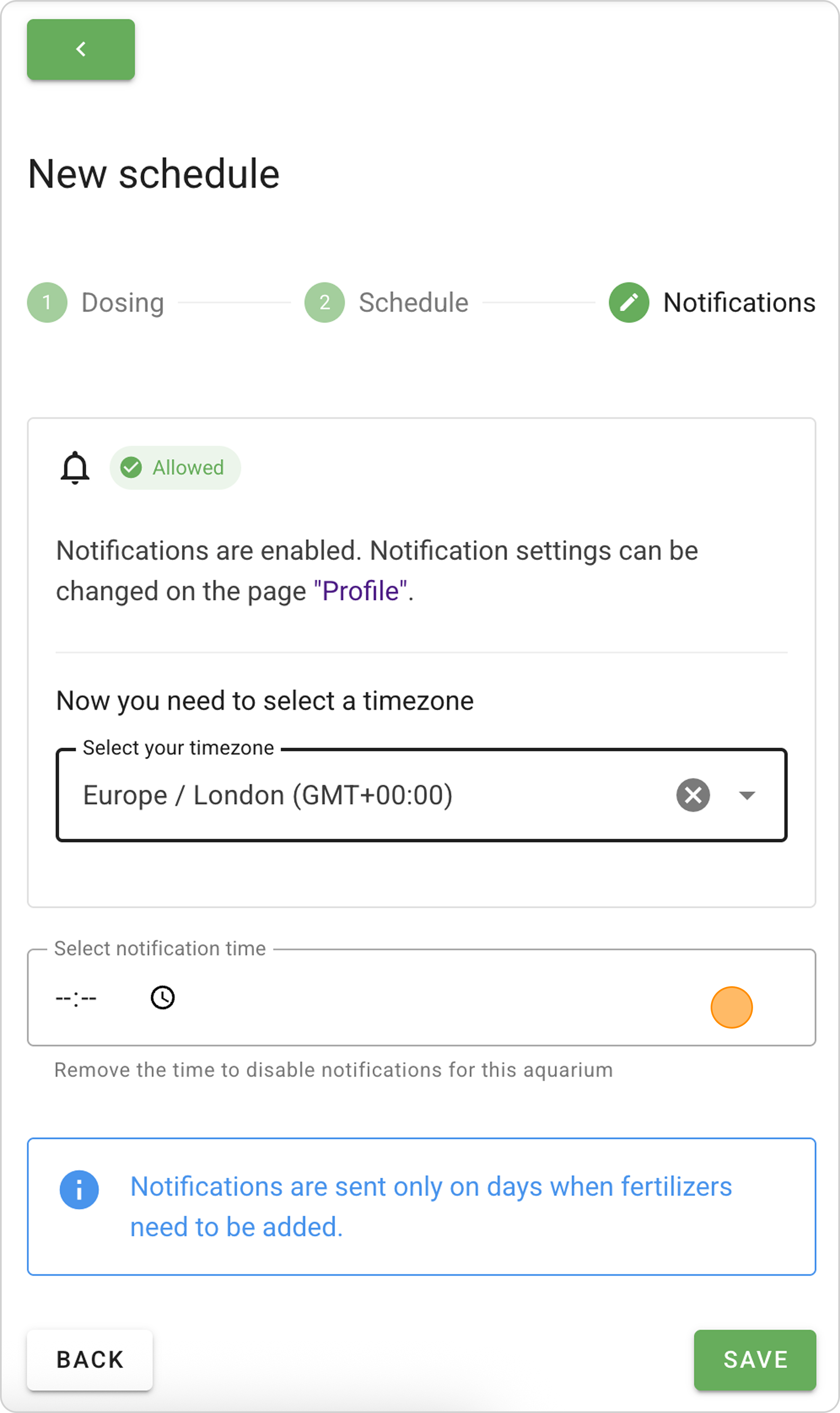
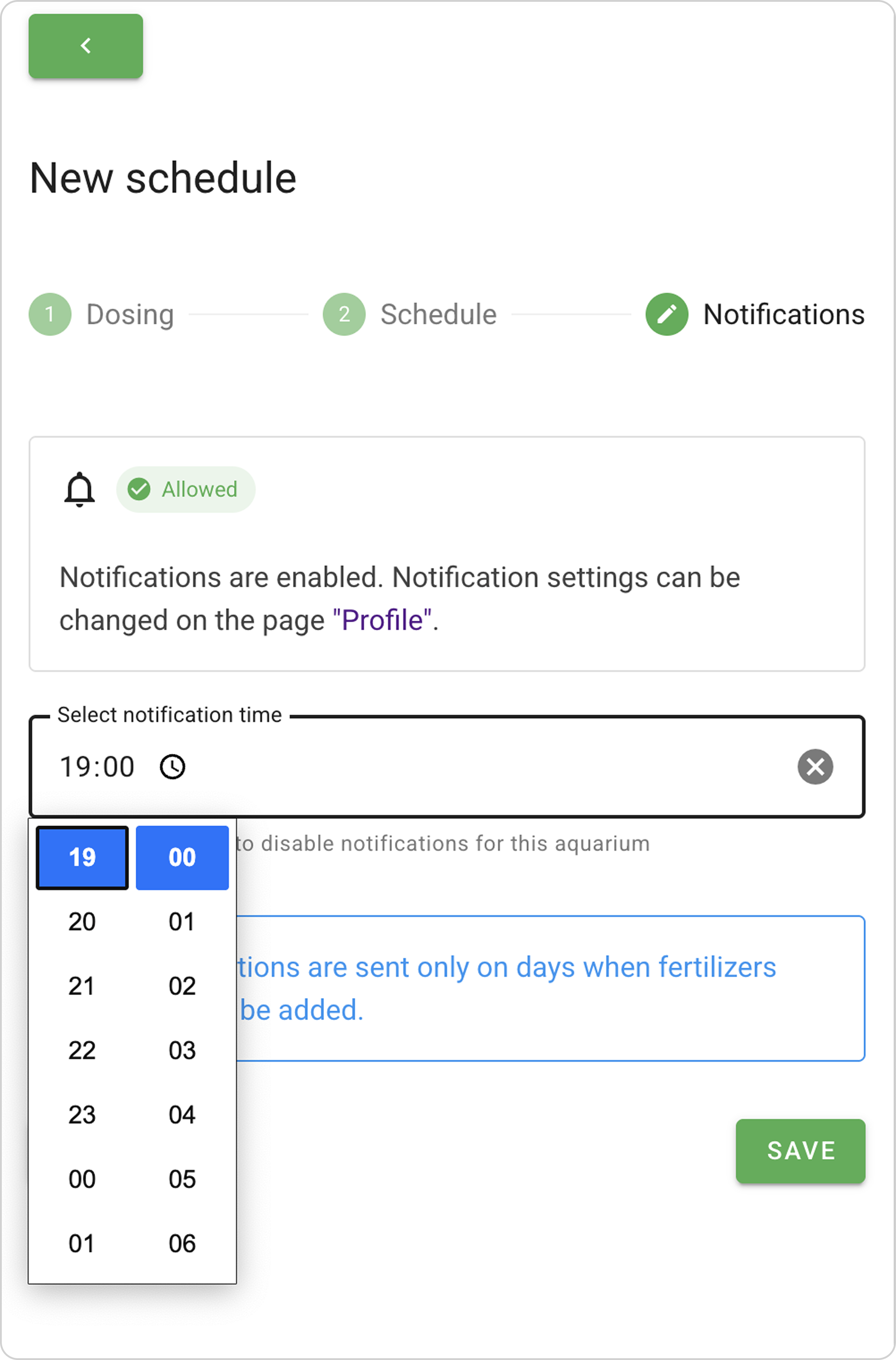
- Click the "SAVE" button to complete notification setup.
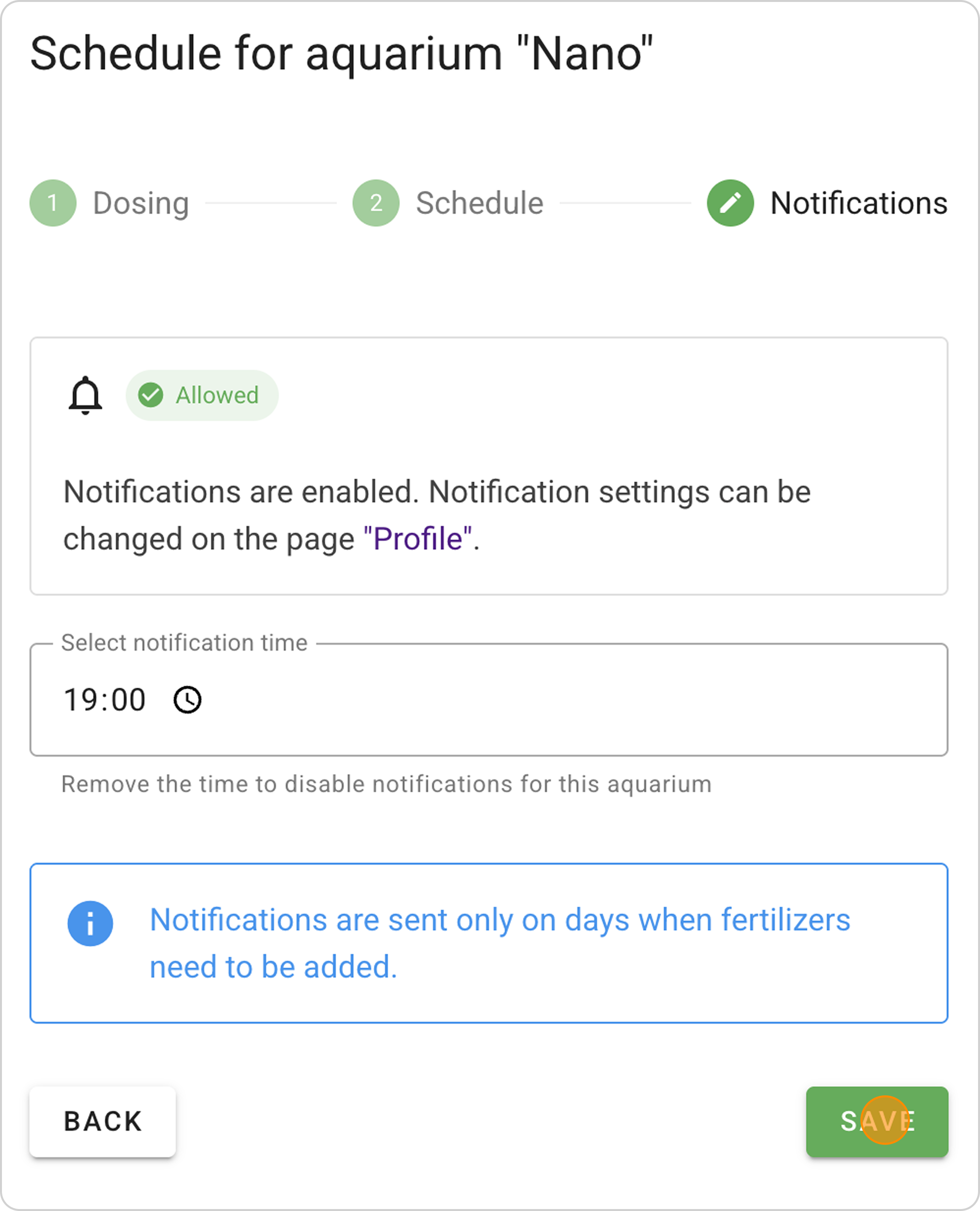
⚠️ Important: notifications will only arrive on days when fertilizer needs to be added. On days without fertilizer dosing, notifications will not arrive.
- The system will automatically take you to the Schedule section.
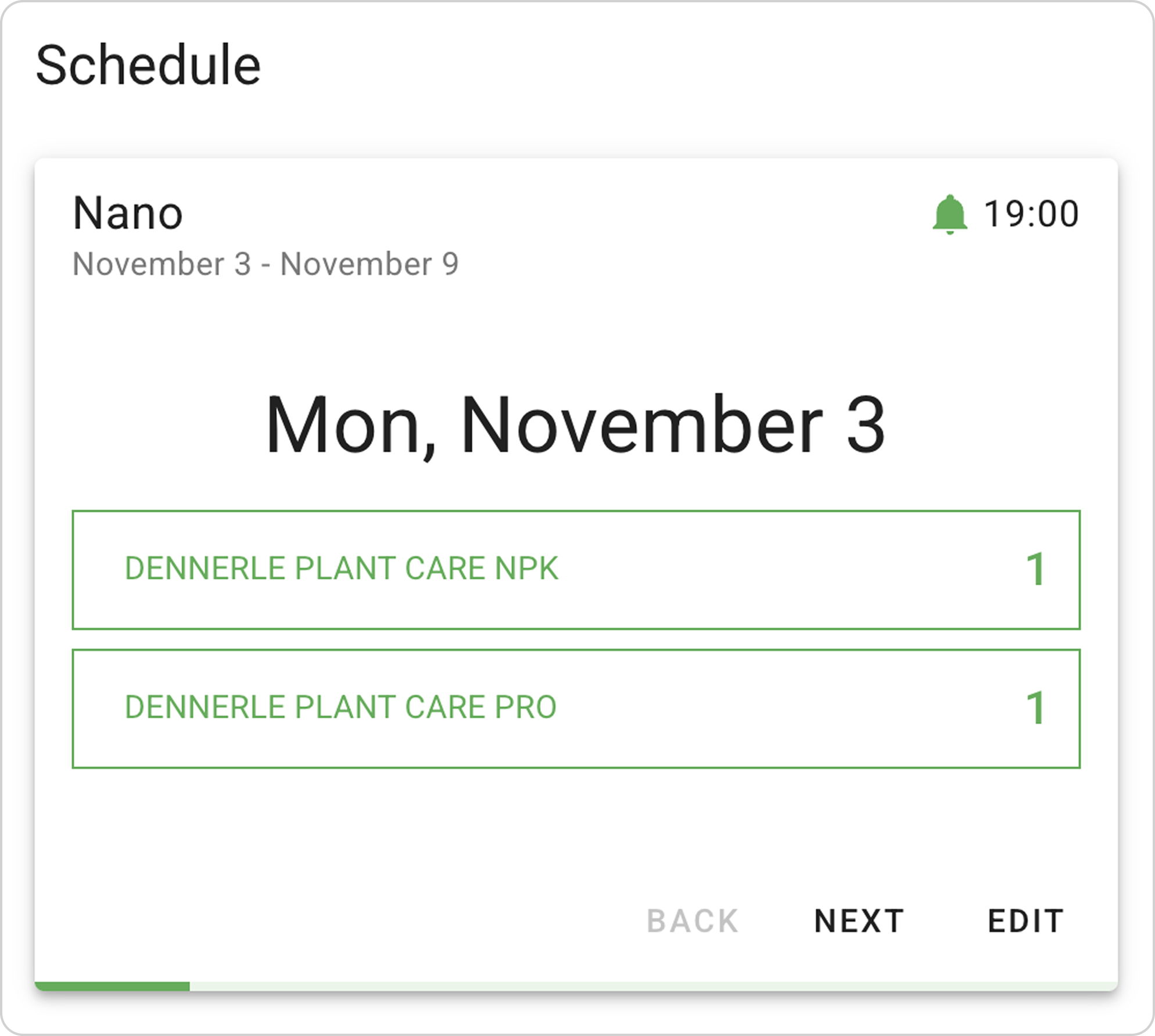
Changing Notification Settings
You can change push notification settings at any time.
- Changing time zone:
- Click the "Profile" icon in the main menu and go to the Notifications section.
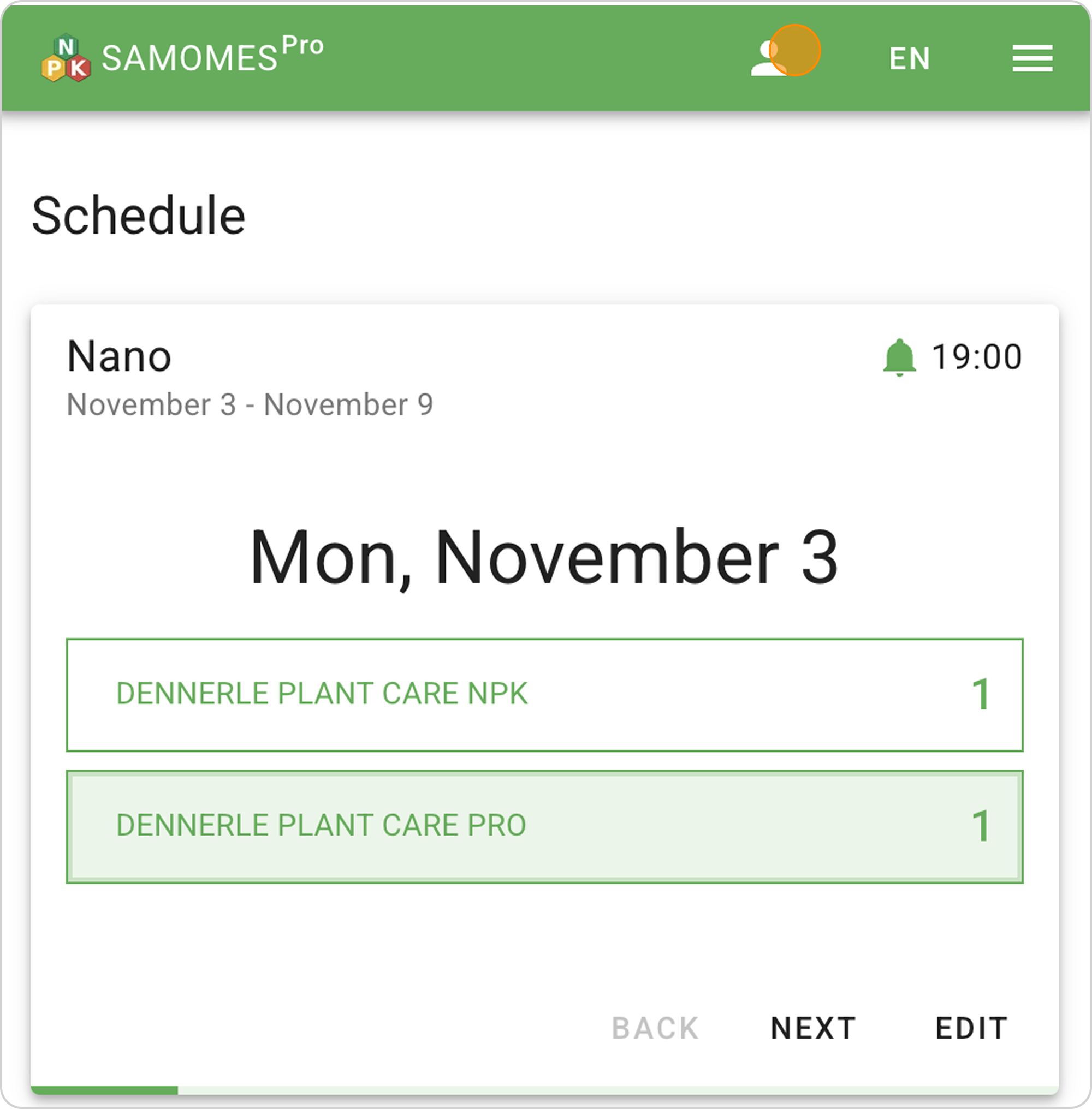
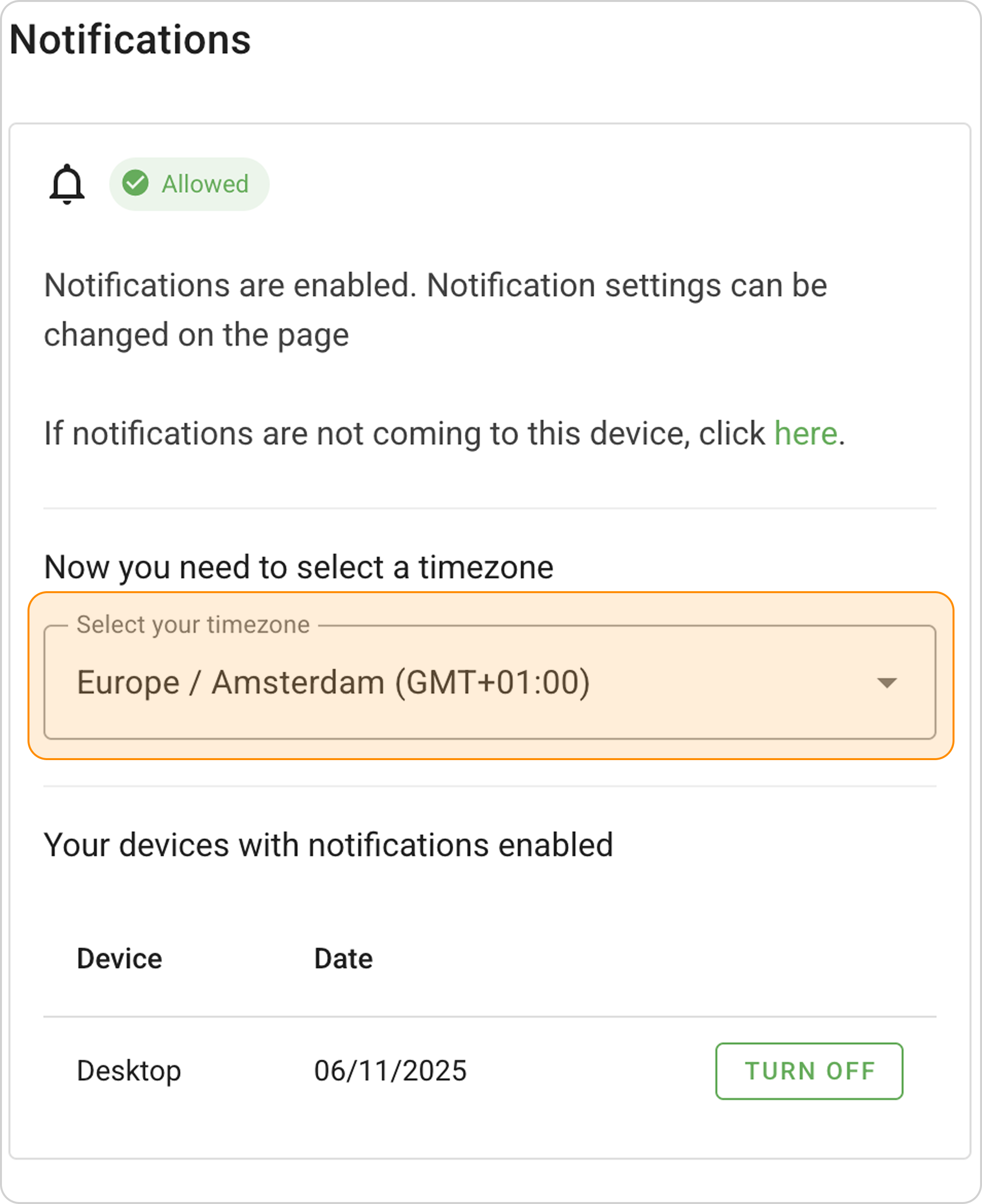
- In the dropdown list, select a new time zone. Changes will be saved automatically.
The new time zone will apply to all your schedules.
- Changing notification time:
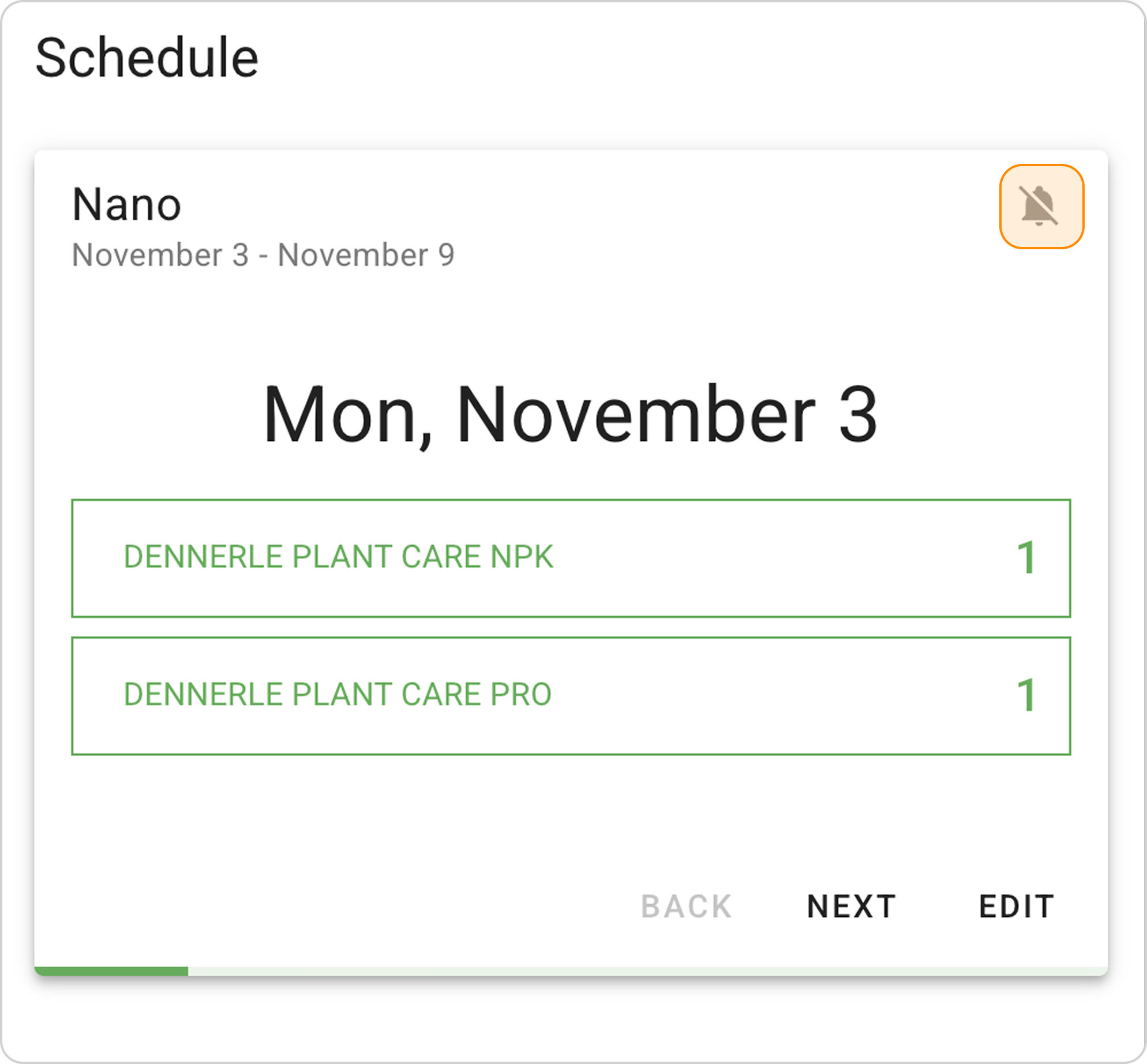
- Go to the Schedule section, find the card with the needed tank and click on the bell icon in the upper right corner.
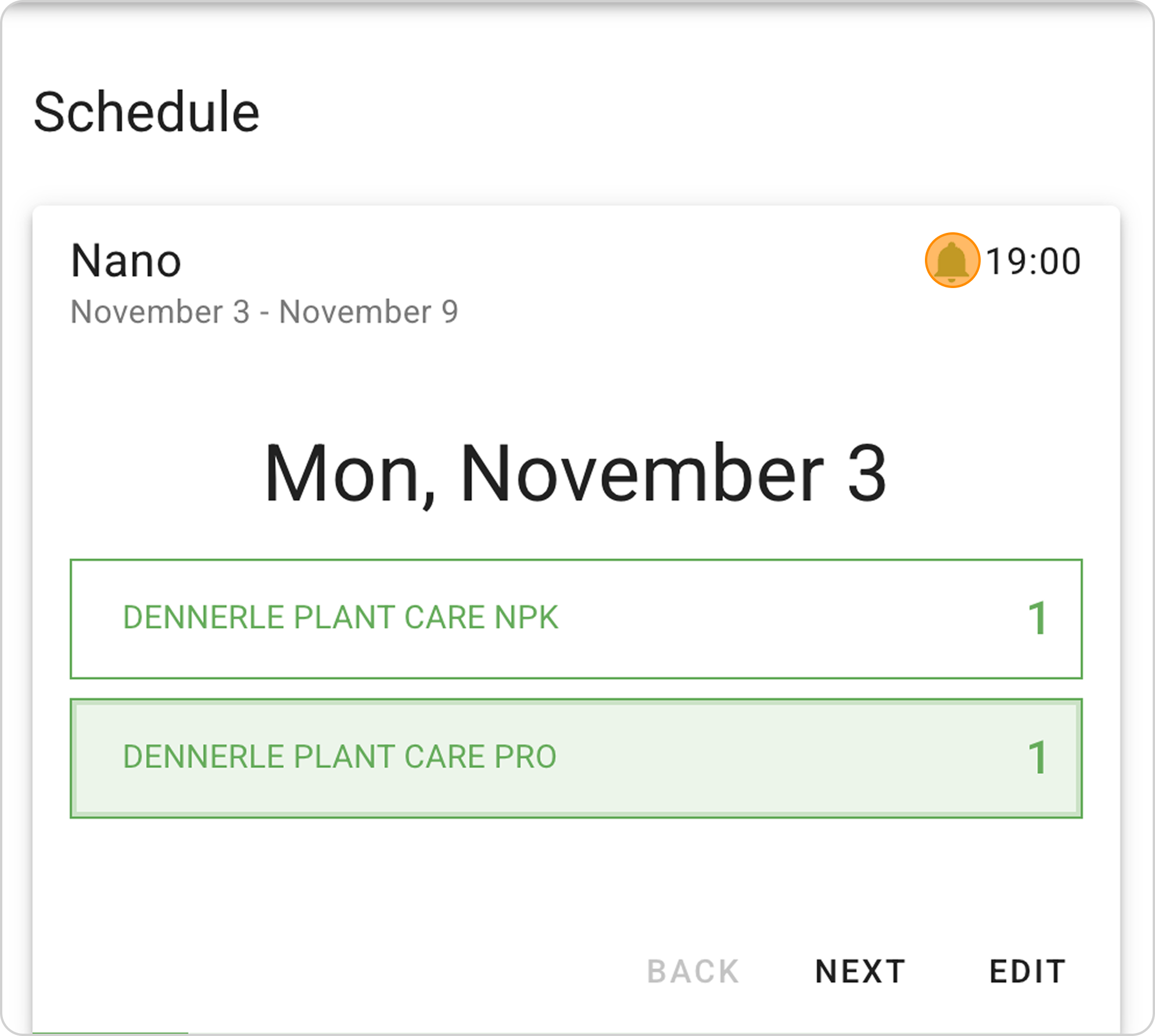
- The system will take you to editing with the ability to select a new time.
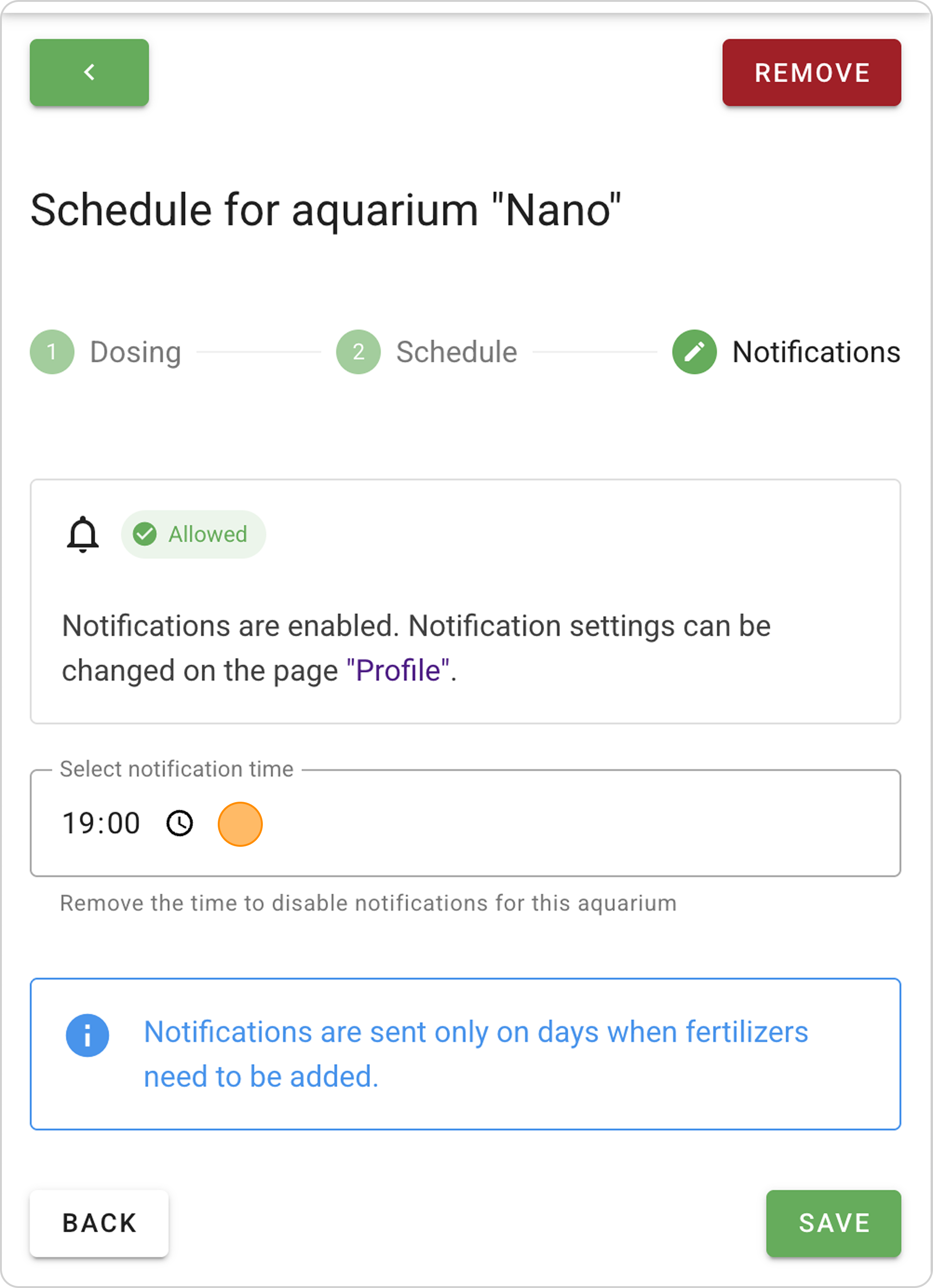
- Click on the picker and select a new time.
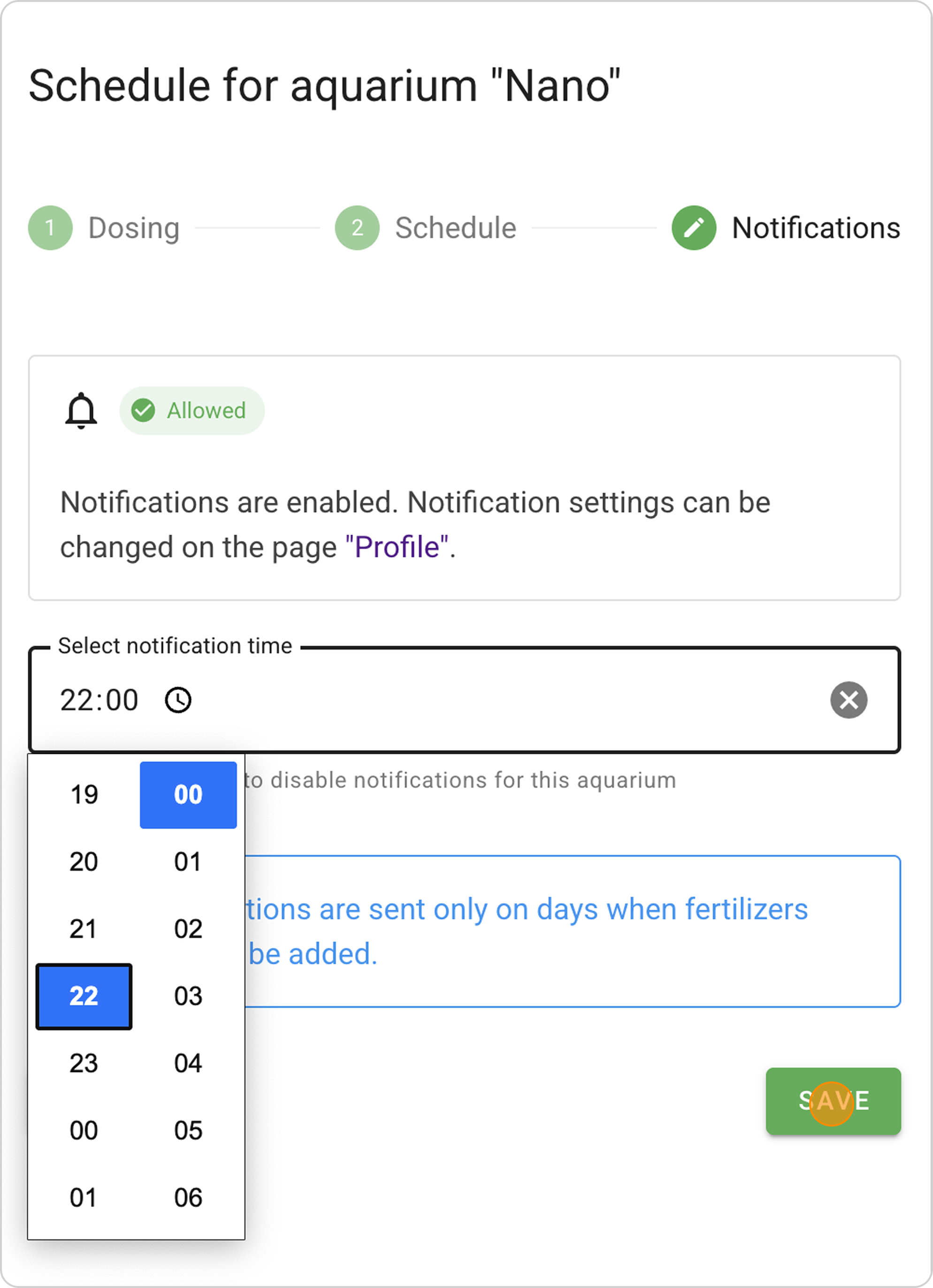
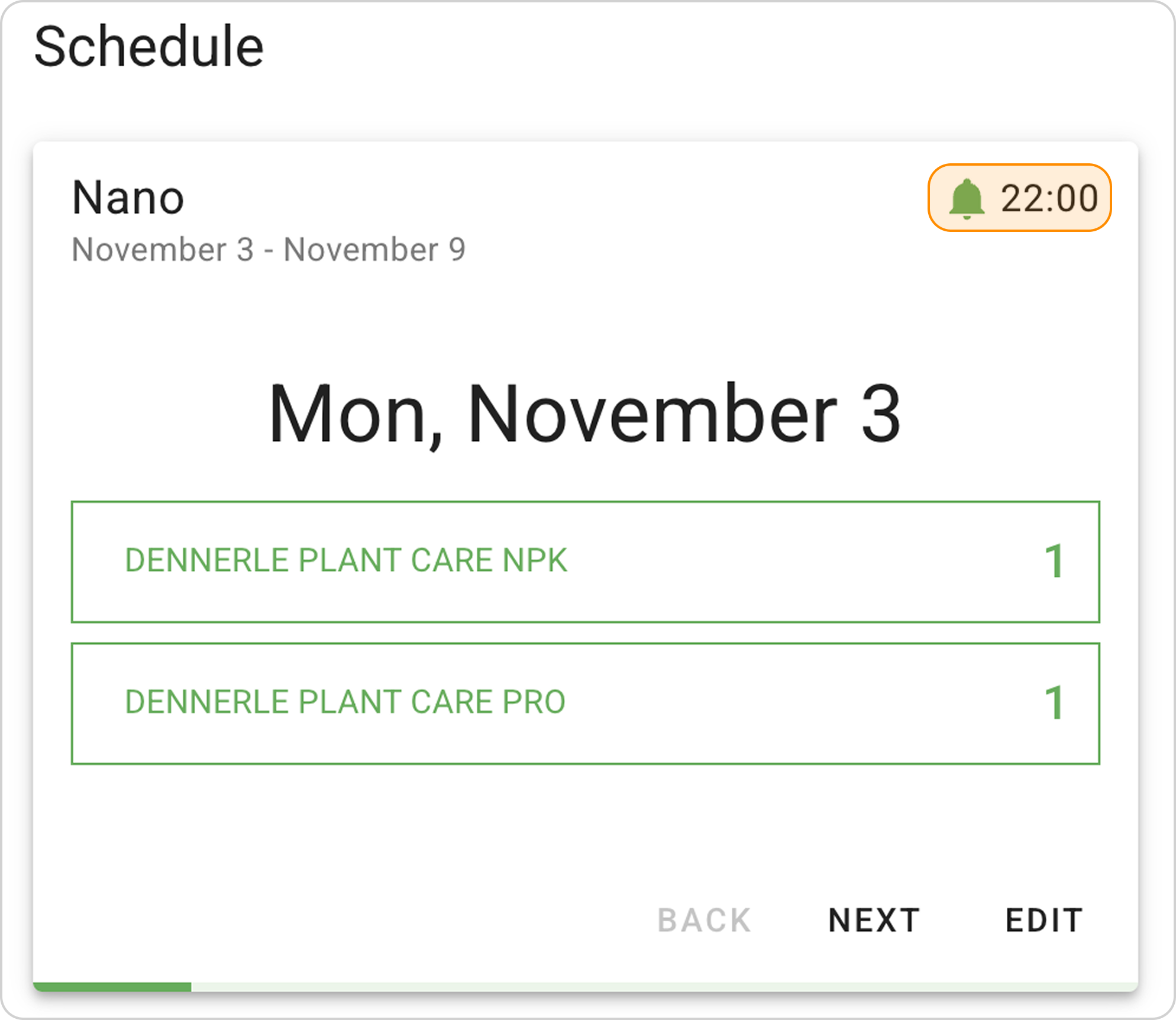
- Click "SAVE" and the system will change the push notification time.
The notification time will change only for this tank.
- Canceling notifications for a specific tank:
- To cancel push notifications, delete the time in the picker.
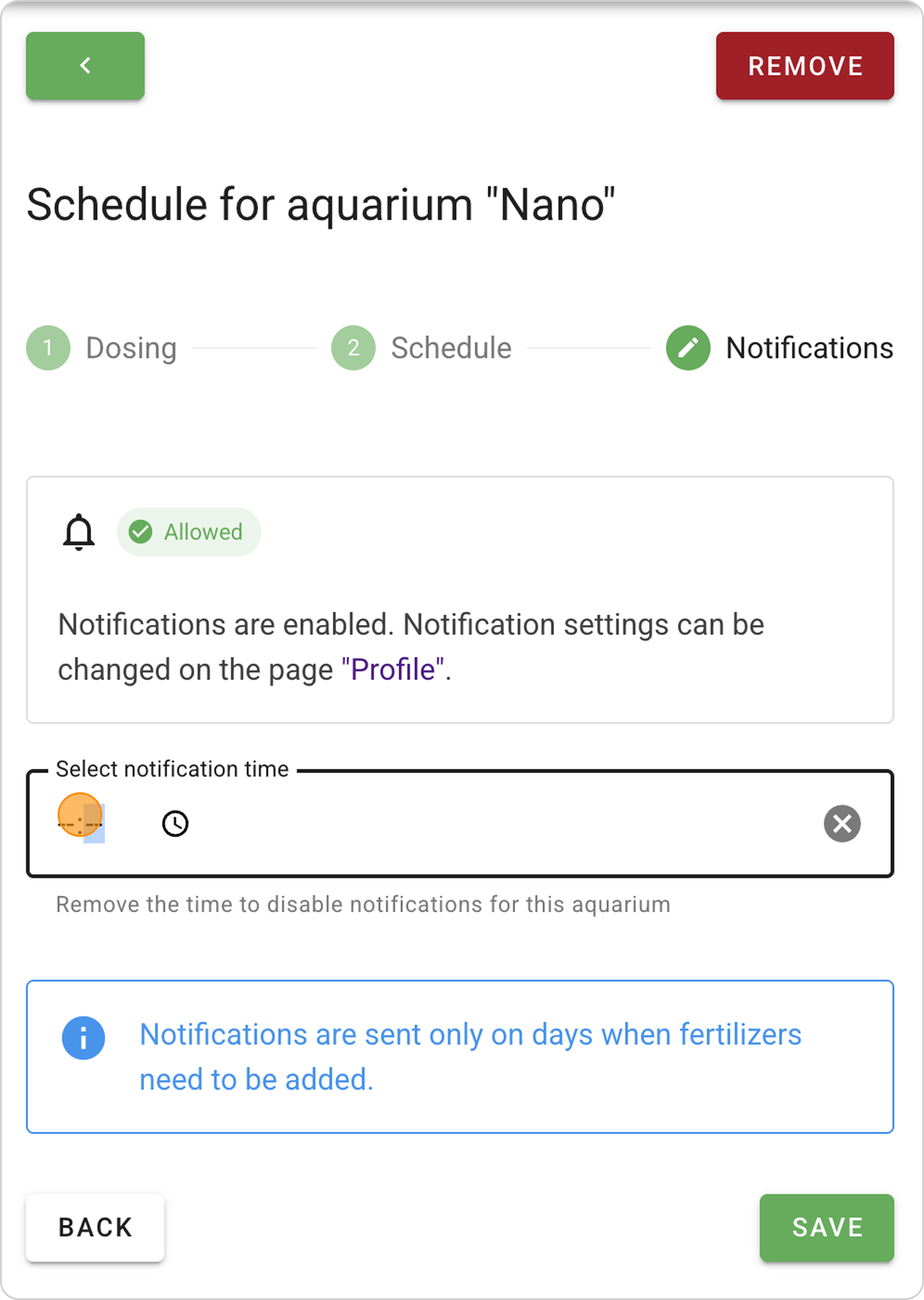
- Click "SAVE" and the system will cancel push notifications. A gray crossed-out bell will appear in the upper right corner.
- Canceling notifications for a specific device:
- Open "Profile" and go to the Notifications section.
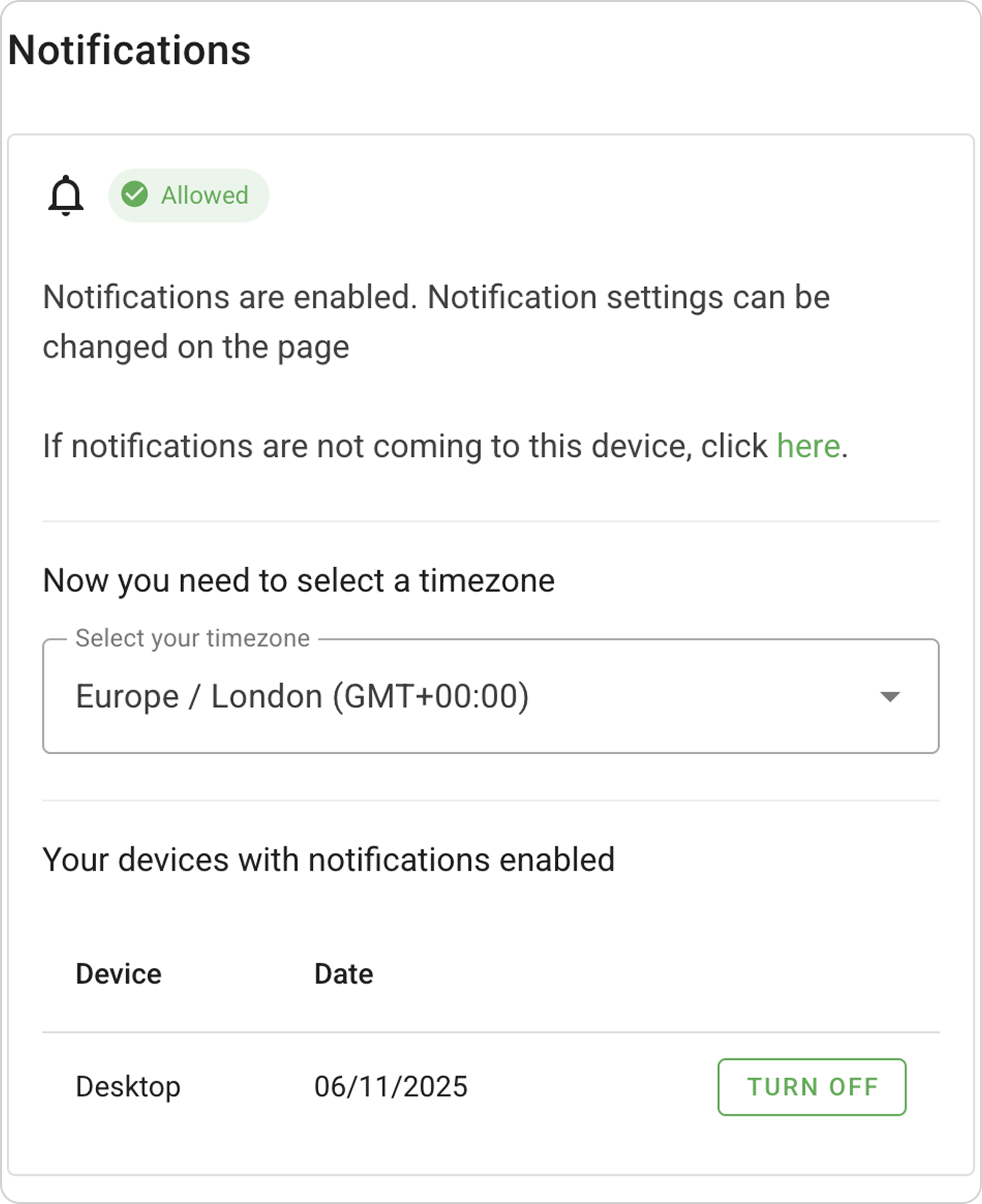
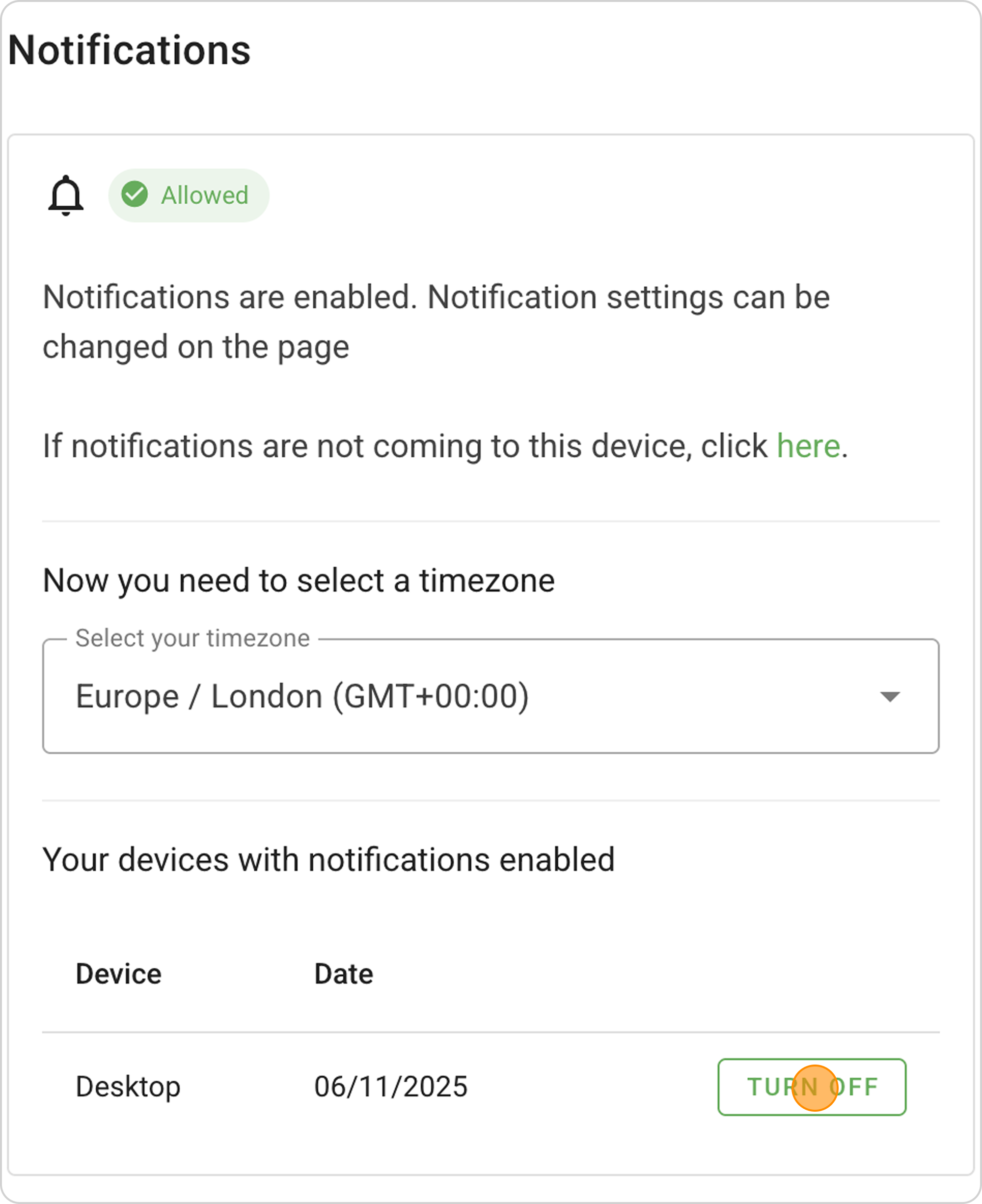
- In the "Your devices with notifications enabled" section, find the needed device.
- Click the "DISABLE" button.
⚠️ Important: If you encounter problems receiving push notifications, refer to the Troubleshooting - Schedule section.
Technical Requirements
To receive notifications you need:
- Allow sending notifications in your device settings for the Samomes app/website
- Have a stable internet connection