This guide will help you add a new aquarium to Samomes for further calculations. As a result, you will have a tank profile with the main parameters: water volume, water change volume and percent, tank dimensions, and glass thickness.
Total water volume is the volume of water that was poured into the tank at startup. It consists of the water column volume, water in the substrate and external filter, minus all decorations in the tank. The easiest way to determine the exact water volume is to measure it during tank startup using a container or scale. However, if you don't know the exact value, it can be calculated using the form provided below. Here you can specify the tank volume excluding the filter, and add the filter volume in the additional volumes section below.
Don't worry! You don't need to know the exact volume. An error of 10-20% will not lead to major mistakes in fertilizer calculations, algae, or anything bad, since ultimately we cannot very precisely control nutrient uptake and rely on the appearance of the plants.
Step-by-Step Guide
Step 1: Open the Tank Creation Form
- In the main Samomes menu, select the "Tanks" section
- Click the "+ ADD" button in the lower right corner

Step 2: Enter Tank Name
- Click on the "Tank Name" field
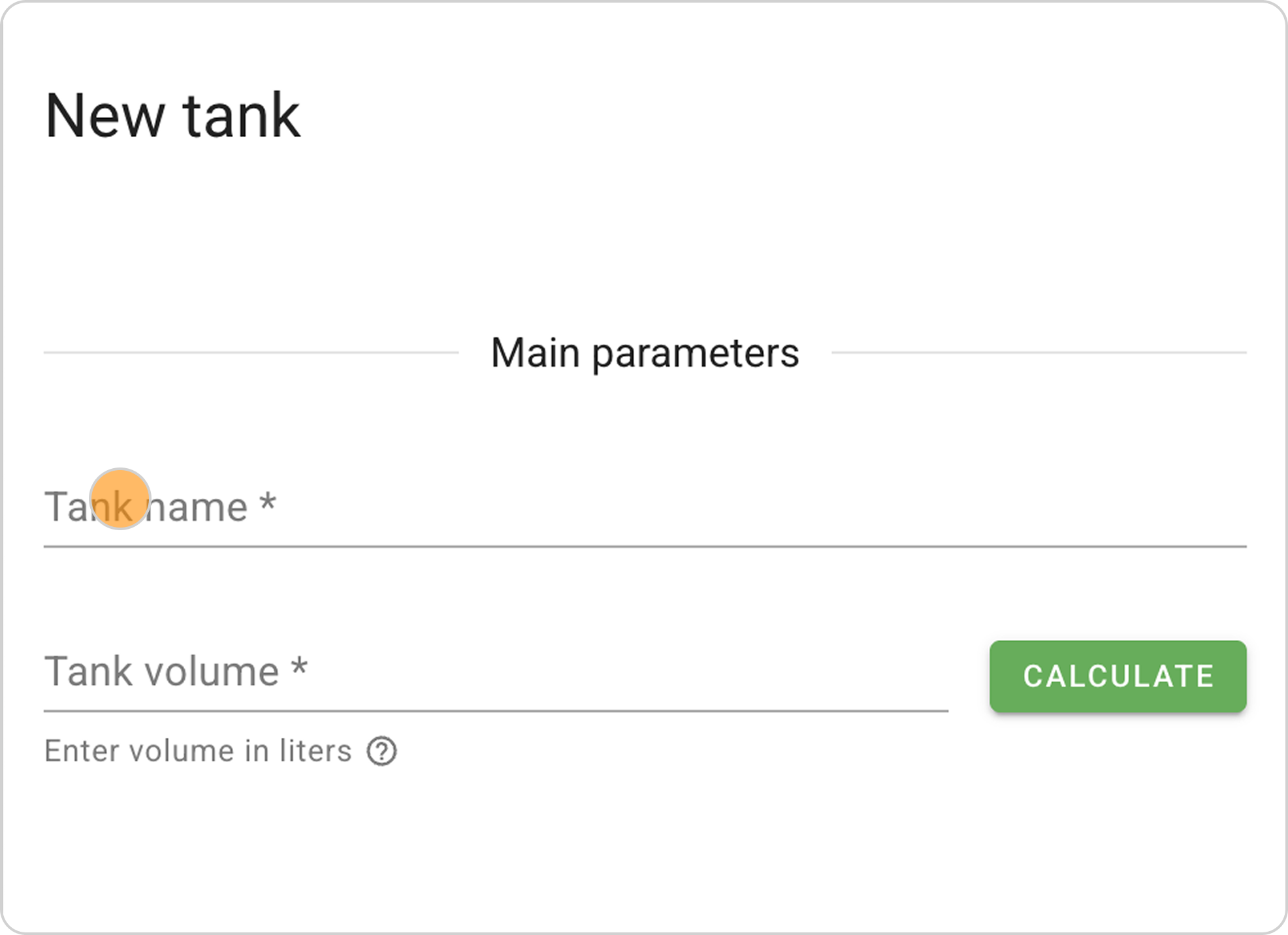
- Enter a clear name, for example "My First Tank" or "Large Planted Tank"
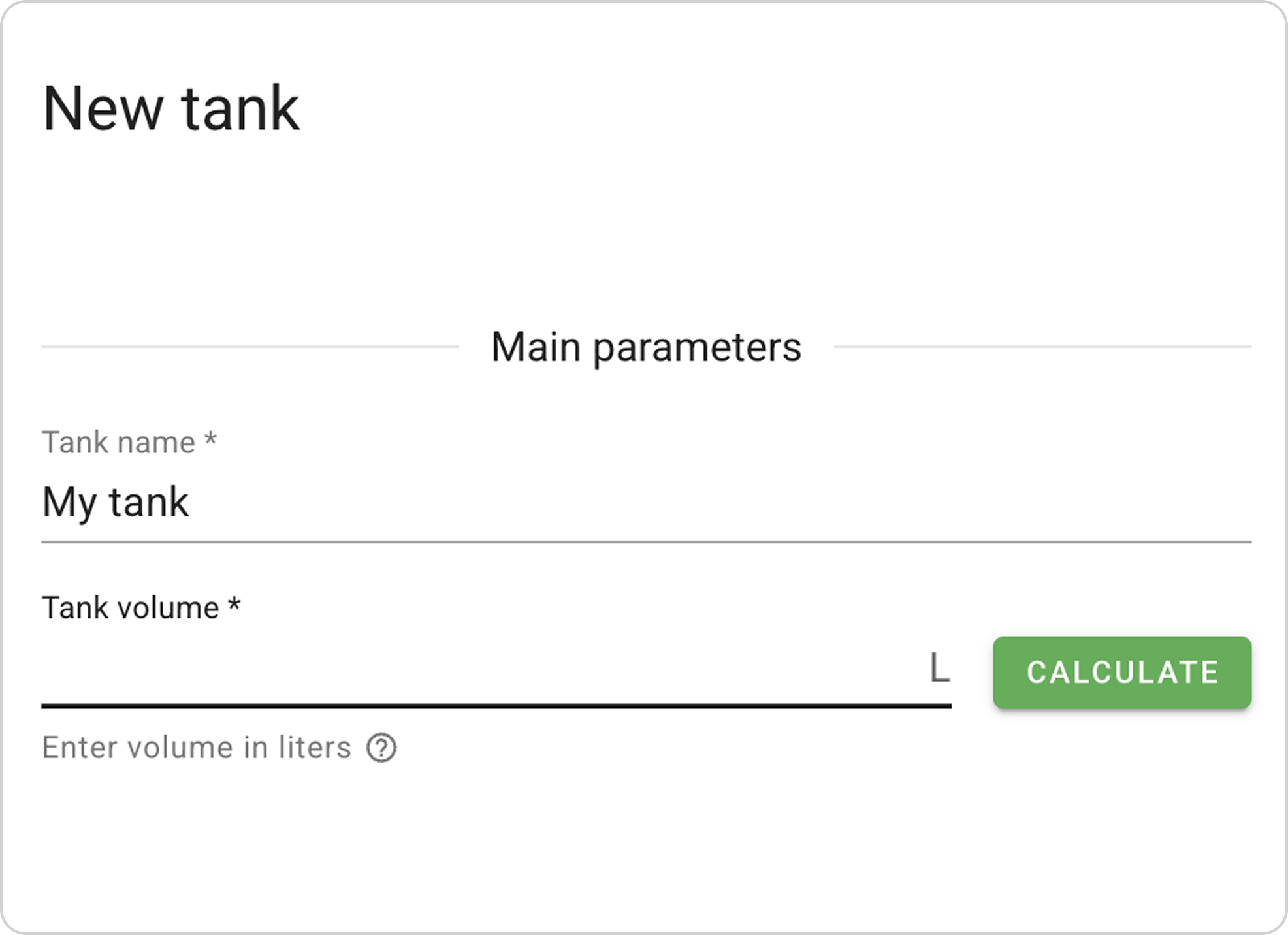
💡 Tip: Choose a simple name to easily distinguish between tanks if you have multiple ones.
Step 3: Specify Tank Volume
Total water volume — the volume of water poured into the tank at startup, including water in the substrate and external filter, minus decorations.
How to determine the exact volume: you have two options.
- Measure it during startup using a container or scale.
- If the exact value is unknown, calculate it using the calculator below — specify the tank dimensions, and add the filter volume in the "Additional Parameters" section.
Important: volume accuracy is not critical. An error of 10-20% will not affect fertilizer calculations.
Option A: If you measured and know the exact volume at startup
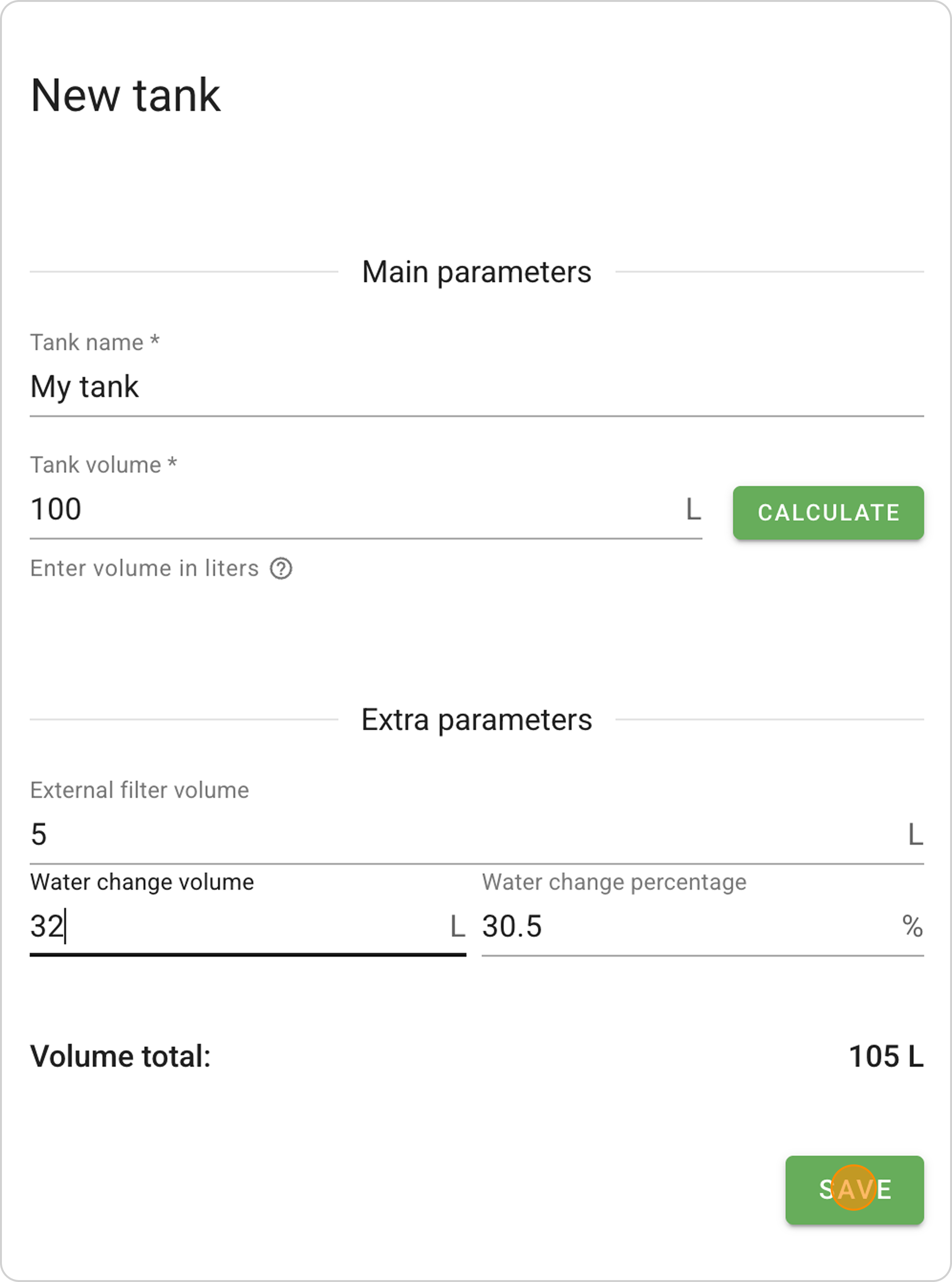
- In the "Tank Volume" field, enter the value in liters
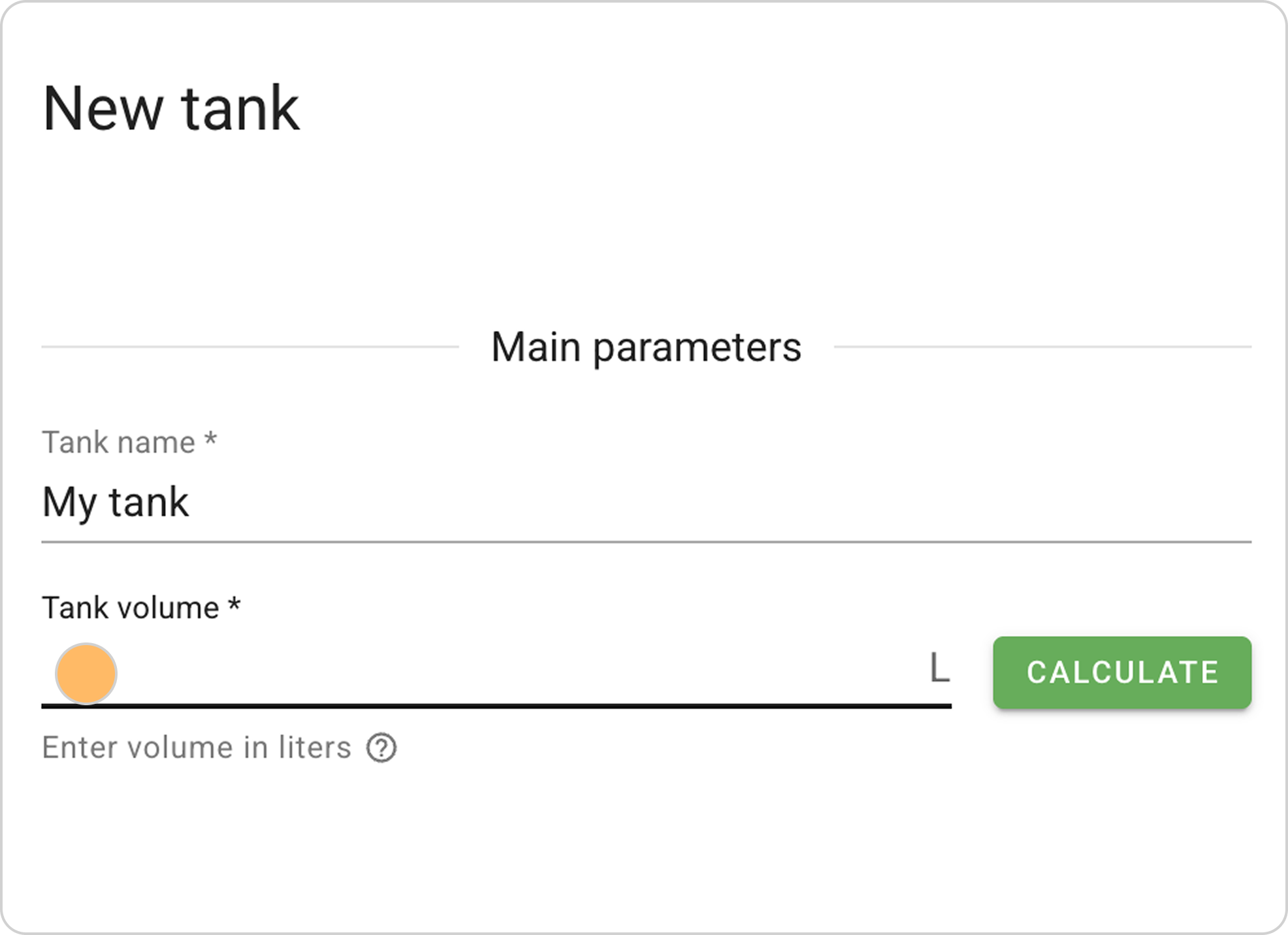
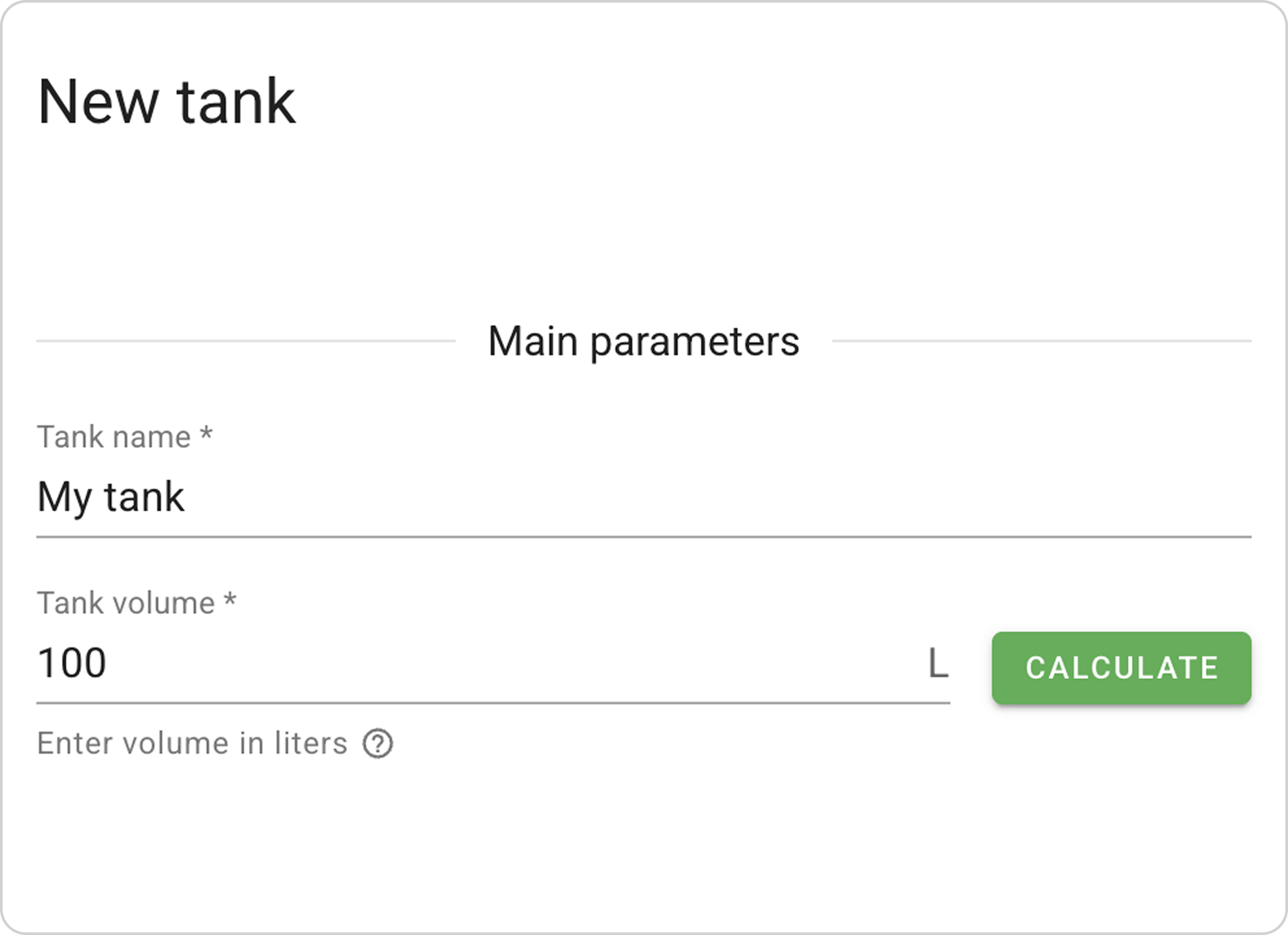
- Proceed to step 4
Option B: If you need to calculate the volume
- Click the "CALCULATE" button next to the tank volume field.
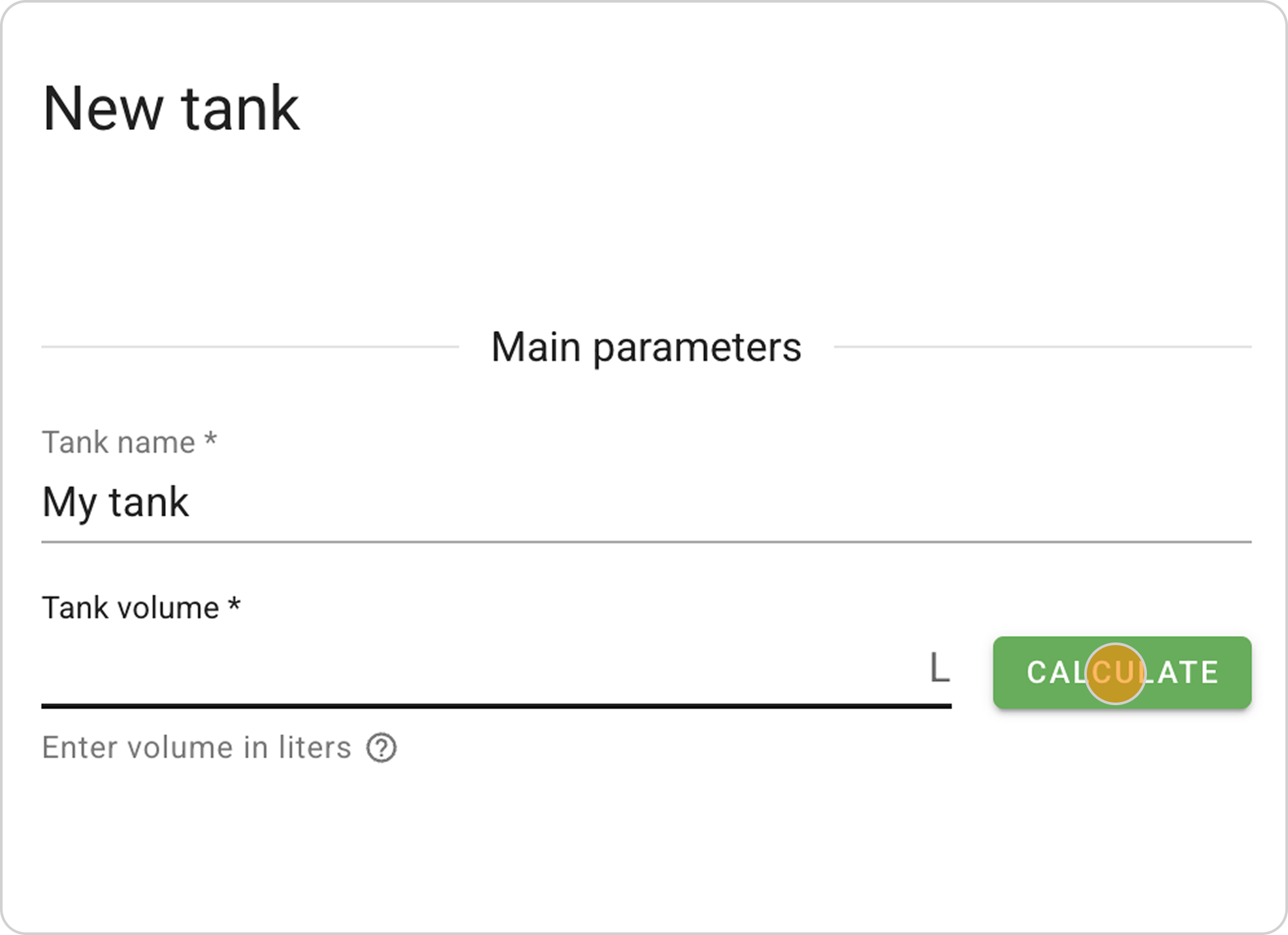
- In the expanded window, enter:
- Tank Length in centimeters
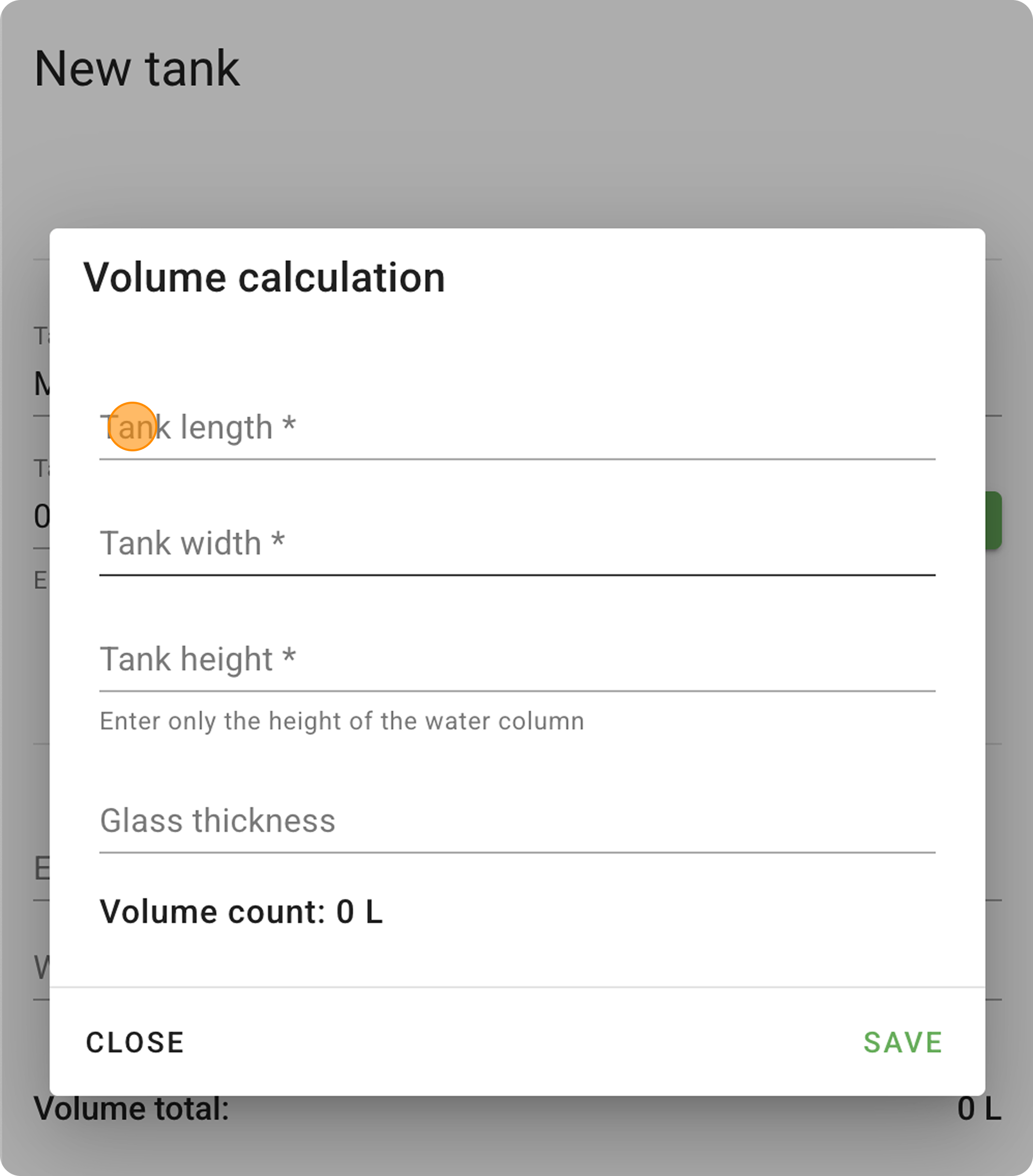
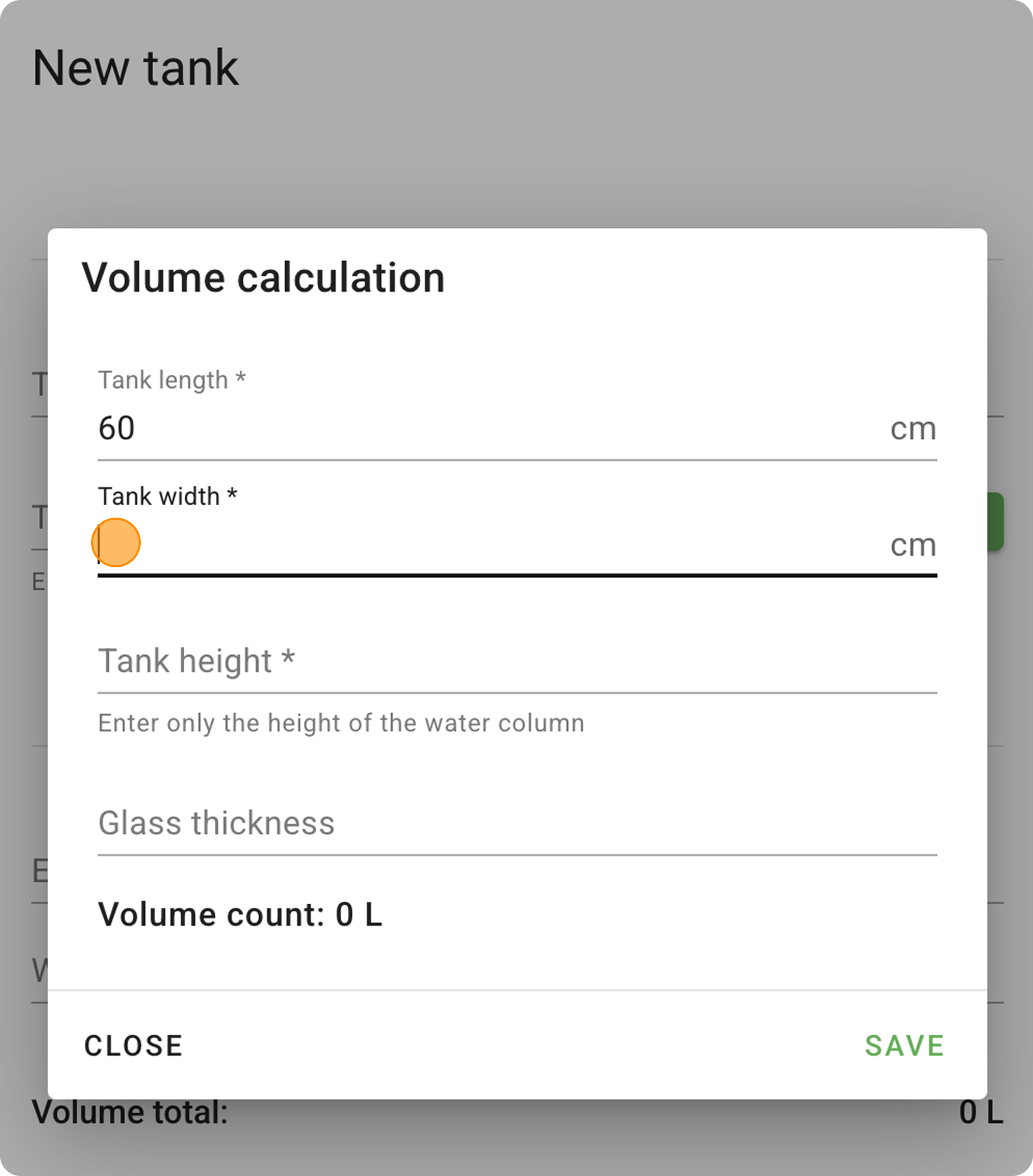
- Tank Width in centimeters
- Water column Height in centimeters - the distance from the substrate surface to the water edge
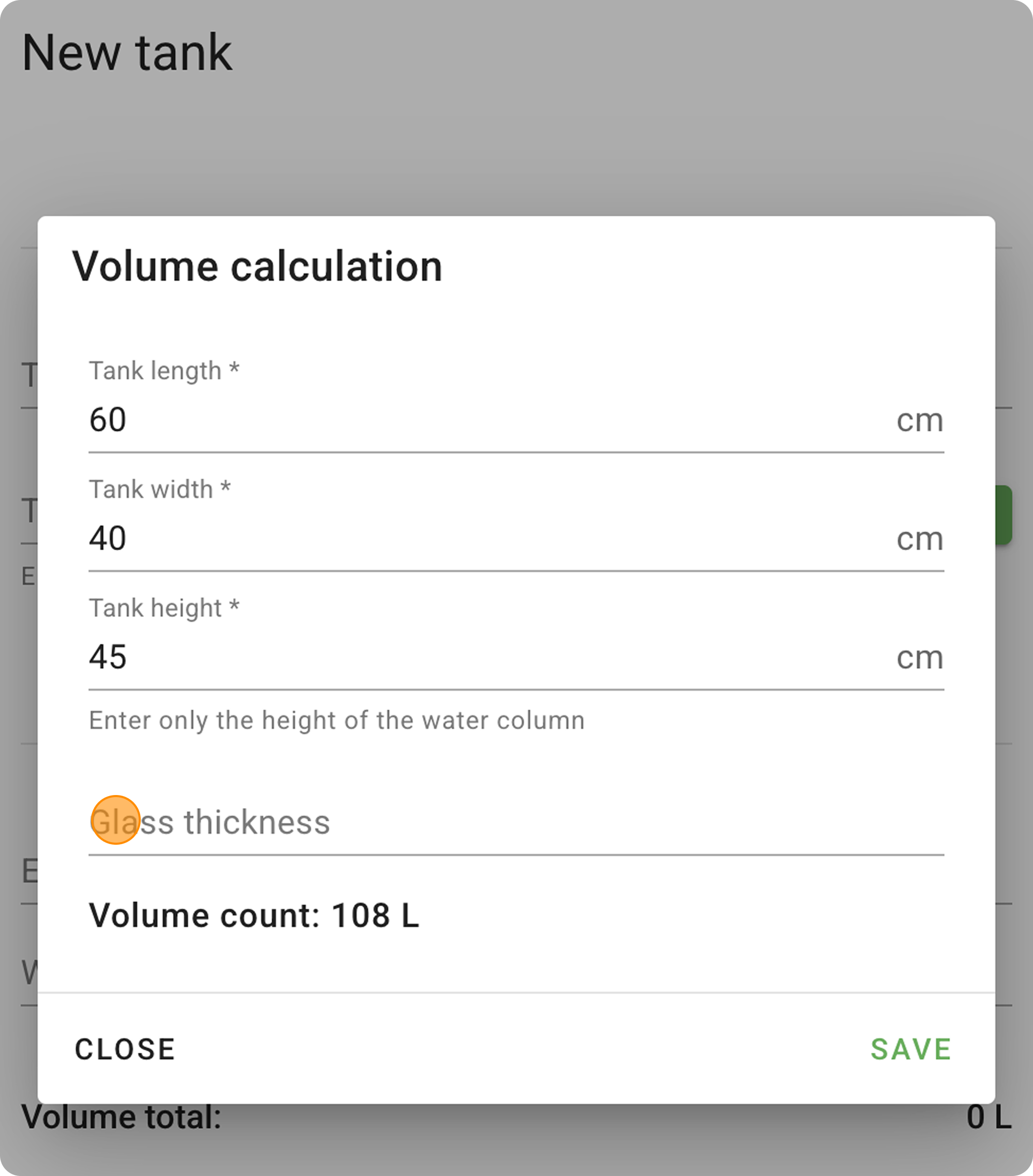
- Glass Thickness in millimeters (for more accurate calculation).
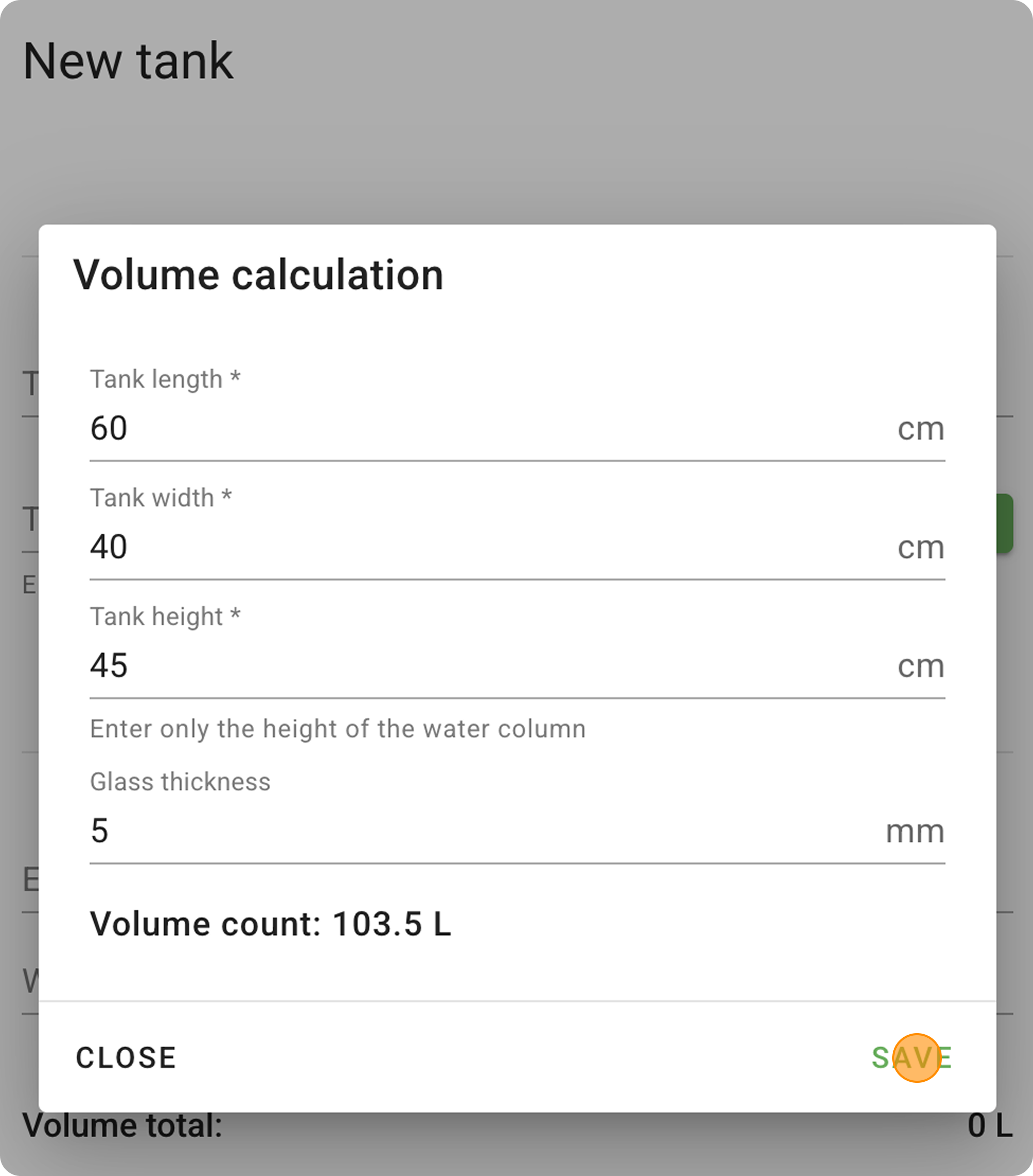
- Click the "SAVE" button.
Your tank volume will be automatically calculated and saved.
Step 4: Enter Additional Parameters
- In the "External Filter Volume" field, enter the value in liters.
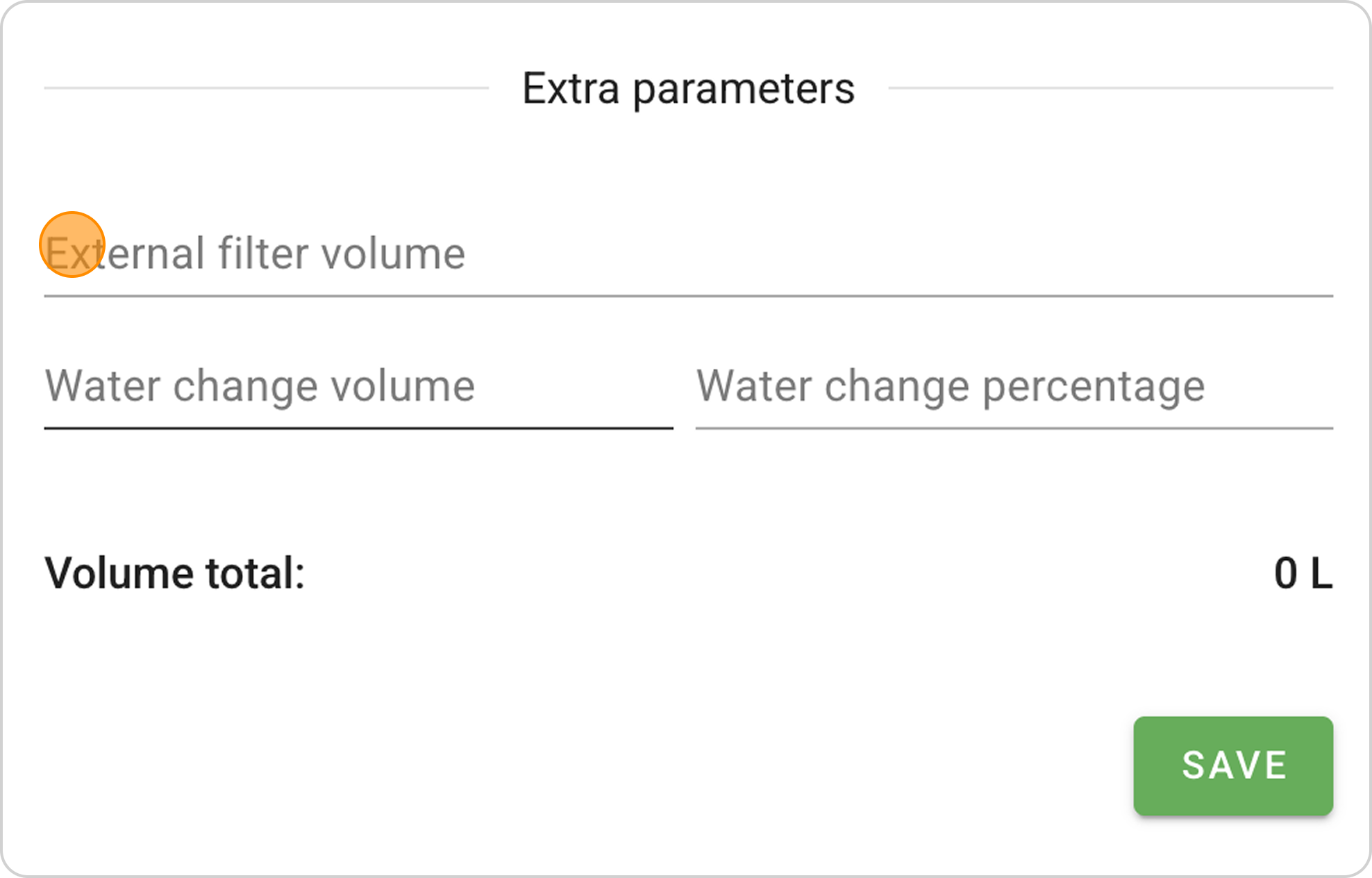
- In the "Water Change Volume" field, enter the value in liters.
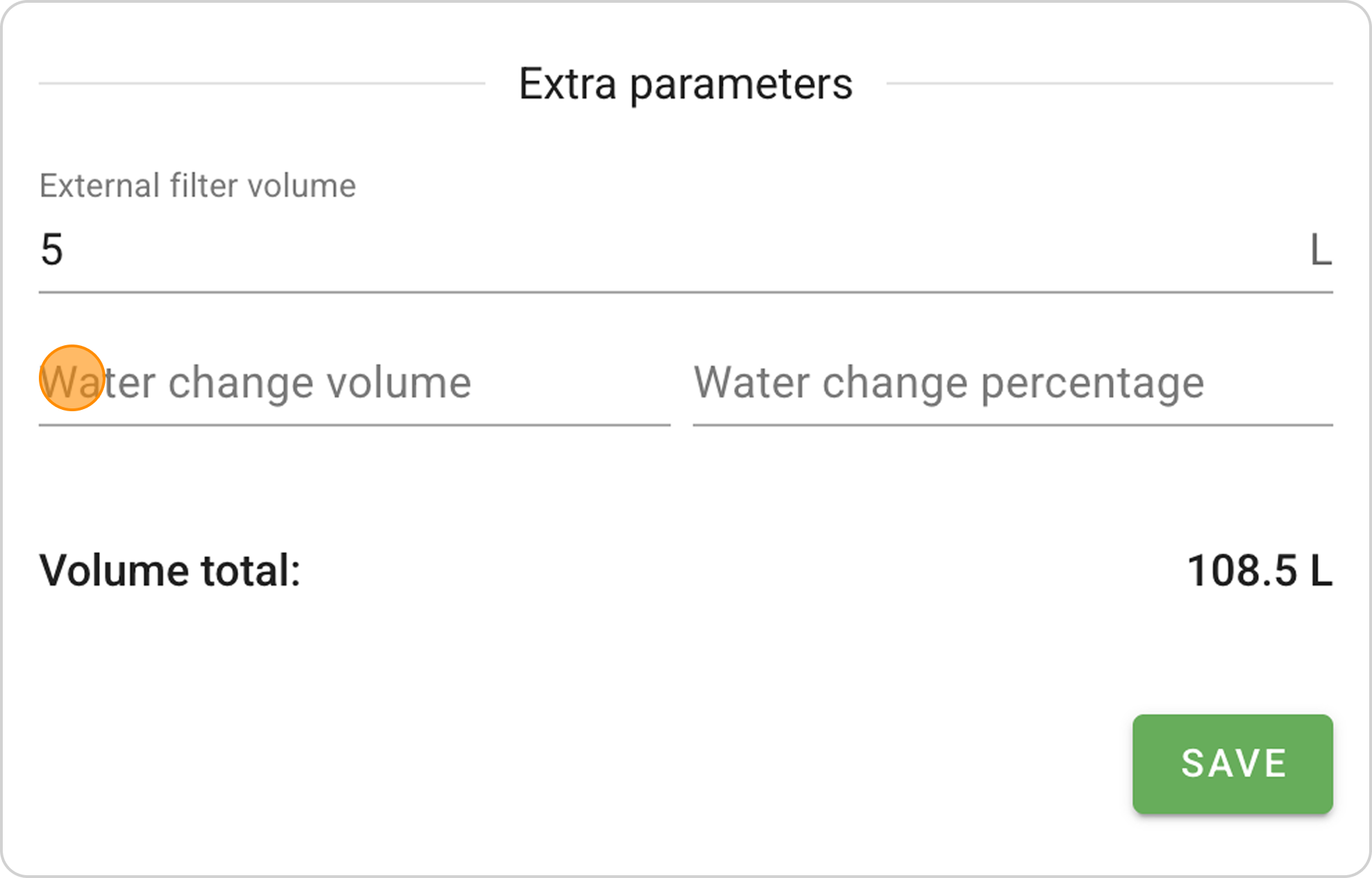
The total tank volume and water change percentage will be automatically calculated and saved.
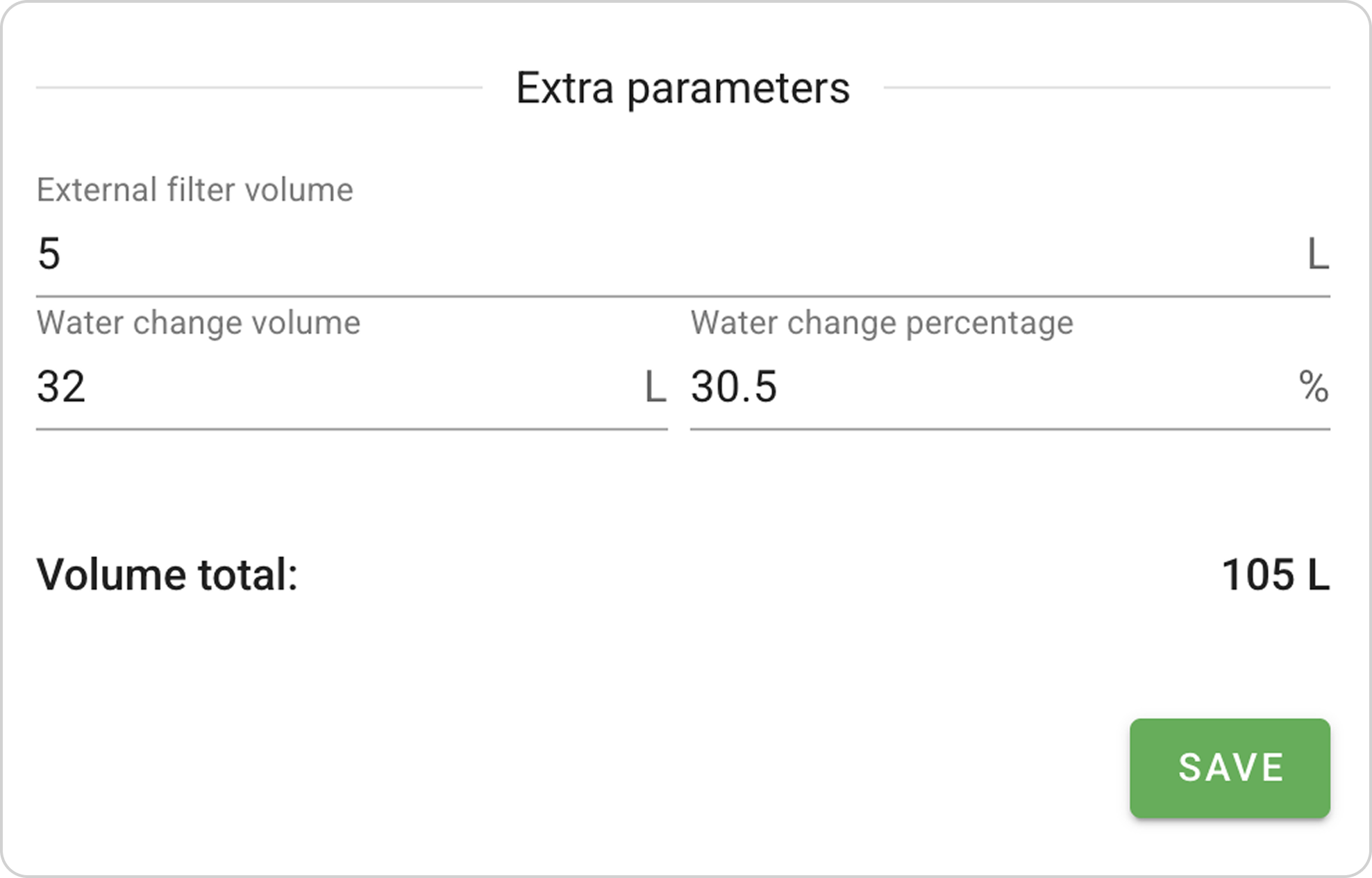
💡 Tip: If you don't know the exact values, you can skip these fields and fill them in later.
Step 5: Save the Tank
- Review all entered data
- Click the "SAVE" button in the lower right corner
You will be redirected to the Tanks page with the list of all your tanks.
Tank Management
After creation, you can:
View parameters:
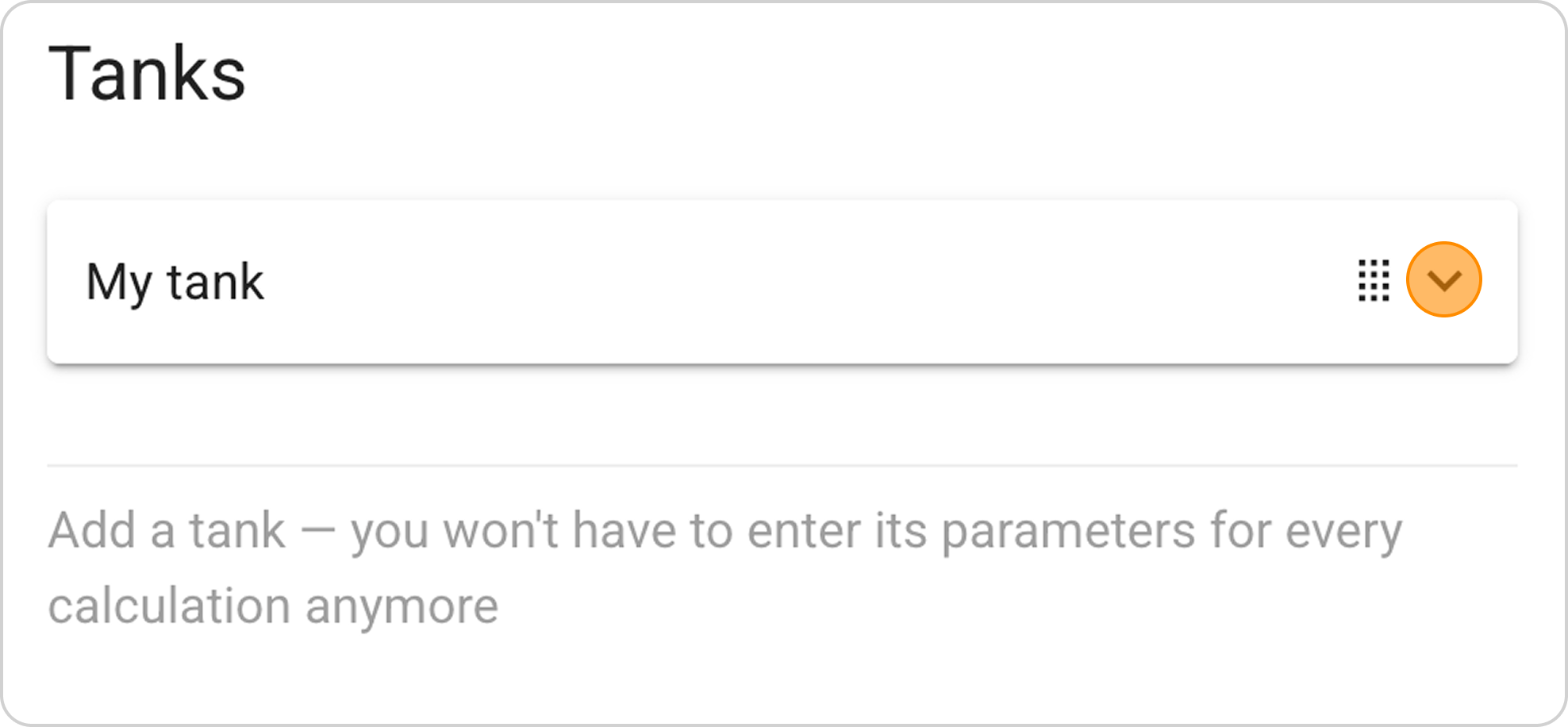
- Click the arrow to the right of the tank name
Edit parameters:
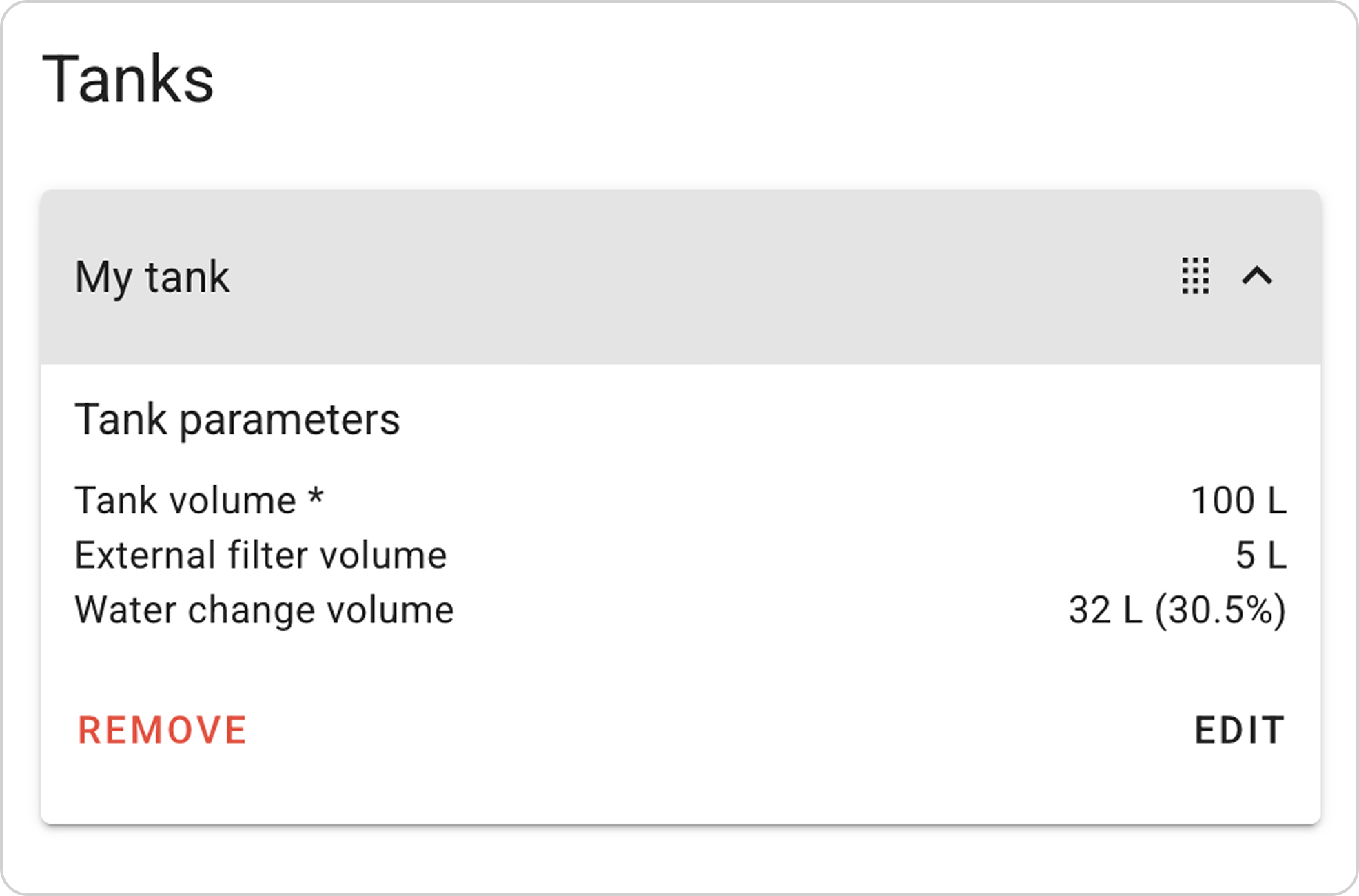
- Click the "EDIT" button in the expanded list
Delete tank:
- Click the "REMOVE" button in the expanded list
⚠️ Warning: Deletion is permanent and cannot be undone.