
Let's consider the third type of water preparation "Other" in the Hardness section. This water change type provides maximum flexibility in parameter settings, allowing you to combine various remineralizers and water sources at your discretion.
When to use:
- Tap water has an unsuitable Gh/Kh ratio
- Need to precisely control both hardness parameters
- Standard schemes don't provide the desired result
- Specific parameter correction is required
In this guide, we'll show how to use the "Other" water change type to solve complex water preparation tasks when standard schemes don't work. Let's consider a practical example:
Need to obtain Gh=6 in the water change, but tap water has very low Kh. Need to simultaneously dilute tap water with RO and add a remineralizer to increase Kh.
Initial parameters:
- aquarium volume 32 L
- water change volume 10 L
- tap water: Gh=12, Kh=1
- goal: obtain Gh=8, Kh~5 in the water change
- water change type: combined scheme
Step-by-Step Guide
Step 1: Open the Hardness Form
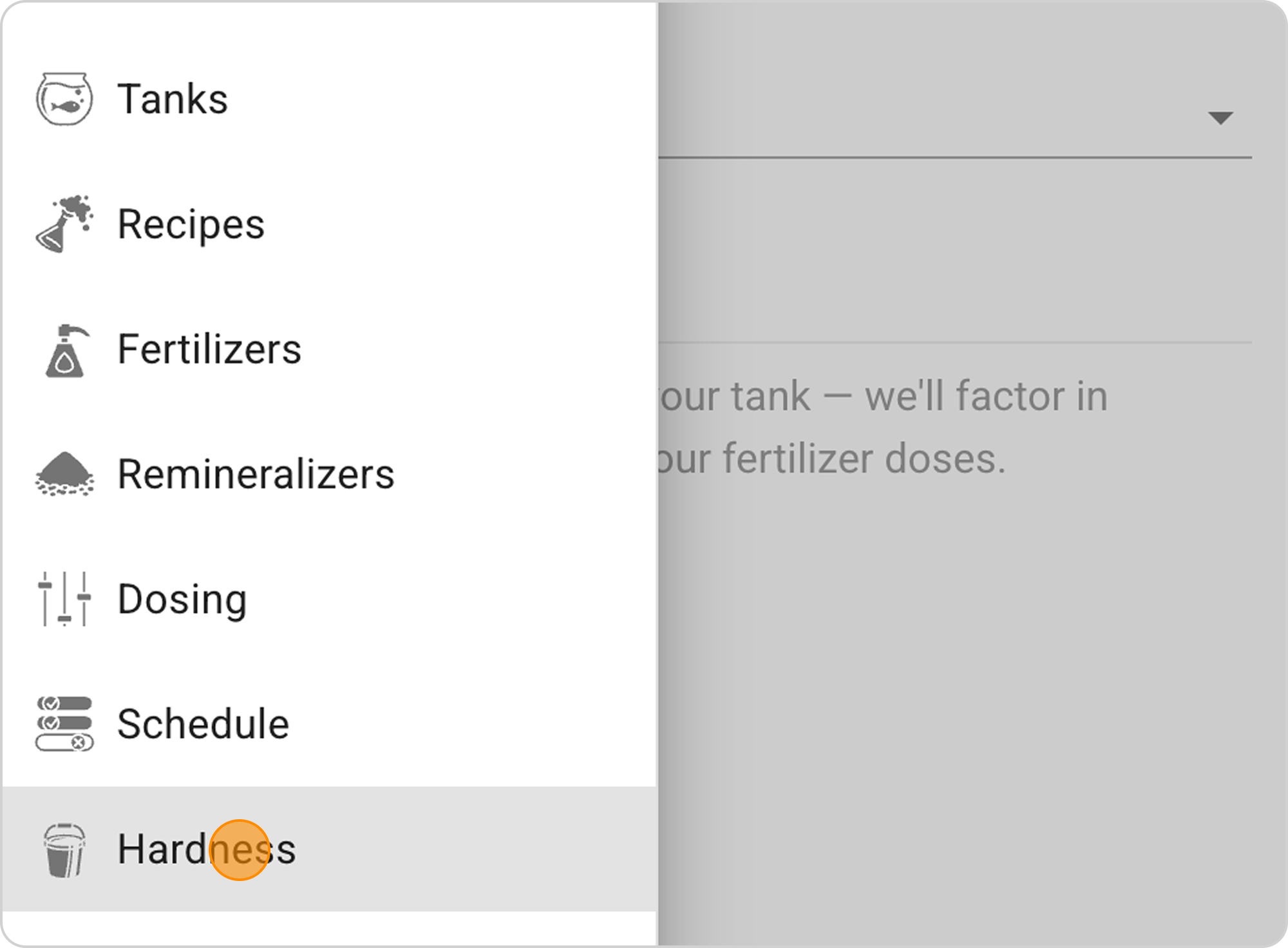
- In the Samomes main menu, select the "Hardness" section
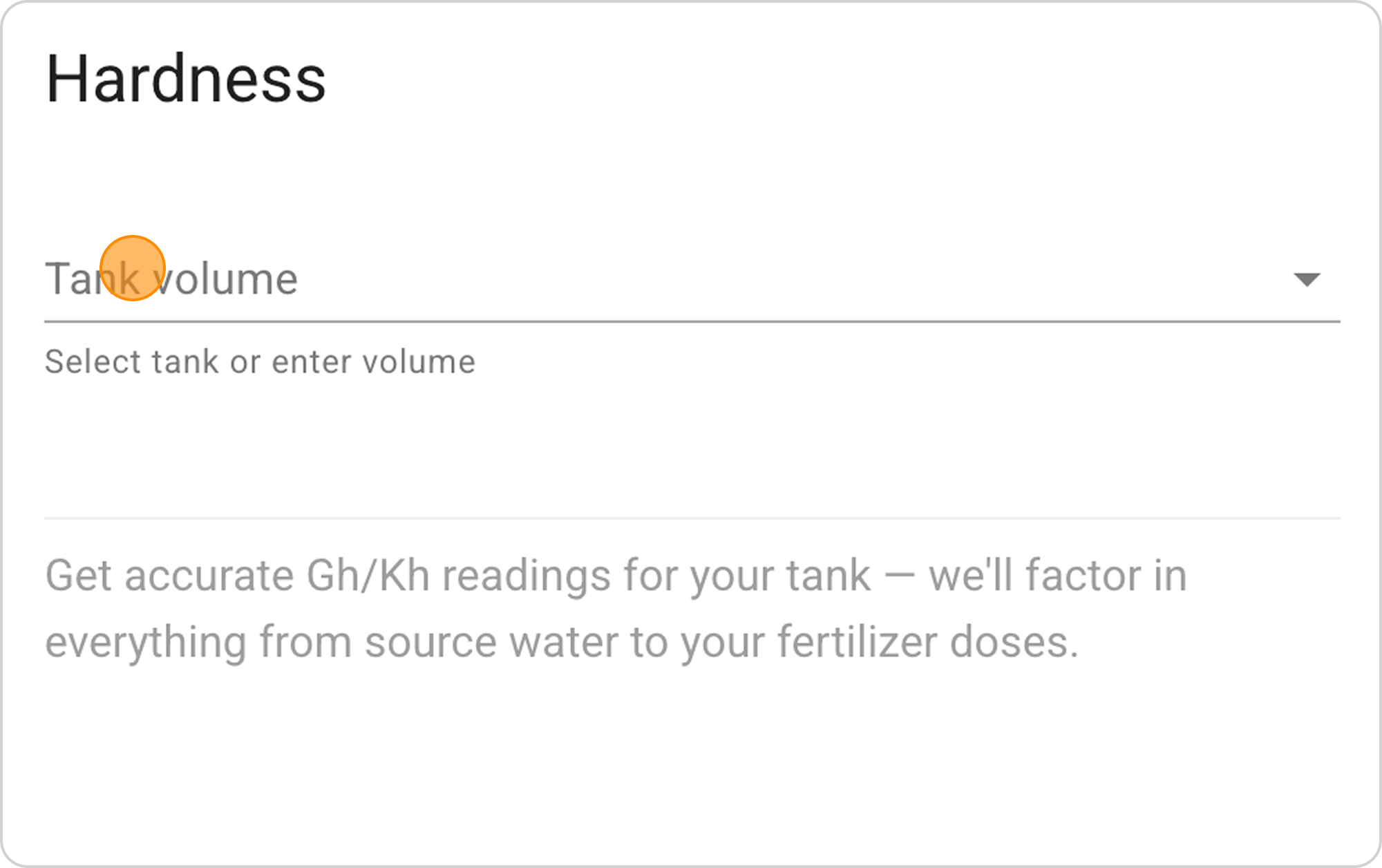
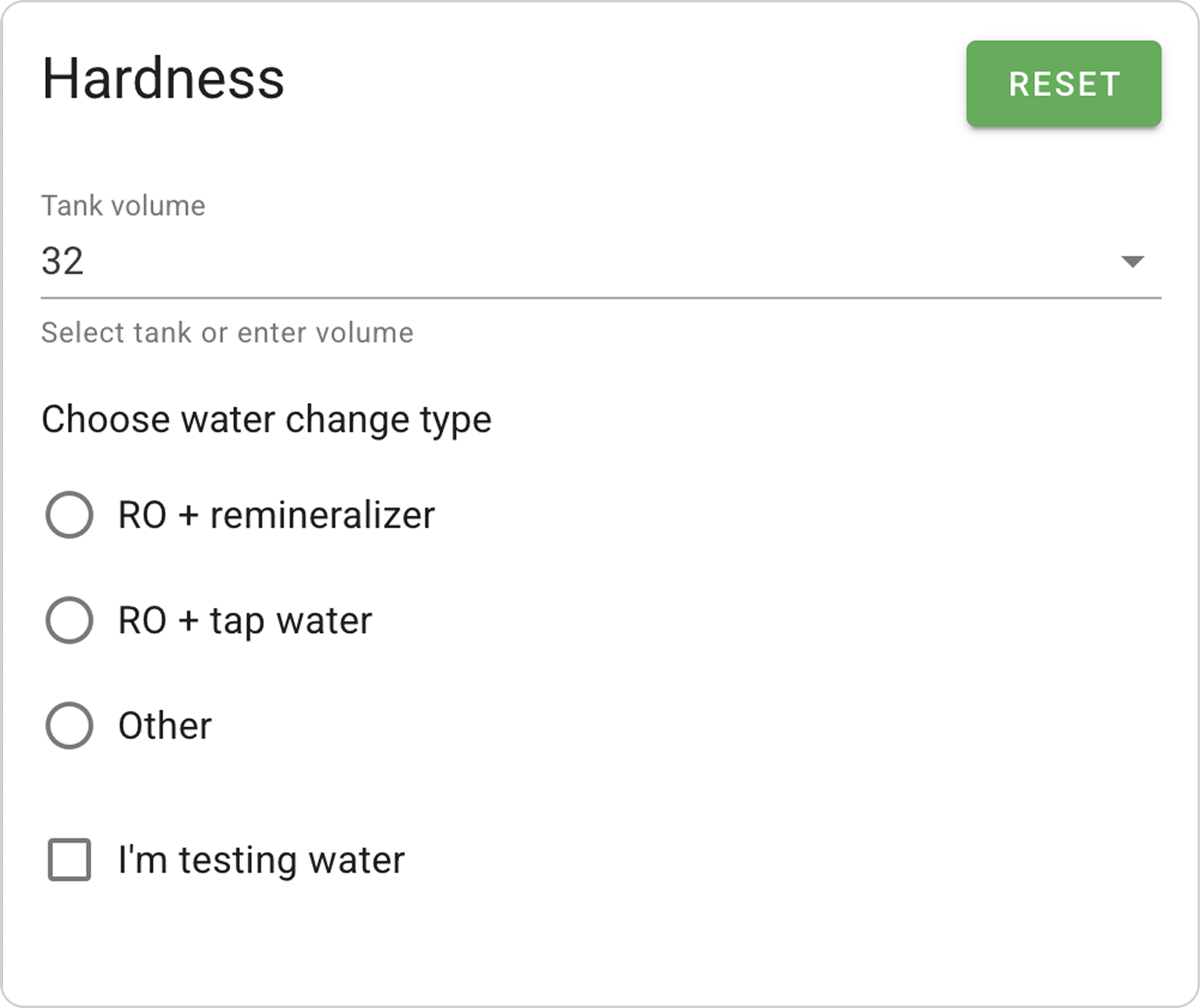
- In the "Tank volume" field, enter "32" L
Step 2: Configure Water Change Type
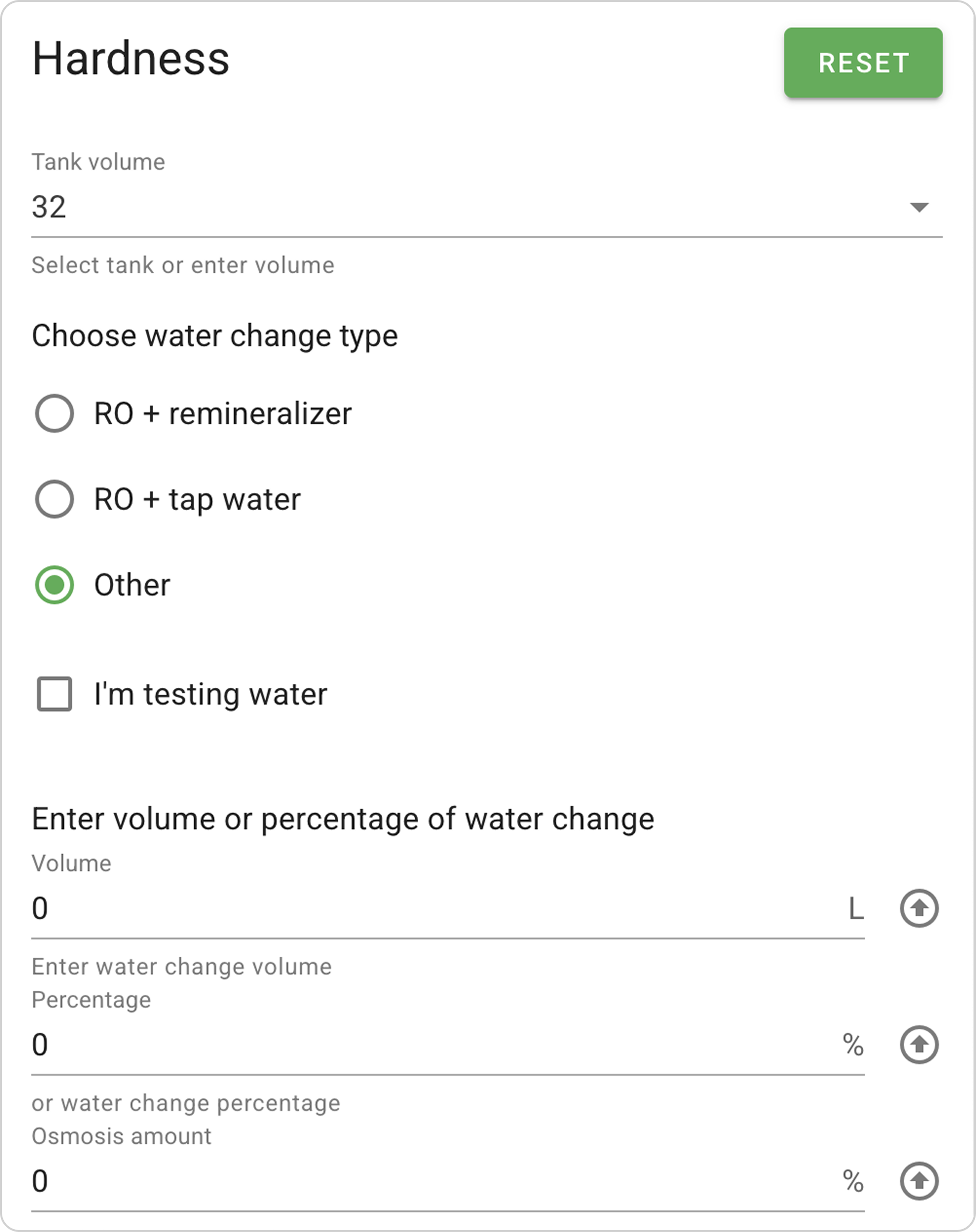
- Select the "Other" water change type
Step 3: Enter Water Change Volume
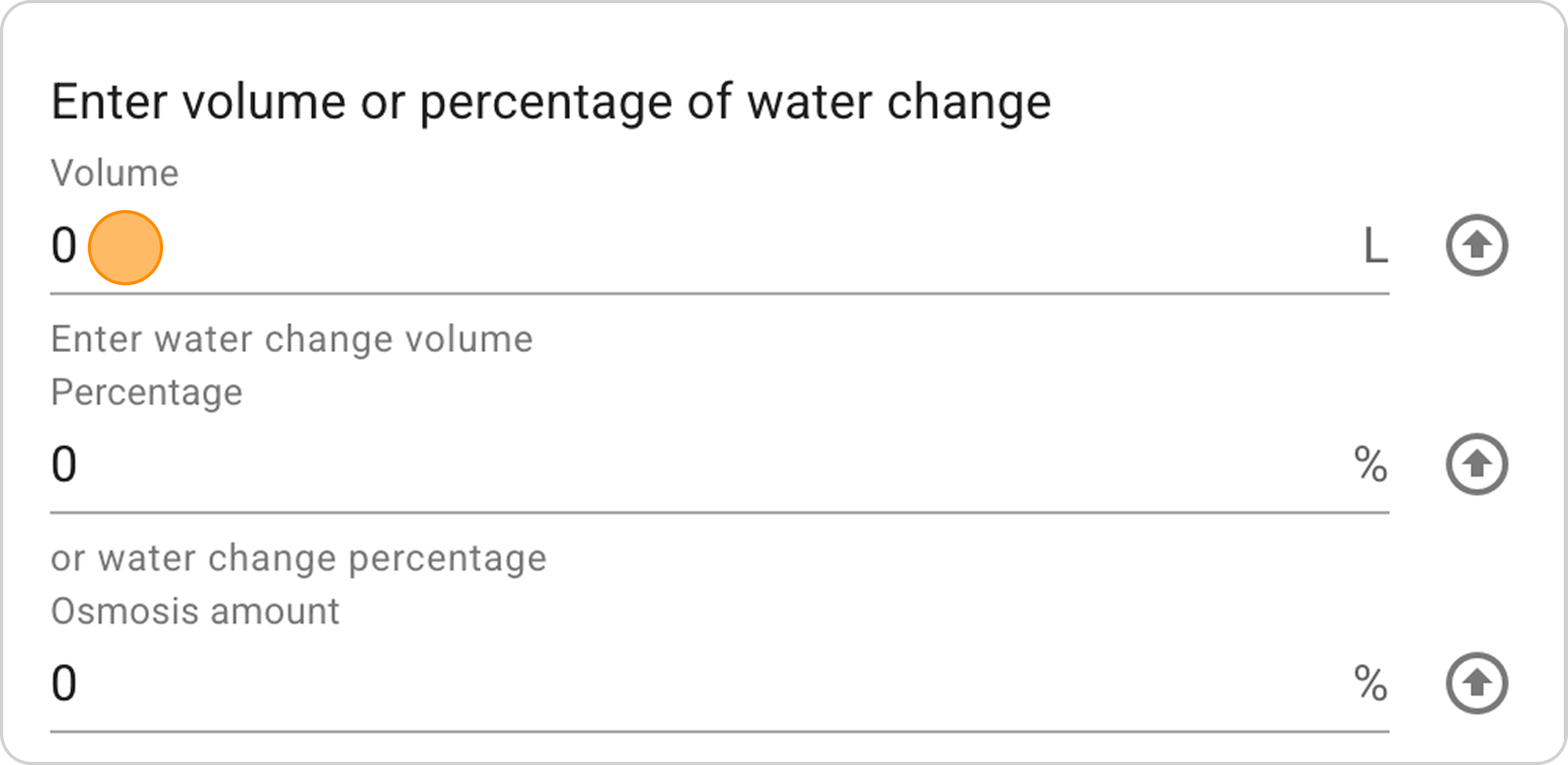
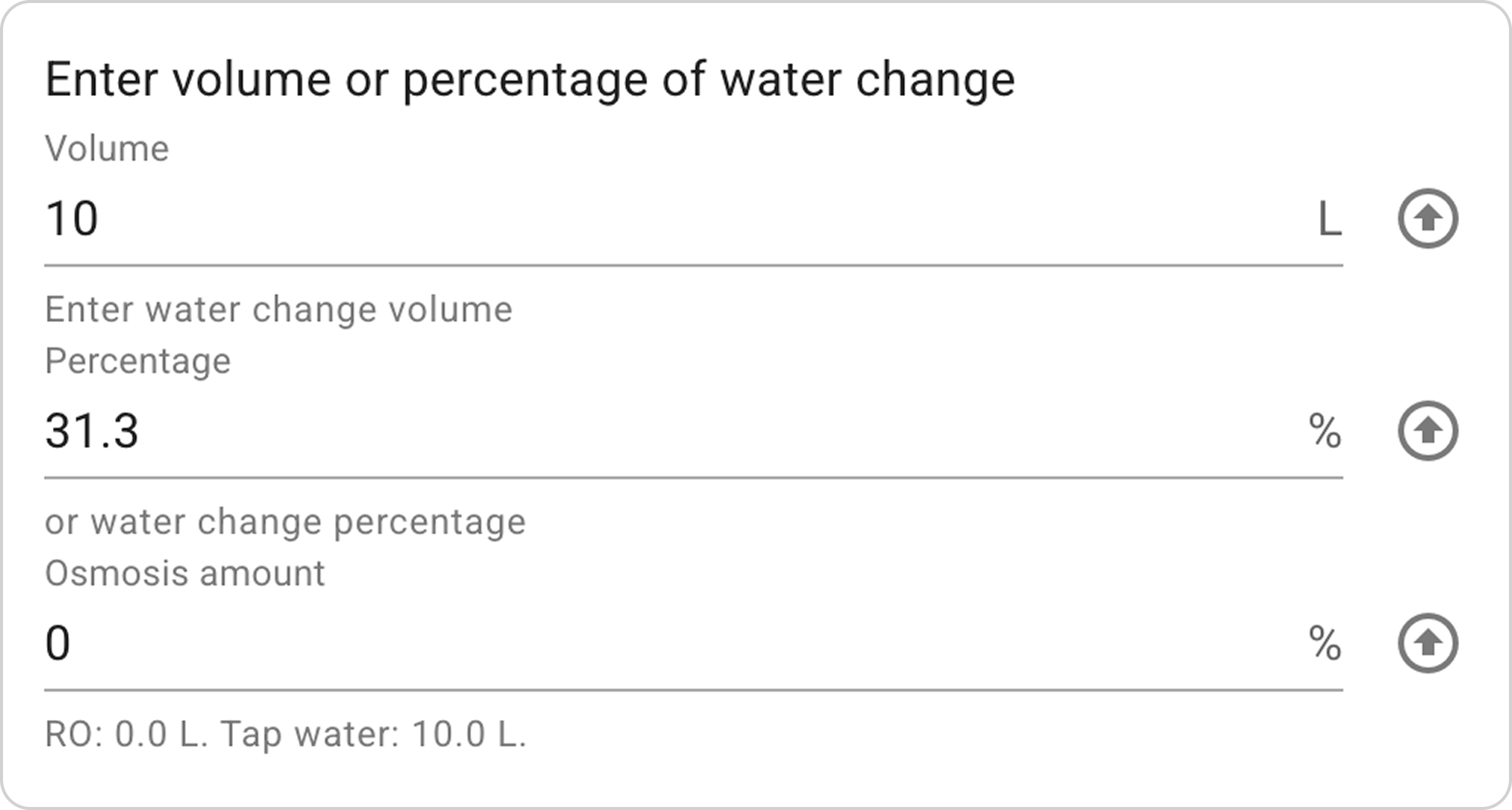
- In the "Enter volume or water change percentage" section:
- In the "Volume" field enter "10" L
- The system will automatically calculate "Percentage".
Step 4: Enter Tap Water Parameters
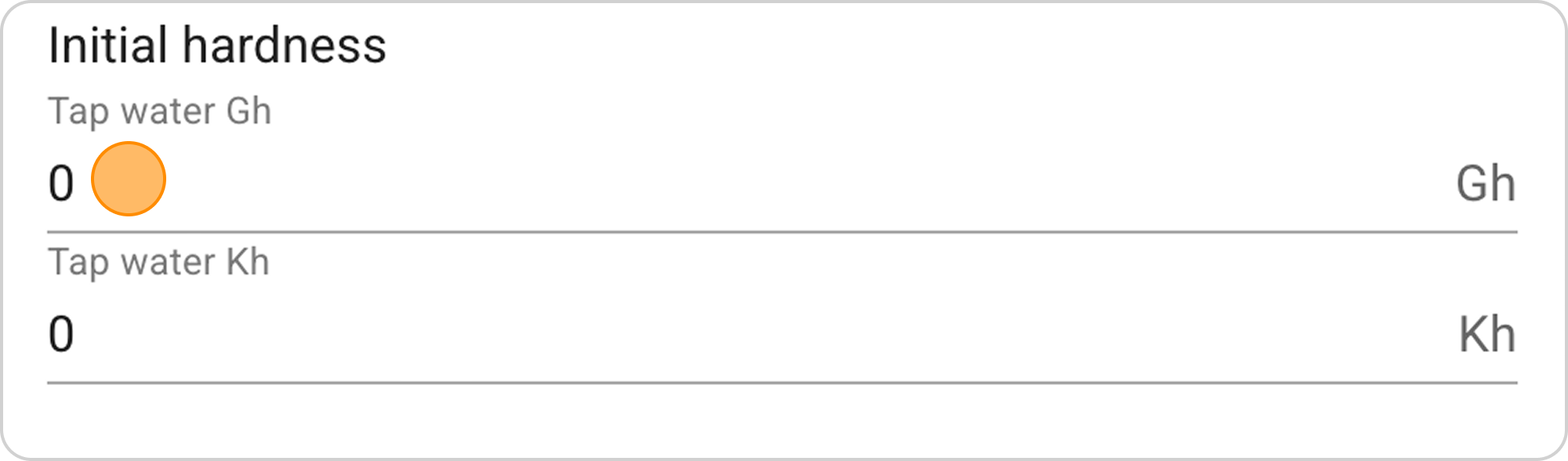
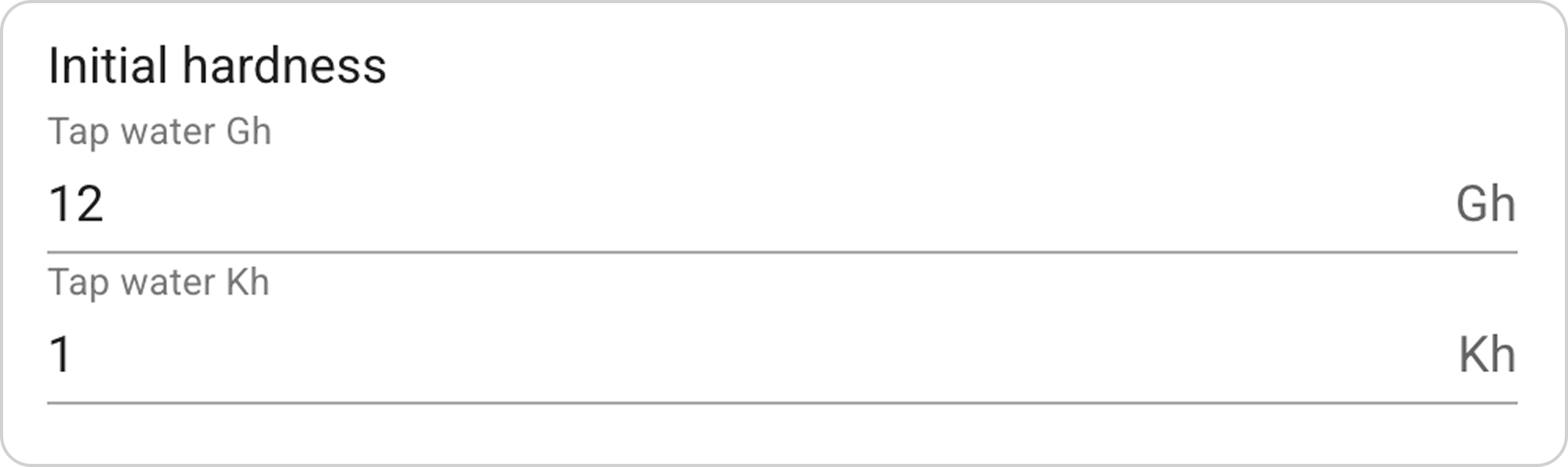
- In the "Tap water Gh" field, enter the value "12"
- In the "Tap water Kh" field, enter the value "1".
Step 5: Select RO and Tap Water Mixing Proportions
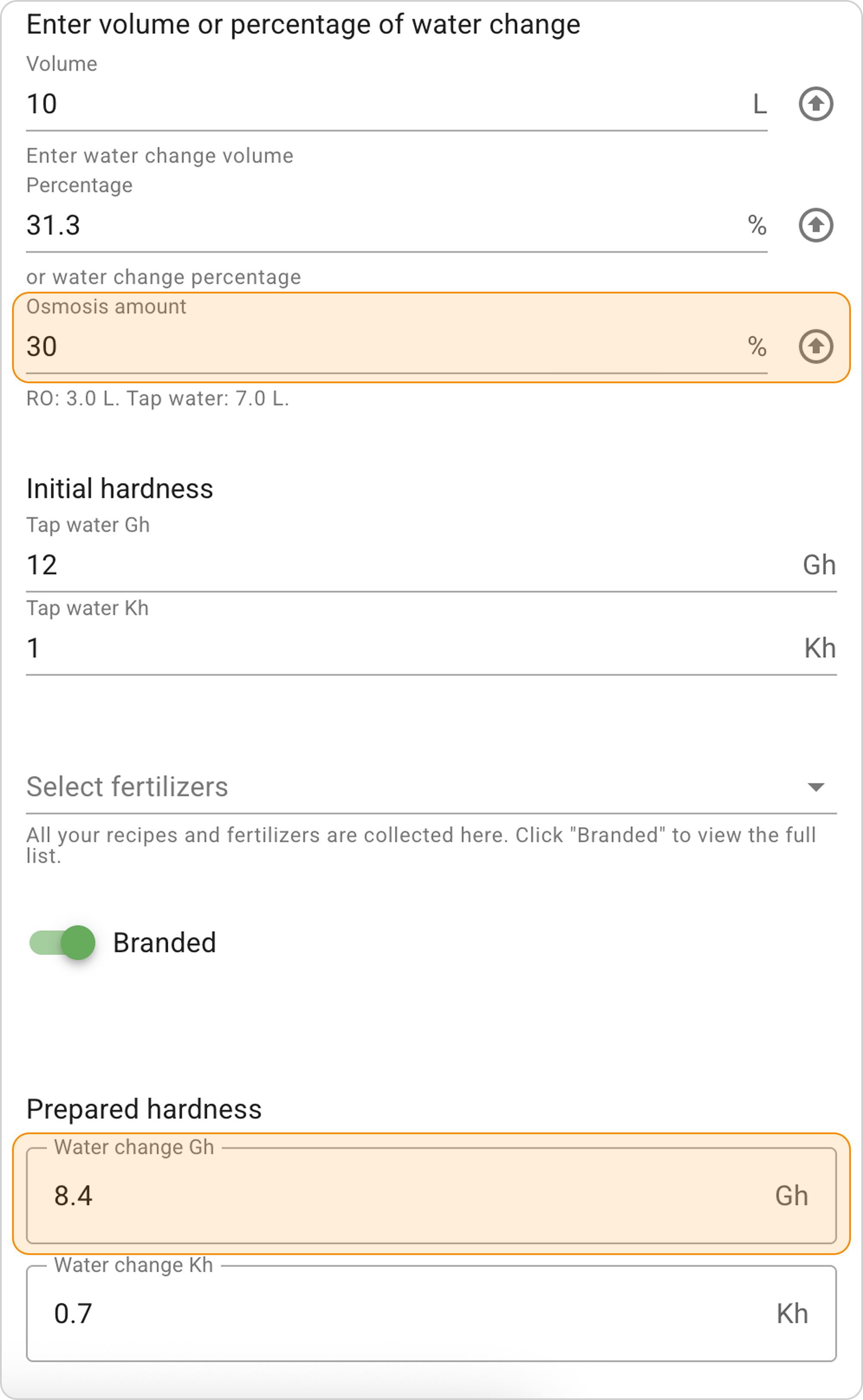
Now begins the process of selecting the correct proportion of diluting tap water with RO to achieve the desired general hardness Gh indicator. Specify the RO percentage, and the system automatically calculates Gh hardness in the aquarium.
- In the "Osmosis amount" field, enter "30" % - the system will calculate the hardness indicator Gh=8.4.
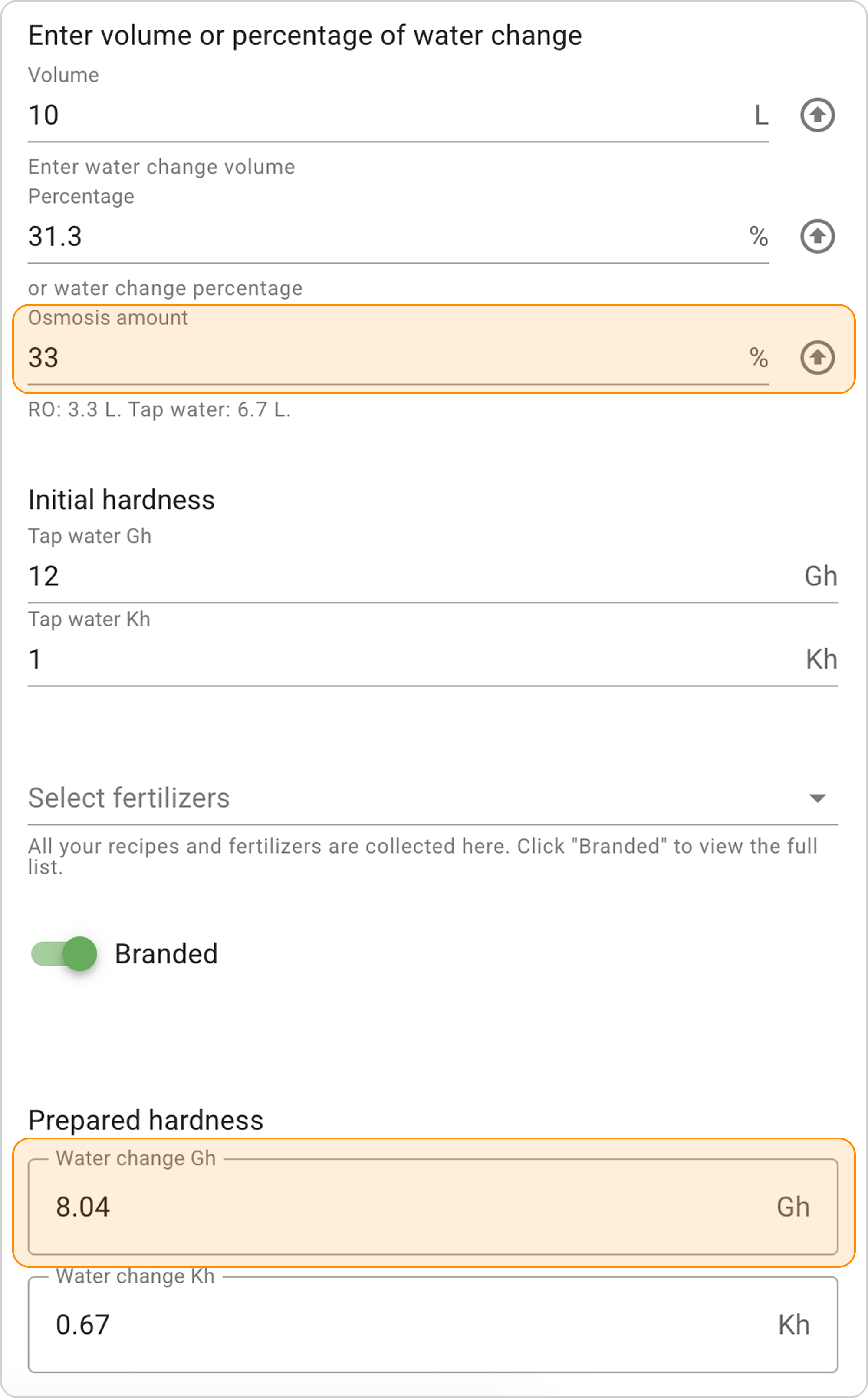
- Slightly increase the entered value and enter "33" %** in the "Osmosis amount" field. The system will calculate hardness indicators Gh~8.
Step 6: Select Remineralizer
- Click on the "Select fertilizers" dropdown menu
- Select the remineralizer to increase Kh named "Kh+".
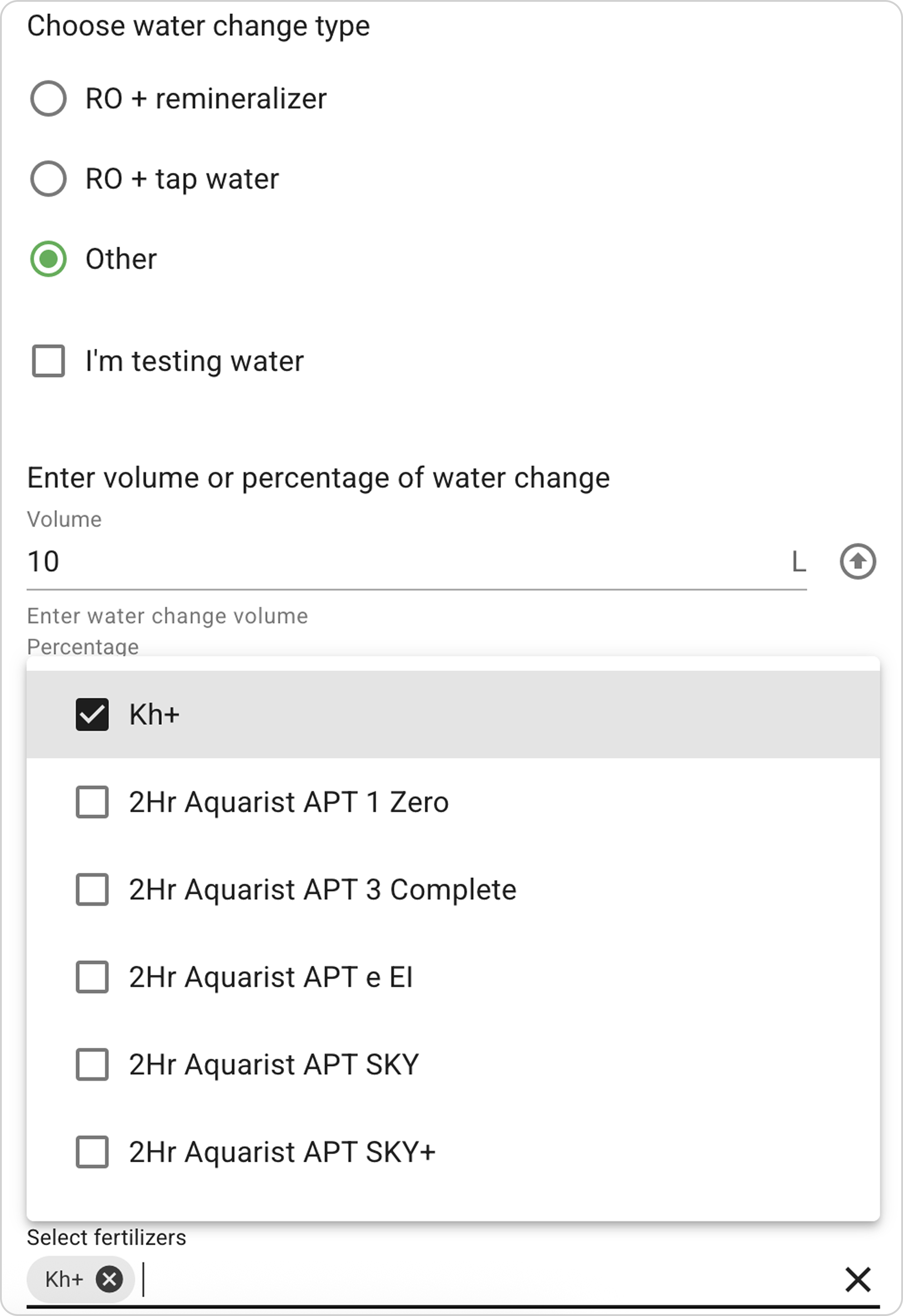
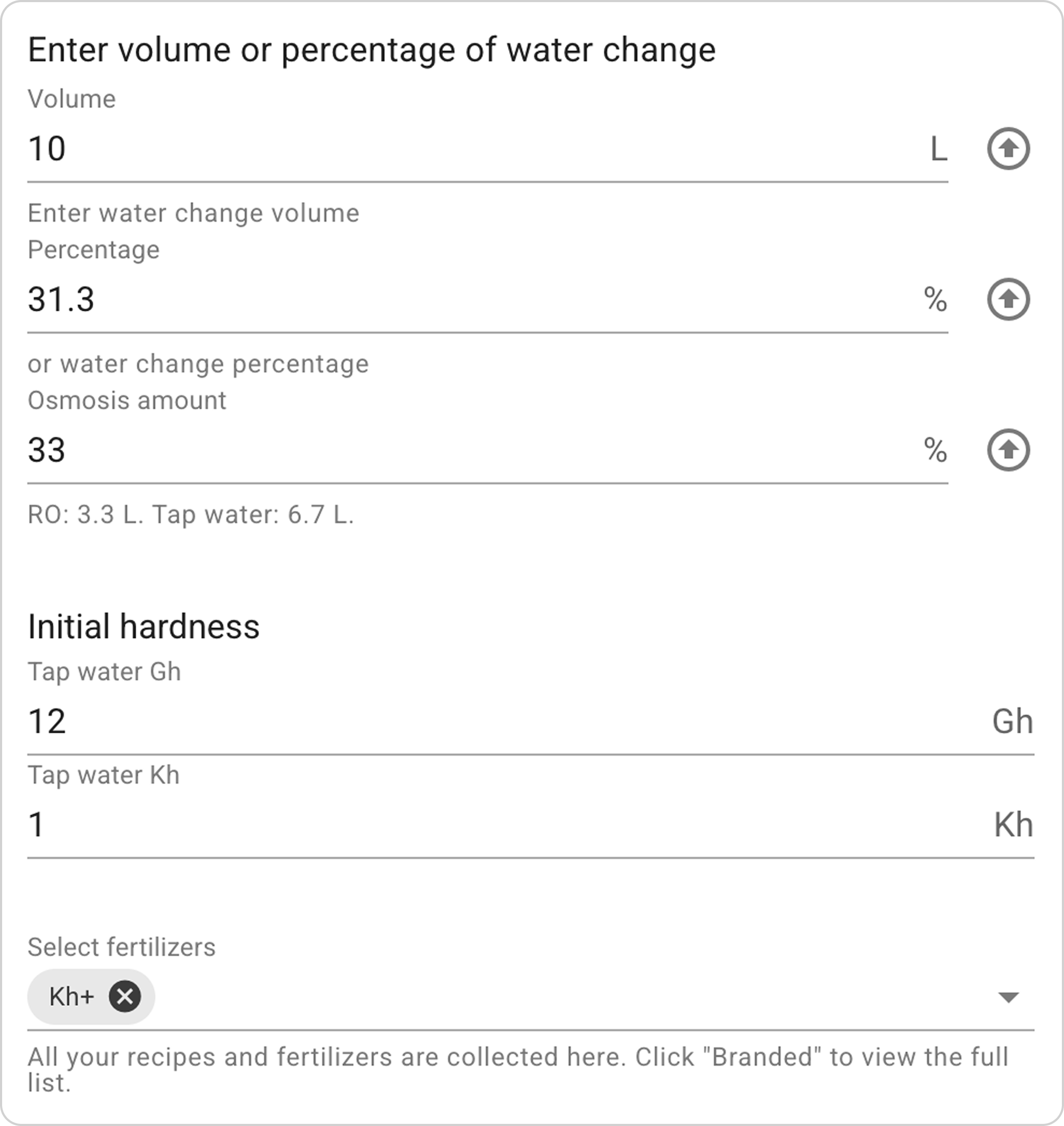
⚠️ Important! The Kh+ remineralizer must be created in the Remineralizers section, only after that it will become available for selection. To create, use the guide
"How to Create a Kh+ Remineralizer to Increase Carbonate Hardness?"
Step 7: Configure Remineralizer Dosage
- In the "Kh+" field, enter the number of grams "1" to change the Kh indicator in the "Prepared hardness" section in the "Water change Kh" window.
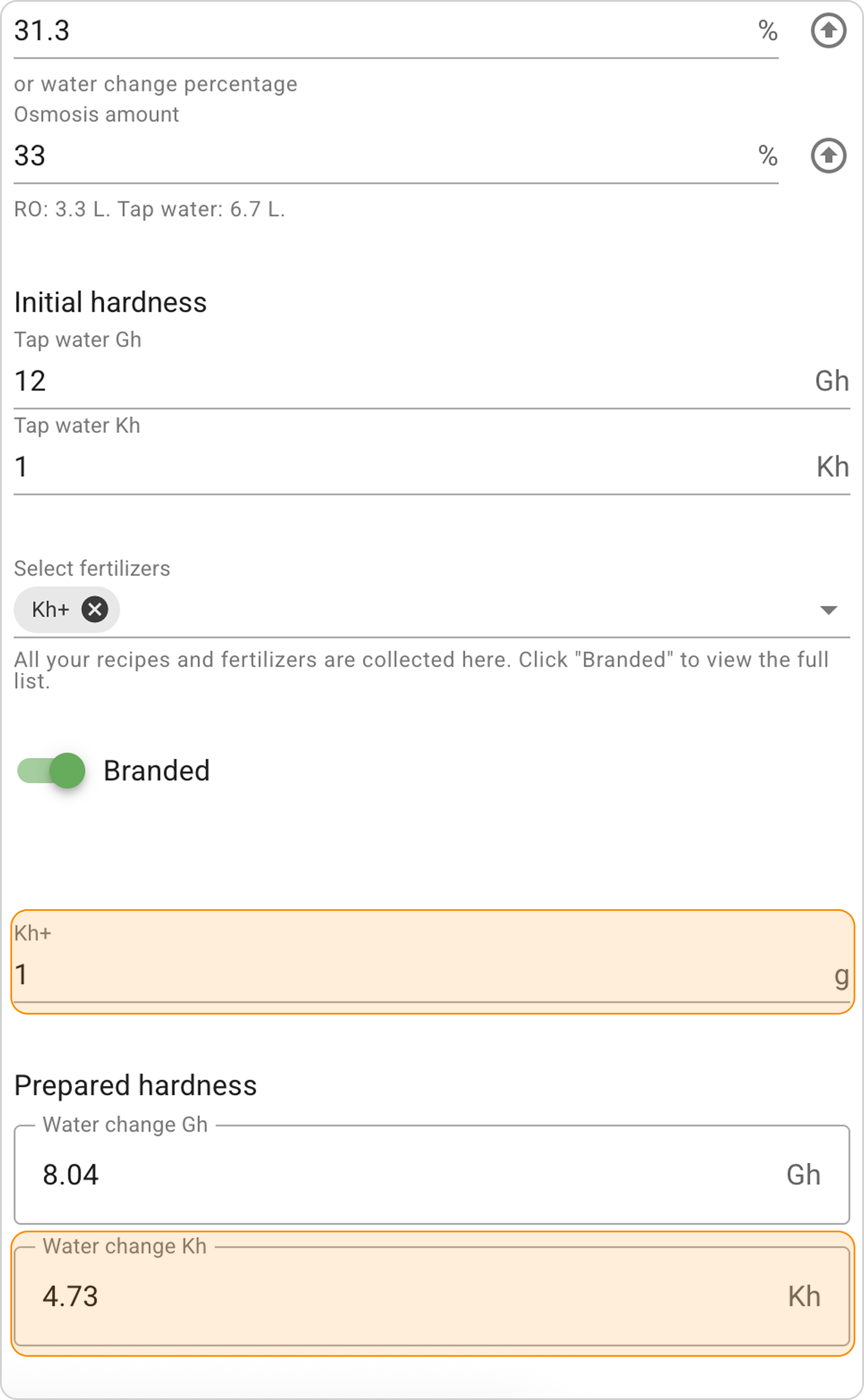
- In this case, 1 g of Kh+ remineralizer gives the desired result Kh~5.
Result Interpretation
With the setting 33% RO + 67% tap water and adding 1 g of "Kh+" remineralizer, we get the following results:
Mixing volumes:
- 3.3 L of RO water (33% of 10 L)
- 6.7 L of tap water (67% of 10 L)
Prepared water parameters:
- In 10 L of water change, we get hardness indicators Gh=8.04 and Kh=4.73.
Final result in the aquarium:
After replacing 10 L of water, the aquarium water hardness indicators will change as follows:
- Gh will decrease from 12 to 8
- Kh will increase from 1 to 4.73.
Related Materials
- Features of Working with the Hardness Section
- Calculating Remineralizer Dosage: Step-by-Step Guide for RO Water
- Calculating RO and Tap Water Proportions for Aquarium
- Calculating Complex Water Preparation Schemes: Activating the "I Test Water" Option
- How to Use Ready-Made Recipes?
- How to Fine-Tune Dosing in Samomes?
- How to Use the Fertilizer Dosing Schedule in Samomes?